Identify the completed music source
Use the source task ID from a completed music generation. Keep the title and candidate information with the request so the returned artwork can be reviewed in the correct project context.

Use a completed music-generation task as the source for cover artwork. Generate Music Cover takes the source task_id, processes its cover request and exposes image information through music details. Review the returned cover images with the music’s title and mood, then retain the selected artwork and source association for a player, music collection or project presentation.
Vidgo provides access to Generate Music Cover through PoYo’s music-tool integration. Model and tool names and trademarks belong to their respective owners.Choose the completed music task whose artwork you want to prepare. Open the existing cover task, provide the source identifiers requested by its form and inspect the image result. Review the returned image and its source task before choosing the artwork.
Prepare the task_id returned by a completed music generation. The API uses that source task to generate associated cover images; the existing online form also asks for a candidate audio_id. Submit the source information, retain the processing task ID and review image_url and available generate_cover information in the music-detail result.
| Model / task | Input and workflow |
|---|---|
| Generate Music Cover | Generate alternative cover versions of existing music tracks. Create variations with automatic style changes while maintaining the essence of the original composition. Perfect for producing multiple versions or exploring different interpretations of your generated music. |
Use the input required by this operation and inspect the returned result together with its source. The guidance below explains how to prepare the request, review the output and retain the information needed for the next creative or development step.
Use the source task ID from a completed music generation. Keep the title and candidate information with the request so the returned artwork can be reviewed in the correct project context.
{
  "model": "generate-music-cover",
  "input": {
    "task_id": "I166O5QSF88J1HOD"
  }
}Submit the source task through the existing cover-image operation. Retain the new processing identifier and retrieve the completed image information from music details.

Read image_url and available generate_cover information in the completed result. Review all available image entries before selecting the artwork to use.
{
  "model": "generate-music-cover",
  "input": {
    "task_id": "WC08A0TNOI23JRRE"
  }
}Compare the image with the track’s title, mood and planned presentation. Inspect the composition and usable area before placing the artwork in a player or music collection.

Retain the source task, processing task and selected cover URL together. Reuse the existing cover association when preparing another presentation of the same completed music.
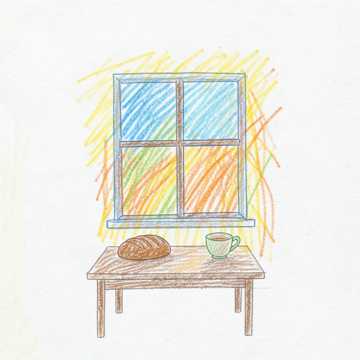
The completed Harbor Paper Lanterns and Windows After Rain source tasks each returned two new cover images. The source audio remains available for comparison. Inspect the returned generate_cover artwork alongside each track’s title and musical mood when choosing a player or project-presentation image.
{ "task_id": "I166O5QSF88J1HOD" }

{ "task_id": "WC08A0TNOI23JRRE" }

Use the completed source music task belonging to your account. Keep its title, candidate information and audio available when reviewing the artwork. A source task has an associated cover-generation task; reuse the existing association when it has already been created.
Prepare a completed music task and retrieve its associated artwork. Review the selected image in the player’s cover area together with the track title.
Retain the selected artwork with the source music information. Use the association to organize and display completed tracks in a collection or library interface.
Retrieve cover artwork for the selected music source and inspect the image with its title and mood. Use the reviewed cover in a project slide or creative proposal.
Compare the returned artwork with the intended character of the music. Record the selected cover and source association when reviewing the project’s visual direction.
Keep the cover URL with the completed track and supporting information. Review the composition in the planned page layout before preparing a music-content draft.
Retrieve the artwork already associated with a completed music source and retain the same identifiers. Use the reviewed image when preparing another layout for that track.
The price table reads the current catalog rate for a new processing request in this task. Preparing source music or submitting another music operation uses that operation’s own price. Review the current rate before submitting, retain the returned processing task ID and use the completed result when planning the next step.
| Tool | Provider | Operation | Input | Result type | Current rate |
|---|---|---|---|---|---|
| Generate Music Cover | PoYo | Music artwork generation | A completed source music task_id | Music cover images | $0.005 / request |
Prepare the source input, then review the completed result and its next use.
Open the task and provide the completed source task ID and candidate audio ID requested by the online form. Review the current price, submit the operation and inspect the returned cover images and result JSON. Keep the selected artwork with the source music information.
Use the existing task, current request rate and API documentation to connect source preparation, result review and the next music workflow.
Use the completed source music task belonging to your account. Keep its title, candidate information and audio available when reviewing the artwork. A source task has an associated cover-generation task; reuse the existing association when it has already been created.
Review the returned cover images against the music’s title, mood and planned presentation. Read the complete cover data to identify available images and retain the selected URL with the source task. Use the reviewed artwork in the intended layout and reuse the existing source association when retrieving it later.
The price table reads the current catalog rate for a new processing request in this task. Preparing source music or submitting another music operation uses that operation’s own price. Review the current rate before submitting, retain the returned processing task ID and use the completed result when planning the next step.
Submit model: generate-music-cover with input.task_id from the completed source. Retain the returned processing task_id and query music details to inspect image_url and the available cover data. Preserve the source association with the selected image.
Authenticate with your Vidgo API credentials and submit the exact model identifier with the required input fields. Retain the returned processing task_id so your application can track the operation and retrieve its result. Use the task documentation when configuring any completion notification.
Query /api/generate/detail/music?task_id=YOUR_PROCESSING_TASK_ID with the returned processing ID, or handle the configured notification. When the task finishes, inspect the operation-specific result in files and retain its source association. Review the returned cover images against the music’s title, mood and planned presentation. Read the complete cover data to identify available images and retain the selected URL with the source task. Use the reviewed artwork in the intended layout and reuse the existing source association when retrieving it later.
Use a completed music-generation task as the source for cover artwork. Generate Music Cover takes the source task_id, processes its cover request and exposes image information through music details. Review the returned cover images with the music’s title and mood, then retain the selected artwork and source association for a player, music collection or project presentation.
Read music-tool introductions, API guides and platform comparisons to understand required sources, returned results, request costs and follow-up workflows.