Veo 3.1 text and frame-guided video generation

Veo 3.1 creates video scenes from text or prepared image frames, with Official and fixed-duration tasks grouped on this page. Official generation offers 4, 6 or 8 seconds, a sound setting and 720p, 1080p or 4K; its image task accepts a starting frame and optional ending frame. The other Veo 3.1 tasks create 8-second clips at those resolutions, and image generation uses exactly two ordered frames. Describe the subject, action, camera and visual details to preserve, then select the task whose input, duration and billing unit match your project.

Veo 3.1 is developed by Google. Vidgo provides access to the model. Model names and trademarks belong to their respective owners.

Explore Veo 3.1 Models

Choose Text to Video for a written scene or Image to Video for prepared frames. Use the Official task for its 4/6/8-second duration and sound settings, preparing one or two images for its image workflow. Use the other task for a fixed 8-second request, with two first/last images for image generation. Review the full cost for the selected workflow before submitting.

Veo 3.1 Text and Frame-Guided Video Tasks

A text request describes the whole scene. Official image generation uses one starting image or two first/last images, while the fixed-duration image task requires exactly two. The prompt explains the movement between those states and the camera and geometry to preserve. Keep the selected task’s model identifier and timing fields together when moving from an online test to the API.

Model / taskInput and workflow
Veo 3.1 Official Text-to-VideoGoogle Veo 3.1 Official flagship video model family with Quality, Fast, and Lite tiers featuring cinematic physics, multi-axis camera control, first/last-frame interpolation, synchronized native audio, and 4K workflows.
Veo 3.1 Official Image-to-VideoGoogle Veo 3.1 Official flagship video model family with Quality, Fast, and Lite tiers featuring cinematic physics, multi-axis camera control, first/last-frame interpolation, synchronized native audio, and 4K workflows.
Veo 3.1 Text-to-VideoGoogle DeepMind's 1080p video model with native audio generation, scene extension to 60+ seconds, and advanced creative controls for cinematic storytelling.
Veo 3.1 Image-to-VideoGoogle DeepMind's 1080p video model with native audio generation, scene extension to 60+ seconds, and advanced creative controls for cinematic storytelling.

Veo 3.1 Train Arrival and Mechanical Transition Examples

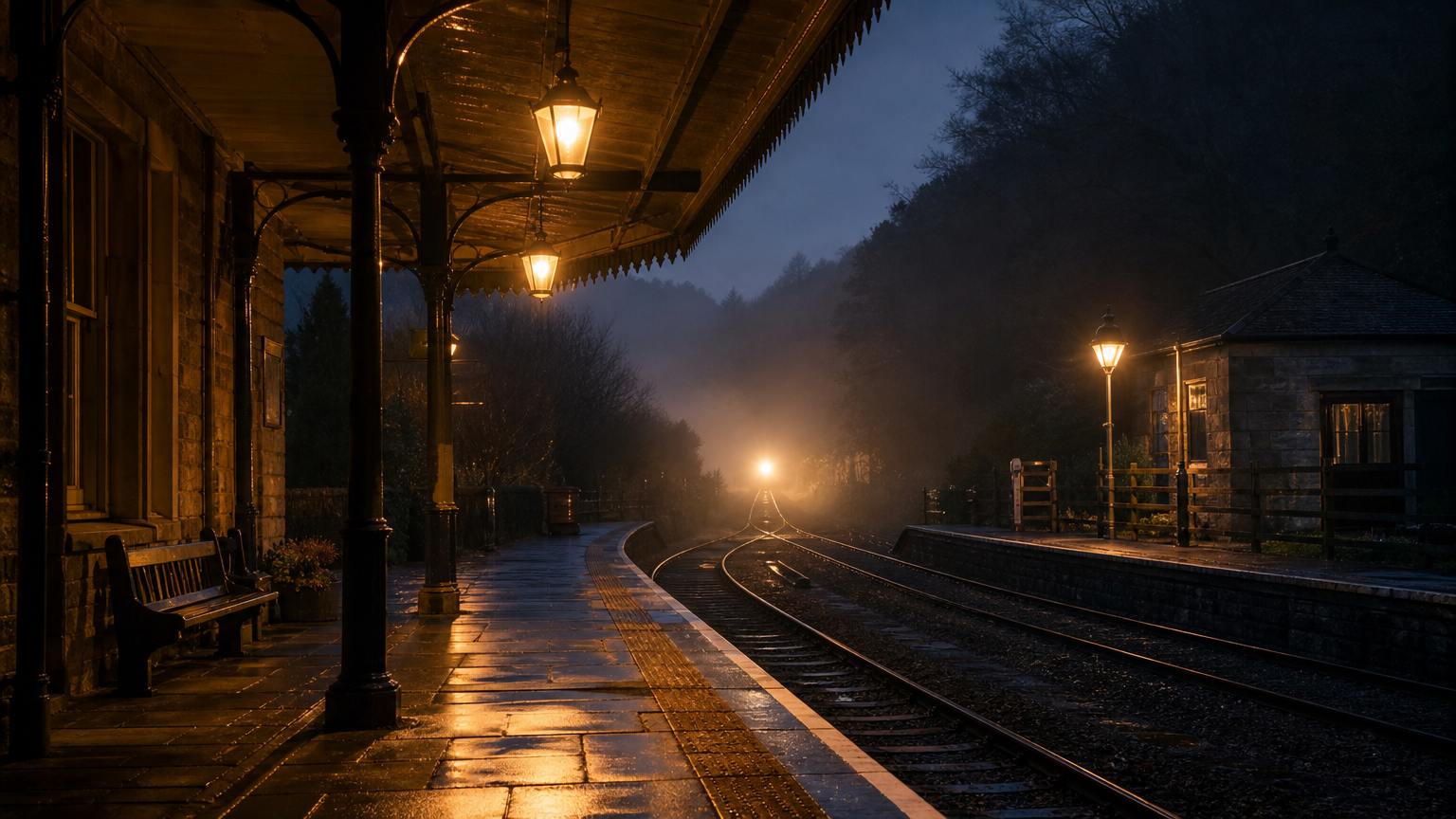
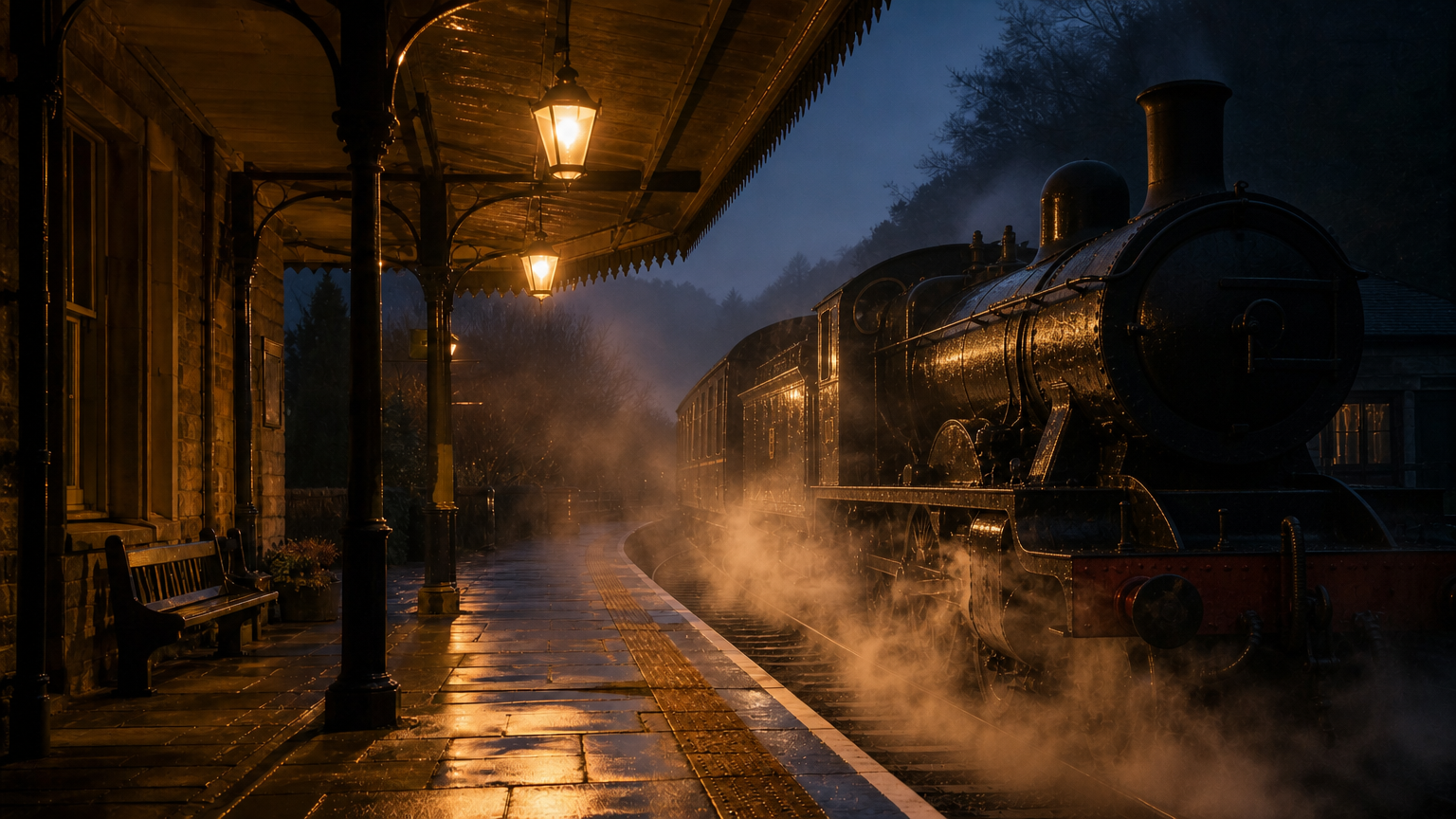
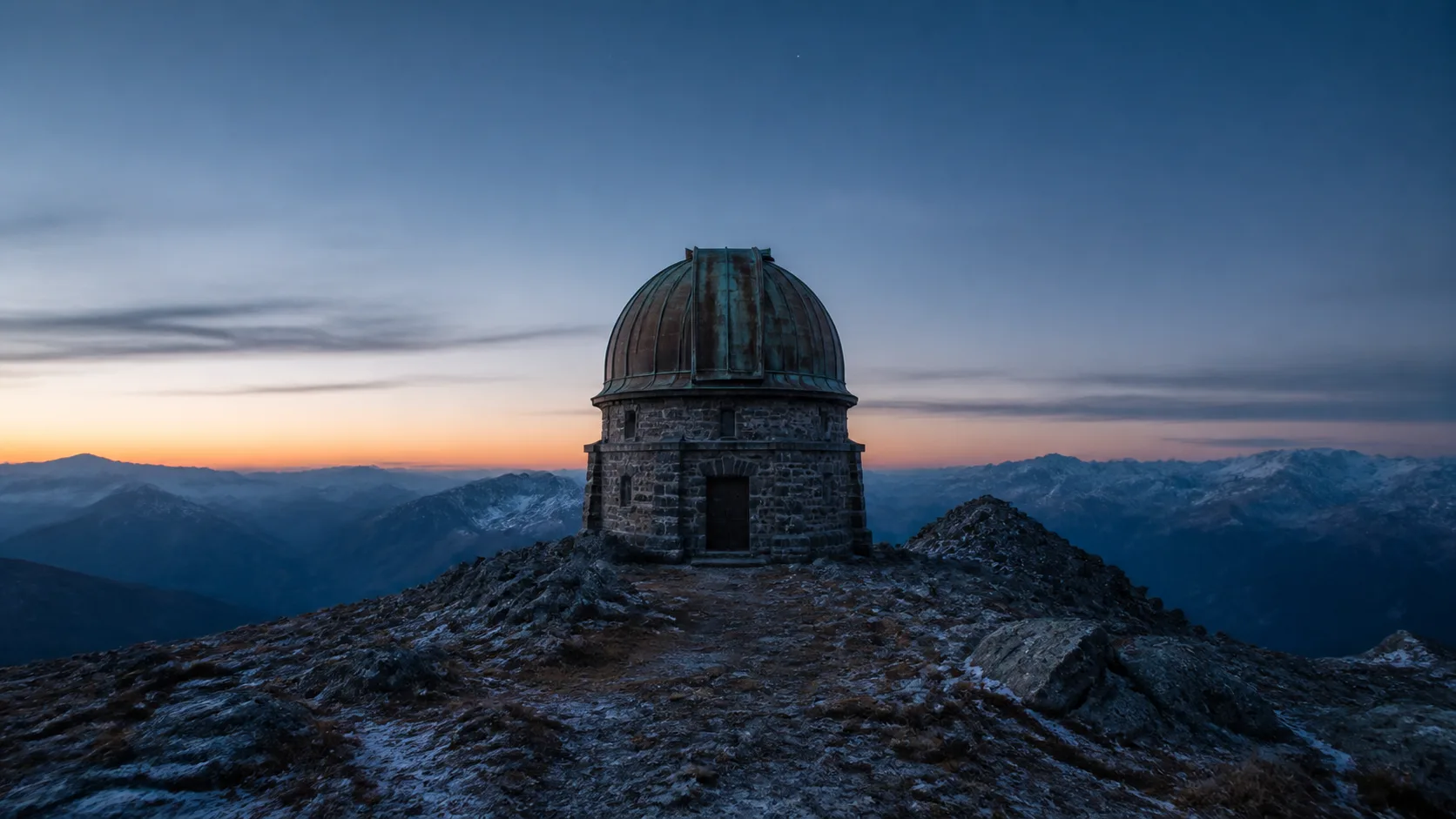
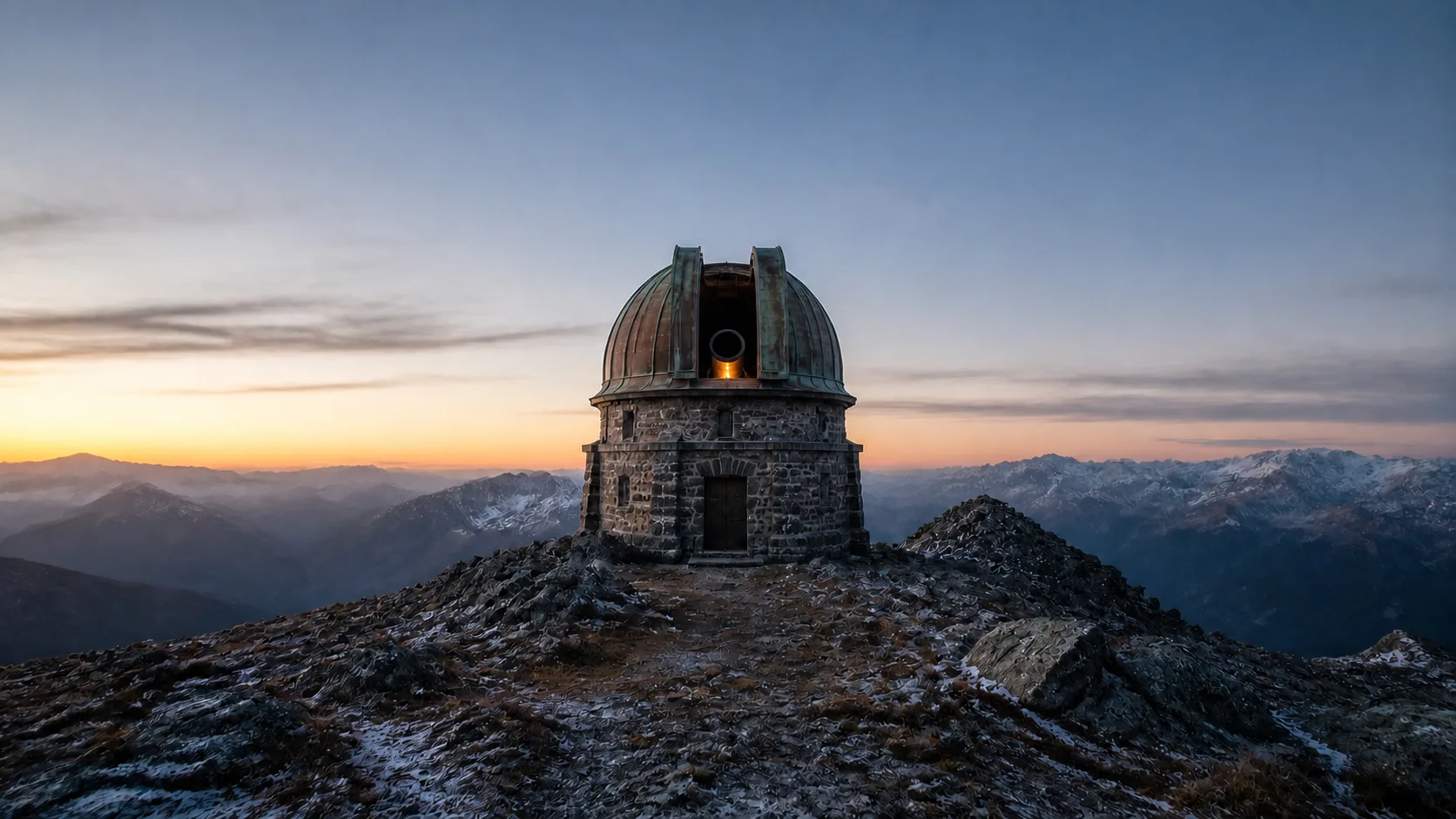
The Official example supplies a train’s first and last frames and requests an 8-second 720p arrival with sound enabled. The fixed-duration example supplies the closed and opening observatory states and requests an 8-second 720p mechanical transition. Read the full prompts and compare each pair of source frames with its corresponding actual output, inspecting movement, structure, camera and the requested sound where enabled.

Prompt

A black steam locomotive rolls into a heritage platform at dusk and slows to a stop, beginning as a distant headlight glow and ending enveloped in thick white steam. Fixed platform-level camera, warm lamp reflections sliding across wet metal. Natural sound: approaching chug, one long whistle, brake squeal, the hiss of released steam. Realistic motion, no text, no logos.

Official starting frame
Official ending frame

Prompt

One continuous locked-off shot that moves naturally from the first frame to the second. The copper observatory dome shutters separate slowly and evenly, revealing the dark telescope aperture and a narrow warm interior glow as dawn brightens slightly. Preserve the stone building, dome geometry, mountain silhouette, frost, camera position and composition. Motion should be mechanical, restrained and physically believable. No new objects, no people, no text, no logos, no brands, no products, no advertising, no watermark.

Starting frame
Ending frame

Creative Use Cases for Veo 3.1

Prepare a written brief for wildlife, weather or narrative motion, or first/last images for an existing visual sequence. Describe the action, camera and preserved details, choose the matching Official or fixed-duration task and review its full estimate. Inspect the output for storyboards, environmental studies, mechanical demonstrations, character scenes or an integrated video workflow.

Develop a wildlife scene

Write the animal, path, environment and camera, and configure sound in the Official task when needed. Review anatomy, scene continuity and the requested audio for a documentary visual concept.

Study rain, water or moving light

Describe the material’s movement and camera path, then choose the task and duration. Inspect water behavior, reflections and depth for an environmental scene proposal.

Connect prepared first and last frames

Supply compatible endpoints and explain the movement between them. Review the completed clip against geometry, lighting and the intended final state for a transition concept.

Show a mechanical opening or movement

Prepare the frame states and identify hinges, shutters or other moving parts. Keep the camera and surrounding structure defined, then inspect the result for an explanatory animation.

Plan an Official shot with sound

Describe the audible events and their relationship to the action, choose 4, 6 or 8 seconds and select resolution. Review the full sound-tier estimate and inspect the generated shot for a narrative or atmosphere study.

Integrate the tested request

Retain the exact model, prompt, frame URLs and task-specific duration, resolution, framing and sound settings. Submit the authenticated request and track its task ID to retrieve the completed video.

Veo 3.1 Specifications and API Pricing

Official tasks are billed per second using the selected resolution, sound setting and 4/6/8-second duration. The other tasks are billed per 8-second video using the selected resolution. The dynamic table keeps each task’s current starting rate and billing unit. Multiply an Official per-second rate by the actual duration, then assess that complete estimate alongside the fixed-video price for the workflow your project needs.

ModelProviderWorkflowInput materialOutput specificationStarting rate
Veo 3.1 Official Text-to-VideoGoogleText to VideoText prompt4K$0.12 / second
Veo 3.1 Official Image-to-VideoGoogleImage to Video1–2 image frames4K$0.12 / second
Veo 3.1 Text-to-VideoGoogleText to VideoText prompt4K$1 / video
Veo 3.1 Image-to-VideoGoogleImage to VideoExactly 2 first/last frames4K$1 / video

How to Use Veo 3.1 on Vidgo

Test your creative brief online, then bring the verified request into your application.

Test online

Generate a result with your intended settings

Enter the scene or motion prompt and provide the frame count required by the task. Select resolution and framing; in Official, also select duration and sound. Review the full request estimate, generate and inspect movement, structure, the ending state and any requested audio.

Why Use Veo 3.1 on Vidgo

Choose a task, inspect its settings and cost, and follow the result from an online test to an authenticated API request.

Creative testing and task selection

Choose inputs around your creative goal

Choose text or image generation, then Official for its 4/6/8-second and sound controls or the fixed-duration task for 8 seconds. Official image generation accepts one or two frames; the other image task requires two. Select 720p, 1080p or 4K and configure the documented framing.

Test your own prompt and images

Open the matching task, enter your brief and supply the required images. Review the generated result against subject appearance, composition and the requested changes before carrying the workflow into a project.

Review the estimate before generation

Review Official duration, resolution and sound together, or the full 8-second price for the fixed-duration task. Use complete request amounts and the planned test count when comparing workflows and budgeting the project.

API integration and result management

Learn from complete recorded examples

Read the actual prompt and inspect its source images and result together. Use those examples to understand how to assign input roles and describe the details to preserve or change in your own request.

Track each generation with its task ID

Retain the task ID returned by the API to query status and retrieve completed file URLs. Use your online generation history to review earlier results and the creative direction you tested.

Follow the documentation for the selected task

Use the documentation linked from each task for its exact model identifier, accepted inputs, authentication and response format. Integrate the same task you tested online so its media and settings match the request.

Veo 3.1 API FAQ

Veo 3.1 is a Google video family with Official and fixed-duration text and image tasks on Vidgo. Official supports 4/6/8-second clips, sound and one or two image frames; the other tasks use 8 seconds and exactly two frames for image generation. Both task groups provide 720p, 1080p and 4K options.

Browse all models