Gemini Omni Flash video generation and editing up to 4K

Gemini Omni Flash creates new video from text, one image or exactly three visual references and edits an existing video through written instructions. For new generation, choose 4, 6, 8 or 10 seconds and describe the subject, action and camera. Assign the three references to the appearance you want to carry into a new scene, or supply one source video and identify the environment or visible content to modify. Select 720p, 1080p or 4K and landscape or portrait framing, then review the full per-generation estimate for the chosen task.

Gemini Omni Flash is developed by Google. Vidgo provides access to the model. Model names and trademarks belong to their respective owners.

Explore Gemini Omni Flash Models

Use Text to Video for a written scene, Image to Video for one prepared image and Reference to Video for exactly three images that guide a new shot. Use Video Edit for one existing clip and a change instruction. Prepare the selected task’s media and choose the matching duration and output settings.

Gemini Omni Flash Video Generation and Editing Tasks

Image to Video uses one image_urls entry as its visual starting material. Reference to Video uses exactly three image_urls to guide appearance in a new scene. Video Edit uses one video_urls entry for the clip to modify. Describe the action and preserved details in prompt; new generation uses duration, while editing uses the source clip and its editing fields.

Model / taskInput and workflow
Gemini Omni Flash Text to VideoGoogle Gemini Omni Flash video model with text-to-video, single-image image-to-video, 3-image reference-to-video, and natural-language video edit at 720p to 4K.
Gemini Omni Flash Image to VideoGoogle Gemini Omni Flash video model with text-to-video, single-image image-to-video, 3-image reference-to-video, and natural-language video edit at 720p to 4K.
Gemini Omni Flash Reference to VideoGoogle Gemini Omni Flash video model with text-to-video, single-image image-to-video, 3-image reference-to-video, and natural-language video edit at 720p to 4K.
Gemini Omni Flash Video EditGoogle Gemini Omni Flash video model with text-to-video, single-image image-to-video, 3-image reference-to-video, and natural-language video edit at 720p to 4K.

Gemini Omni Flash Multi-Reference Generation and Video Editing Examples

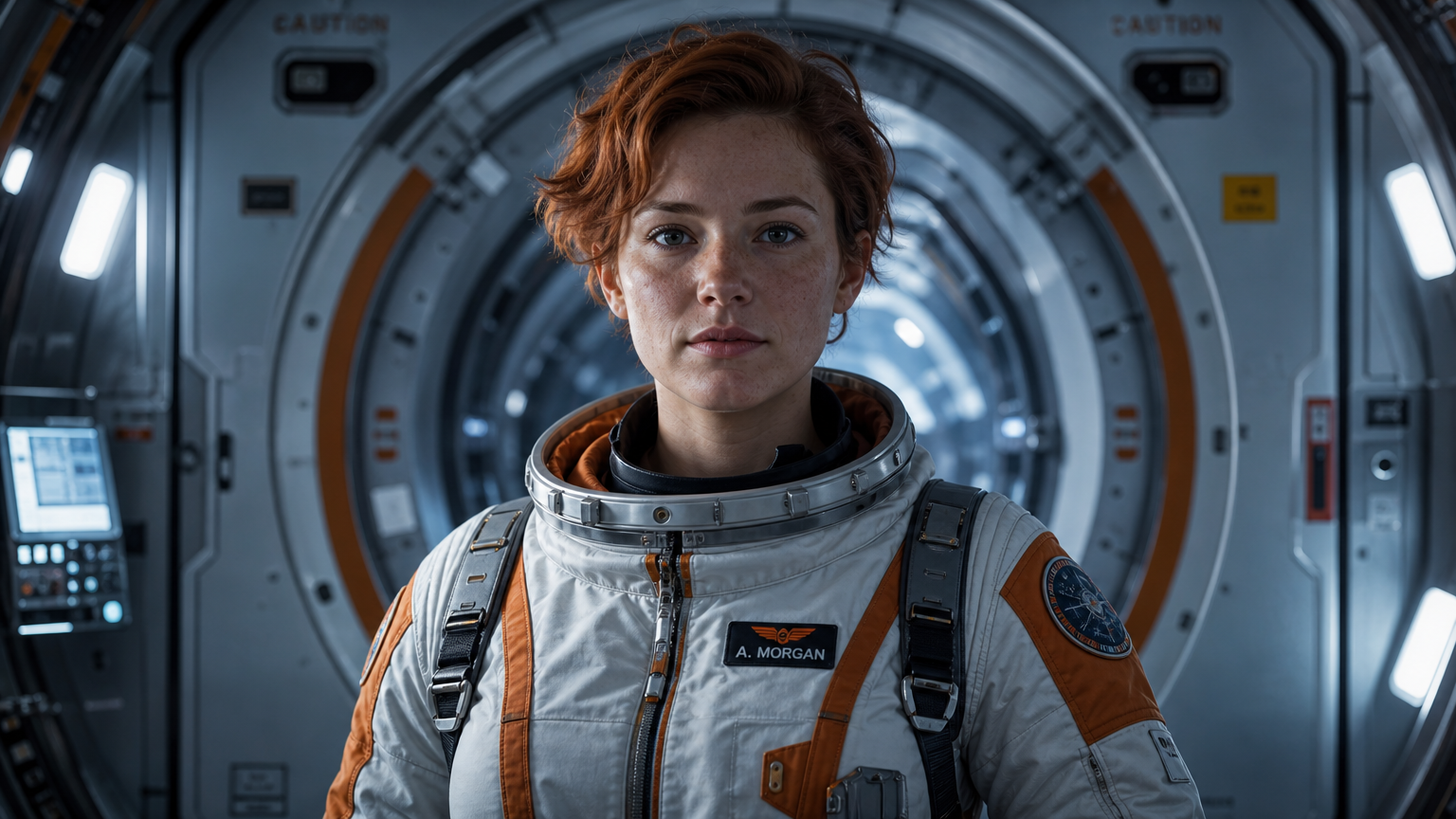
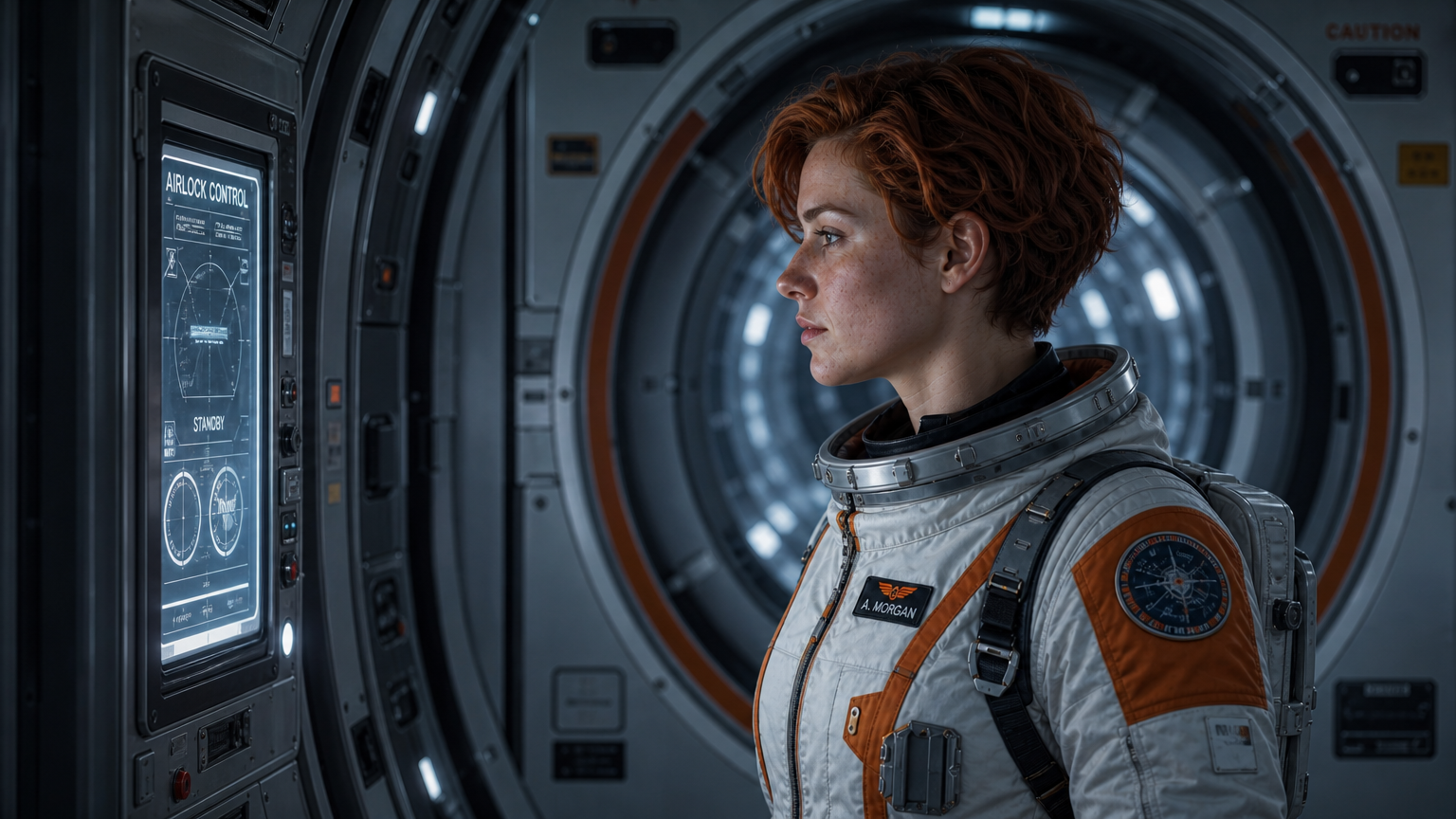
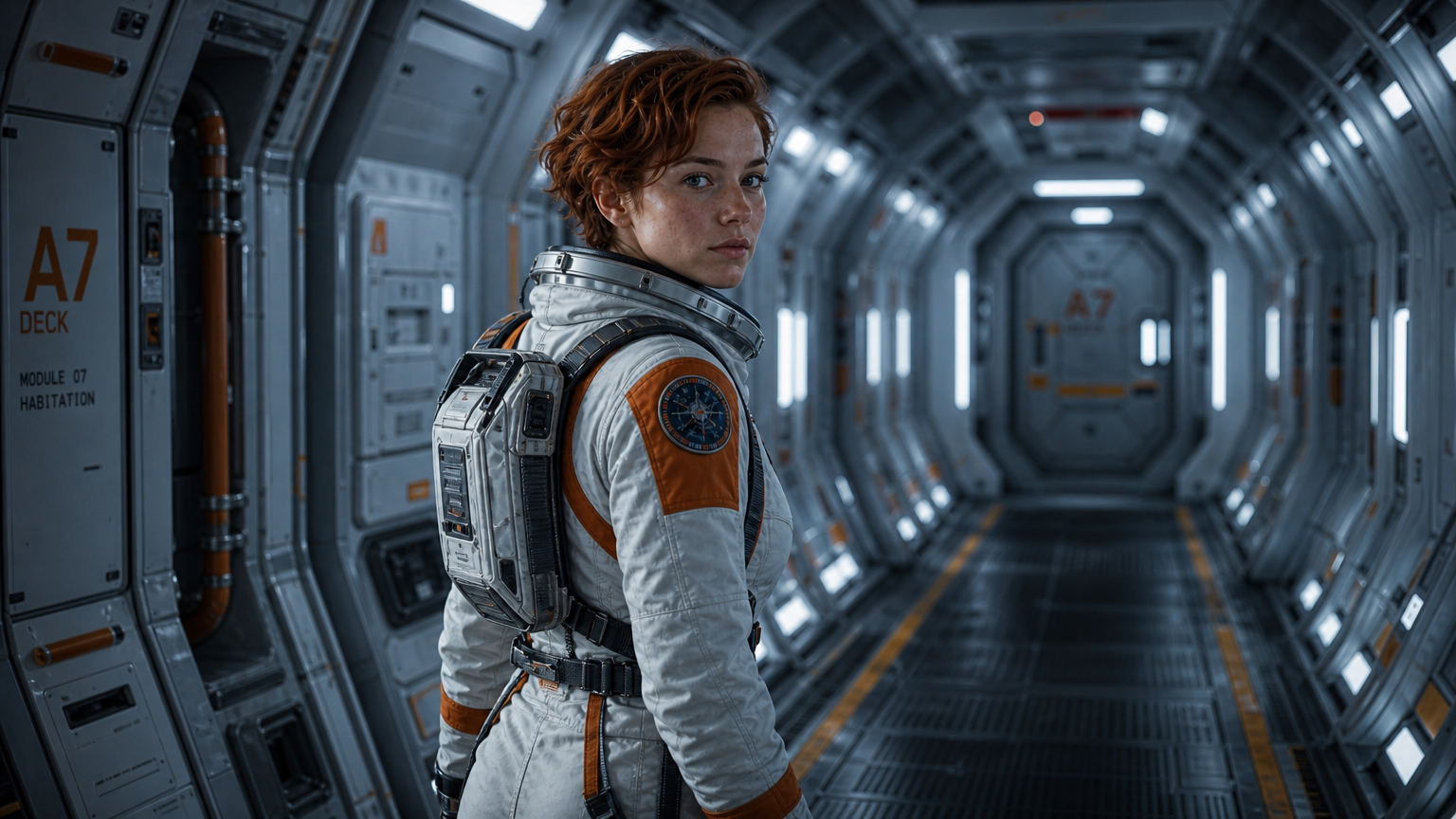
The first record supplies three astronaut references and requests an 8-second 720p crystal-cave tracking scene, retaining the face, hair and suit. The second supplies one meadow video and requests a winter setting while preserving the fence and composition. Read the full prompts and inspect every input with its actual output to assess the reference roles, scene changes and retained structure.

Prompt

Use the reference images only for this astronaut's face, short red hair, and white-and-orange flight suit. New scene: she steps into a vast alien crystal cave, giant luminous crystals refracting teal and violet light, she turns her head looking around in wonder. Camera follows behind her in one steady tracking shot. Audio: echoing footsteps and a low crystalline hum. Keep her identity consistent. No logos, no readable text, no watermark.

Reference image 1
Reference image 2
Reference image 3

Prompt

Transform the scene into winter: cover the meadow and the wooden fence with snow, overcast gray sky, gentle falling snowflakes. Keep the camera, fence position, and composition unchanged. No logos, no readable text, no watermark.

Creative Use Cases for Gemini Omni Flash

Write a new scene, supply one image to animate, prepare exactly three appearance references or provide one video to modify. Describe the subject, action, camera and preserved details, then choose the output specification and task estimate. Inspect the result for storyboards, character placement, environment studies, seasonal treatments or an integrated video-editing workflow.

Develop a nature or narrative scene

Write the subject, environment and continuous action, then choose a generation duration and framing. Review the clip for structure, light and motion before selecting it for a storyboard.

Animate an existing visual composition

Supply one image and describe the parts that move and details to retain. Compare the completed video with the source for an architectural, object or character presentation.

Place a prepared identity in a new scene

Provide three clear references, assign their appearance roles and describe the new activity and environment. Inspect face, clothing and scene interaction for a character proposal.

Explore another season or weather treatment

Supply the original clip and describe the landscape and weather changes. Identify the camera and fixed structures to preserve, then compare the edited movement with the source.

Clean up a selected element in a shot

Name the subject to remove and the surrounding surfaces and motion to retain. Review background reconstruction and continuity across the edited clip before choosing it for the project.

Integrate the tested generation or edit

Retain the exact task, prompt, source URLs and output settings. Include duration for new generation, then submit the authenticated request and track its task ID to retrieve the completed video.

Gemini Omni Flash Specifications and API Pricing

Gemini Omni Flash is billed per generation. New text, image and reference tasks use duration and resolution tiers; Video Edit uses its resolution-based editing tier. The dynamic table shows the current lowest rate across each task’s supported duration and resolution tiers. Open the workflow with your actual 4/6/8/10-second generation settings or source-video editing configuration to review the complete estimate.

ModelProviderWorkflowInput materialOutput specificationStarting rate
Gemini Omni Flash Text to VideoGoogleText to VideoText prompt4K$0.6 / generation
Gemini Omni Flash Image to VideoGoogleImage to VideoExactly 1 image4K$0.6 / generation
Gemini Omni Flash Reference to VideoGoogleReference to VideoExactly 3 reference images4K$0.6 / generation
Gemini Omni Flash Video EditGoogleVideo EditExactly 1 source video4K$1.5 / generation

How to Use Gemini Omni Flash on Vidgo

Test your creative brief online, then bring the verified request into your application.

Test online

Generate a result with your intended settings

Enter the prompt and provide the exact images or source video required by the task. Set resolution, framing and the generation duration where applicable, then review the full estimate. Generate or edit the clip and inspect identity, scene structure, camera movement and the requested changes.

Why Use Gemini Omni Flash on Vidgo

Choose a task, inspect its settings and cost, and follow the result from an online test to an authenticated API request.

Creative testing and task selection

Choose inputs around your creative goal

Choose Text to Video for words, Image to Video for one image, Reference to Video for exactly three images or Video Edit for one source clip. Select 720p, 1080p or 4K and 16:9 or 9:16; new generation also uses a 4/6/8/10-second duration.

Test your own prompt and images

Open the matching task, enter your brief and supply the required images. Review the generated result against subject appearance, composition and the requested changes before carrying the workflow into a project.

Review the estimate before generation

Review the selected duration and resolution for new generation or the resolution tier for editing. Use the full request estimate and planned test count when comparing these workflows and budgeting the project.

API integration and result management

Learn from complete recorded examples

Read the actual prompt and inspect its source images and result together. Use those examples to understand how to assign input roles and describe the details to preserve or change in your own request.

Track each generation with its task ID

Retain the task ID returned by the API to query status and retrieve completed file URLs. Use your online generation history to review earlier results and the creative direction you tested.

Follow the documentation for the selected task

Use the documentation linked from each task for its exact model identifier, accepted inputs, authentication and response format. Integrate the same task you tested online so its media and settings match the request.

Gemini Omni Flash API FAQ

Gemini Omni Flash is a Google video model with four Vidgo tasks: Text to Video, Image to Video, Reference to Video and Video Edit. New generation uses words, one image or exactly three references, while editing uses one existing clip. It offers 720p, 1080p and 4K with landscape or portrait framing.

Browse all models