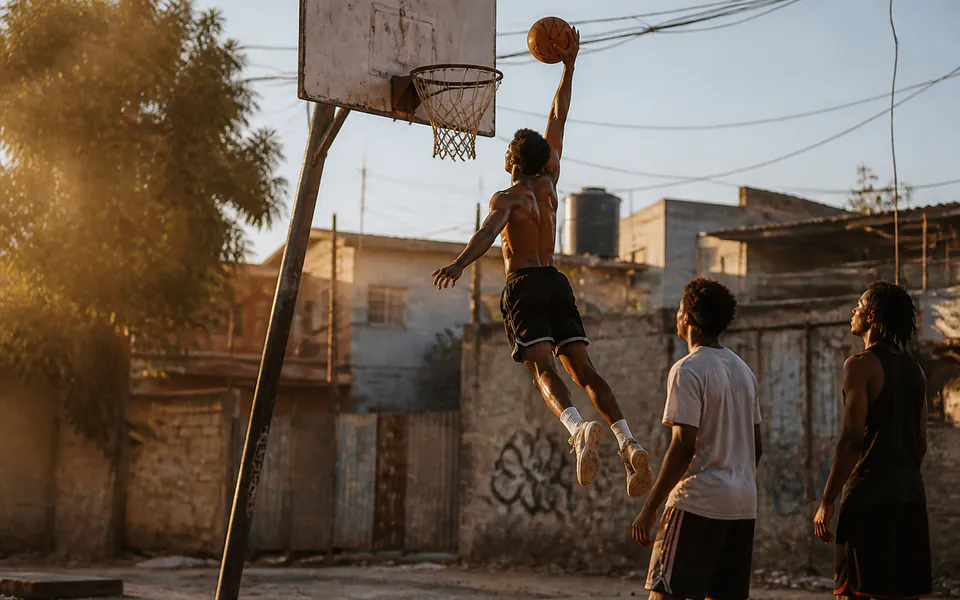
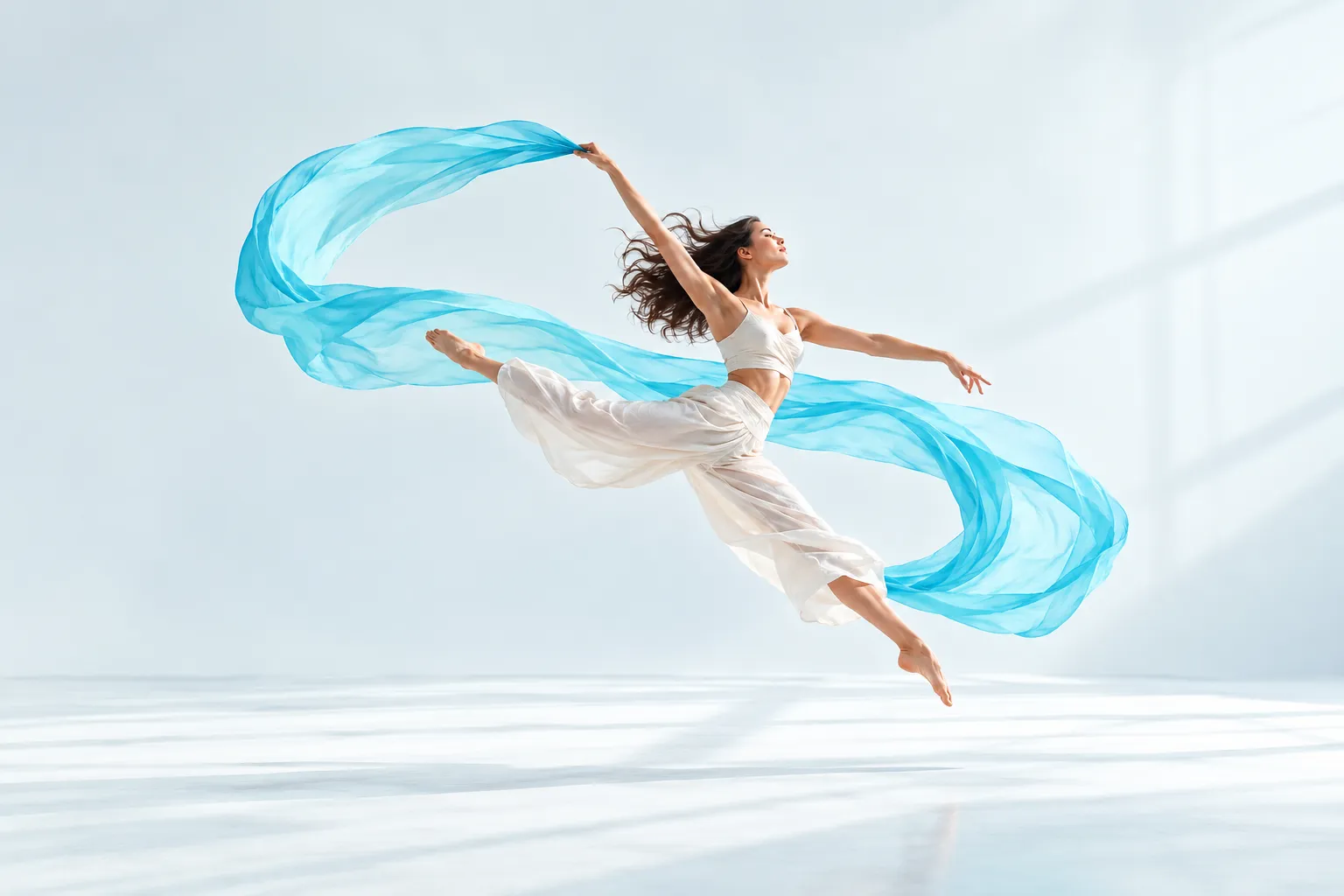
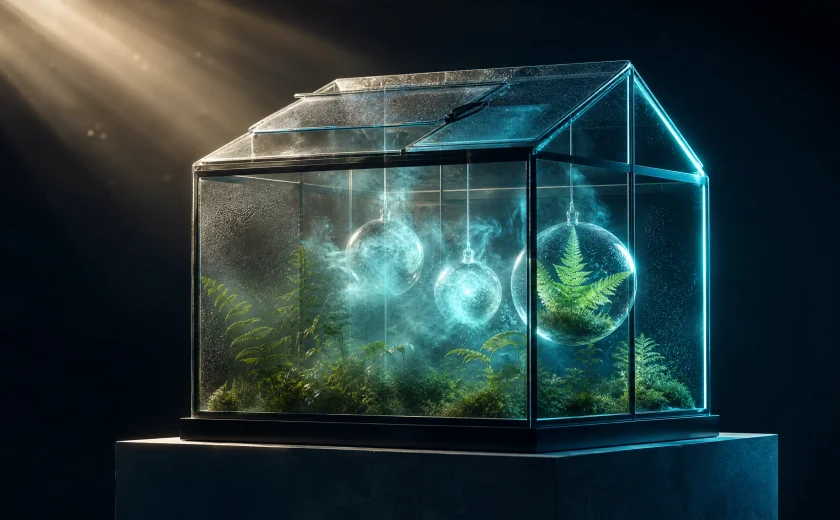
Kling 2.6 video, sound and motion control

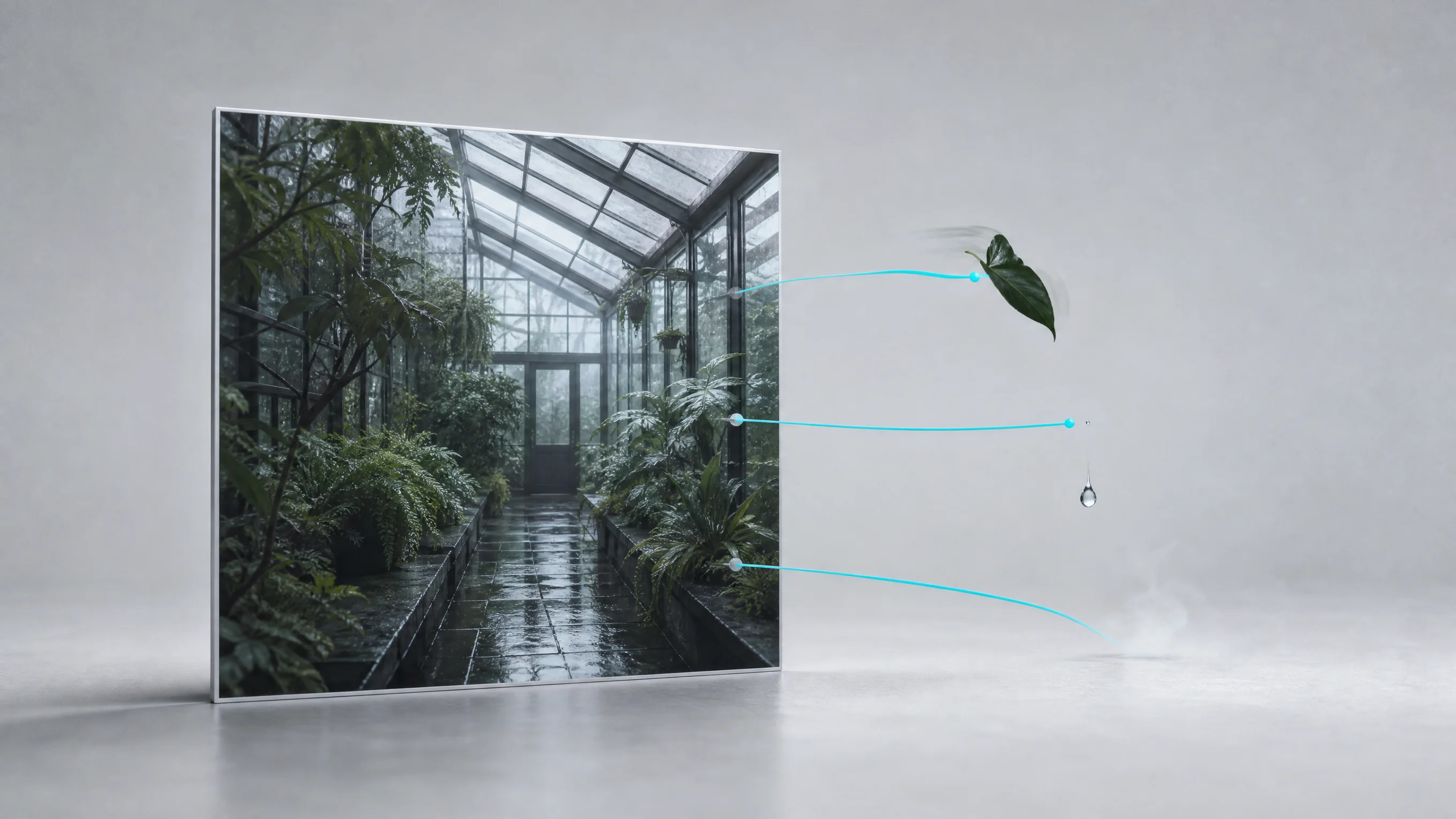
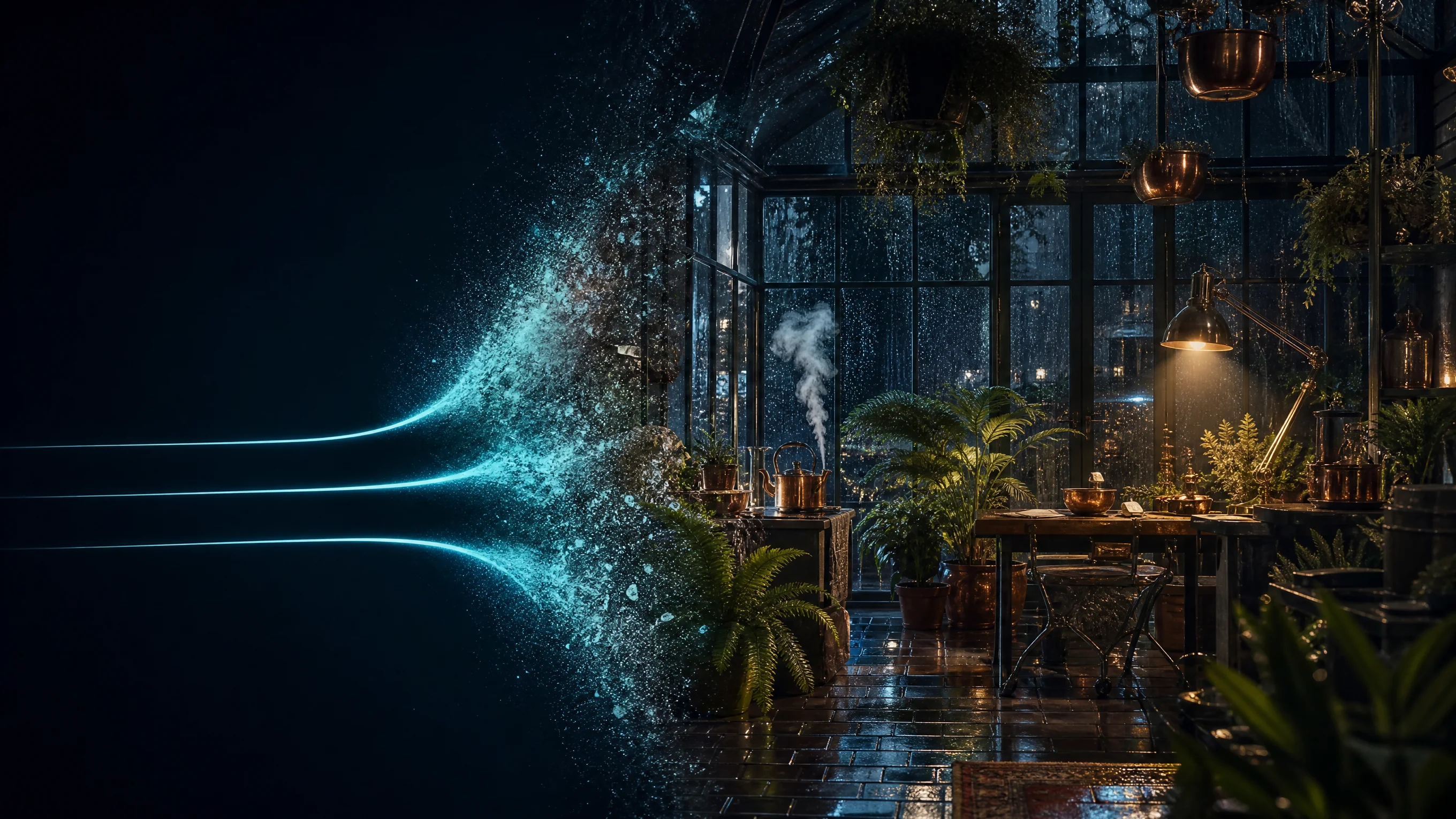
Kling 2.6 brings together Pro text-to-video and image-to-video generation with Standard and Pro Motion Control. Create a 5 or 10-second 1080p scene from text or images, and enable native sound when the shot needs dialogue, environmental audio or other prompted sounds. For a prepared first-to-last-frame transition, add the ending image and set sound to false. To transfer a demonstrated action, supply one character image and one motion-reference video; Standard produces 720p and Pro produces 1080p, with duration and cost based on the reference video.

Kling 2.6 is developed by Kuaishou. Vidgo provides access to the model. Model names and trademarks belong to their respective owners.
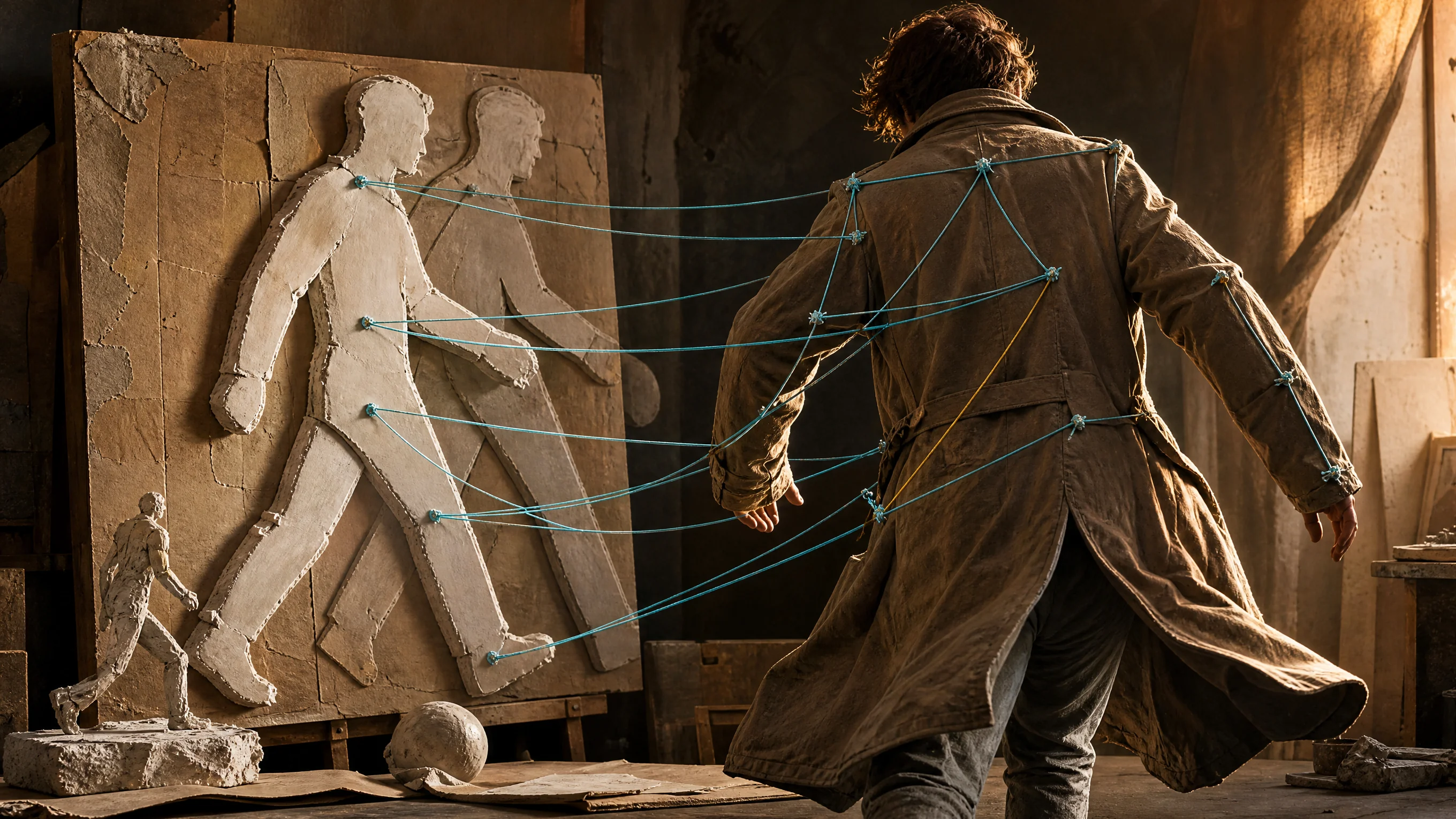
Explore Kling 2.6 Models

Use Pro Text to Video for a written scene and Pro Image to Video for prepared visual material. Select the sound setting and 5 or 10-second duration for those generation tasks. Use Standard or Pro Motion Control when a reference video already demonstrates the action, then prepare the character image, reference clip and orientation that determine the motion workflow.

Kling 2.6 Video Generation and Motion Control Tasks

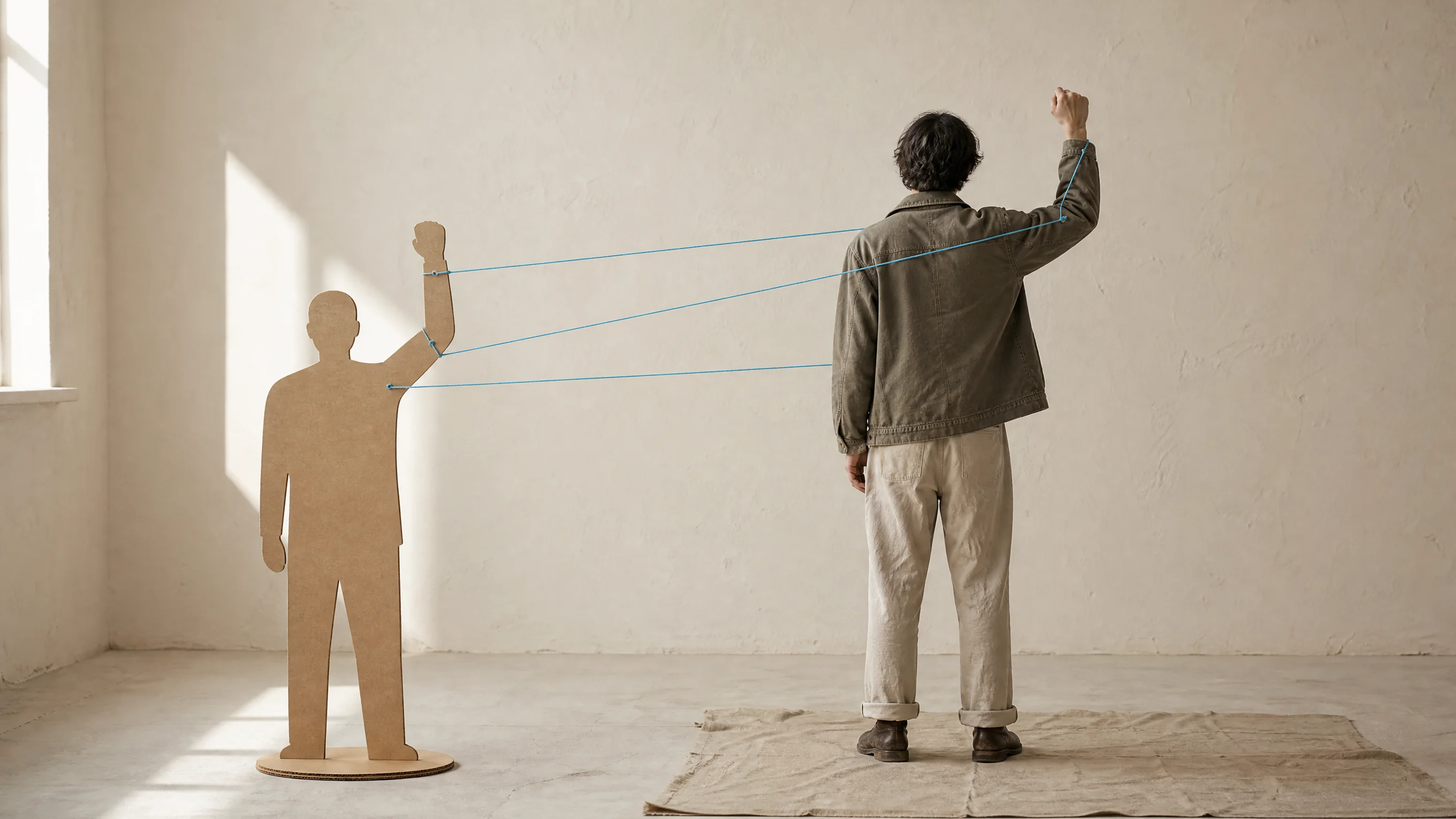
Text and image generation use the prompt to direct a new scene; image input establishes the subject and composition, and an optional ending frame establishes a destination with sound disabled. Motion Control uses a character image for appearance and a reference video for the demonstrated movement. Choose the task that accepts the material you have prepared, then use its documented fields and current estimate.

Model / taskInput and workflow
Kling 2.6 Standard Motion ControlTransfer reference-video motion onto a character image at 720p with full-body tracking and identity preservation.
Kling 2.6 Pro Motion ControlTransfer reference-video motion onto a character image at 1080p with high-fidelity tracking for production-ready delivery.
Kling 2.6 Pro Text to VideoKling 2.6 Pro Text to Video transforms text prompts into 1080p cinematic videos, featuring native audiovisual synchronization, flexible 5s and 10s durations, and industry-standard aspect ratios. It adheres faithfully to complex scene directions and real-world physical dynamics while preserving spatiotemporal coherence and crisp detail stability.
Kling 2.6 Pro Image to VideoKling 2.6 Pro Image to Video animates still images into 1080p cinematic videos, supporting single start-frame generation, optional dual-keyframe control, and native synchronized audio. It injects natural kinetic motion into static visuals while faithfully preserving the original subject identity, clothing textures, and perspective framing.

Kling 2.6 Character Dialogue and Tai Chi Motion Control Examples

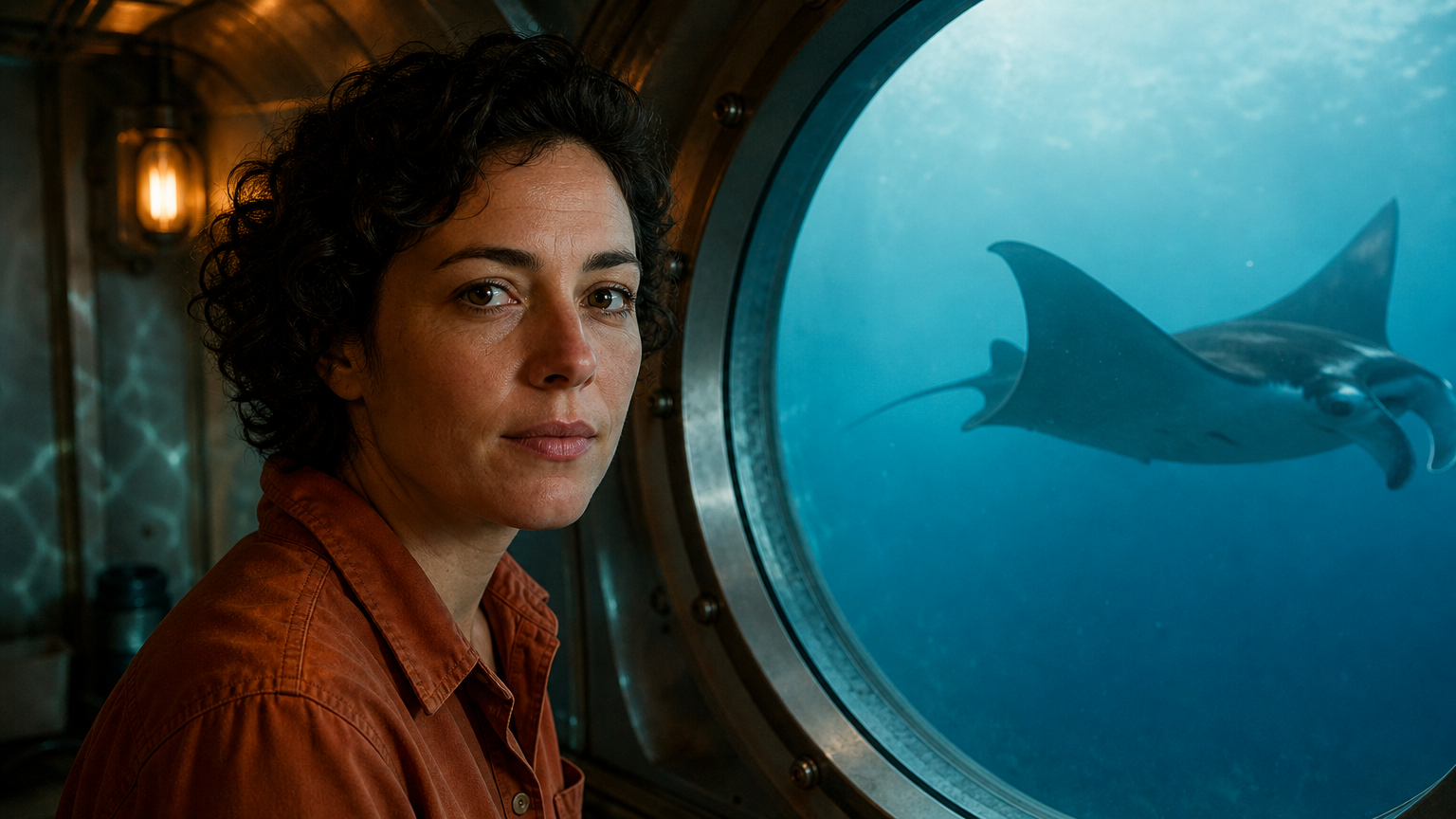
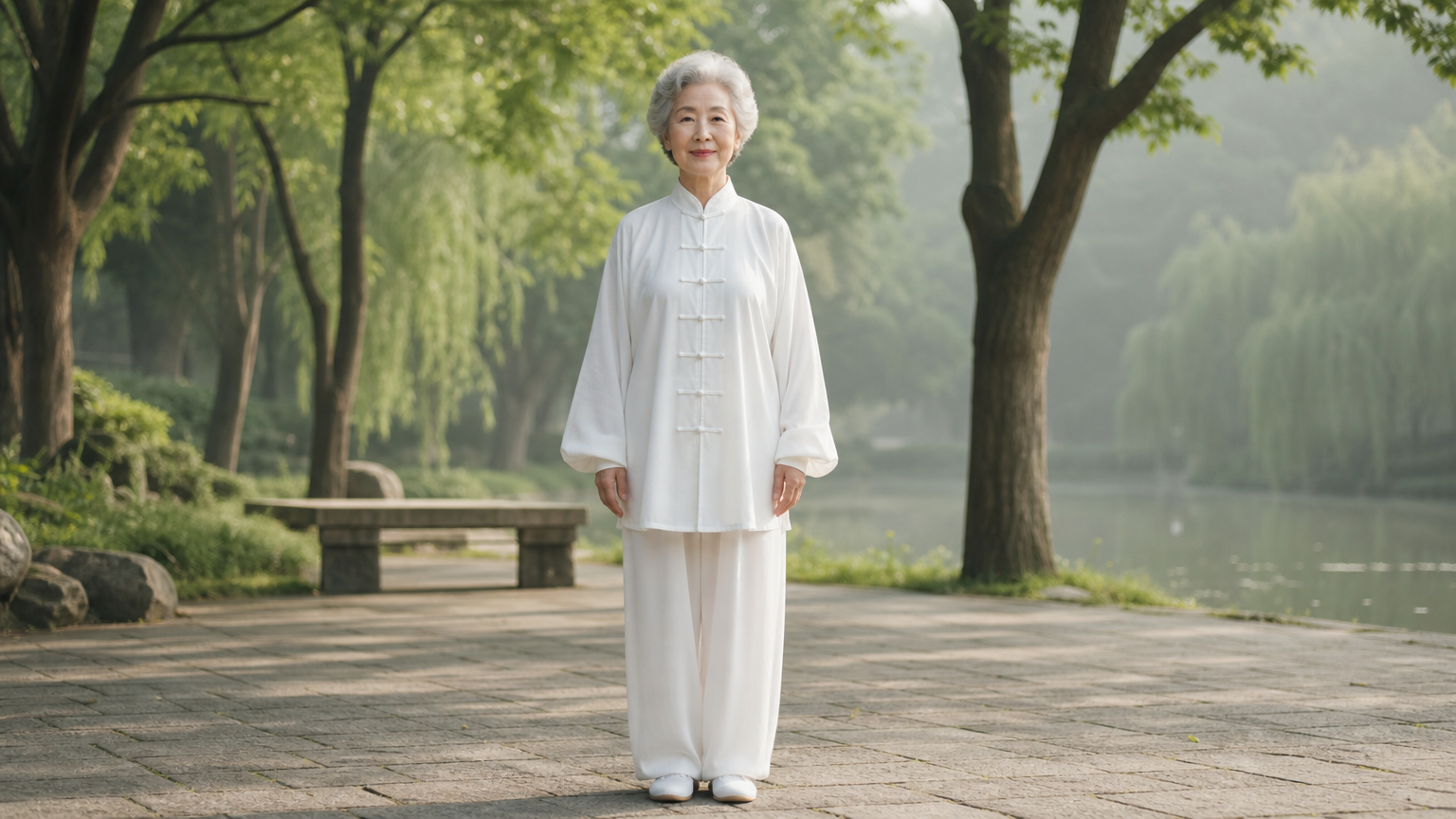
The first record supplies an underwater-cabin image and asks the researcher to say “We have company.” while retaining her face, clothing and surroundings. Sound is enabled for that 5-second scene. The second supplies a character image and tai chi reference video, using Standard Motion Control with image orientation. Read the full prompts, inspect every source and compare each actual video with the movement and appearance requested for that record.

Prompt

Animate this exact underwater observation cabin in one continuous five-second shot. Preserve the researcher's identity, orange shirt, cabin and round window. She turns her face slightly toward the camera, smiles with quiet surprise and says clearly in English, 'We have company.' Natural synchronized lips, eyes and subtle expression; finish the sentence by the fourth second. Outside the window, the single manta ray continues gliding forward toward the right edge of the window, gently moving its broad fins. Faint moving blue caustics play on the cabin wall. Fixed camera, believable human movement and stable facial features. Native audio: her warm close voice, low enclosed cabin ventilation and a distant muted watery rumble. No music, subtitles, text, added characters or cuts.

Scene image

Prompt

The silver-haired senior woman in the flowing white tai chi uniform performs the slow, continuous tai chi routine from the reference video in a quiet misty park, keeping her face, hairstyle and identity perfectly consistent, soft morning light, green trees in the background

Character image

Creative Use Cases for Kling 2.6

Prepare a scene brief for text generation, an existing image for animation, two visual states for a transition, or a character image and video for motion transfer. Match those inputs to the task, describe the action and sound where supported, then inspect the completed video for a narrative concept, character presentation, explanatory animation or application workflow.

Create a short spoken narrative beat

Write a character, setting, short spoken line and environmental sounds, then enable sound in Pro Text to Video. Review voice, expression and the timing of the action for a scene proposal.

Animate an existing character with dialogue

Prepare an image with a clearly visible face and describe the speech, expression and small body movement. Enable sound, generate the shot and inspect appearance and dialogue for a character presentation.

Show a mechanical change between two states

Prepare compatible first and last images, describe how connected parts move and set sound to false. Compare the completed transition with the intended structure and final position for an explanatory animation.

Transfer a movement routine to a prepared character

Provide one character image and a reference clip that clearly demonstrates the action. Choose the orientation and Standard or Pro tier, then inspect identity, limb movement and continuity for a motion study.

Plan a motion-reference clip around its duration

Use a 3–10-second reference for image orientation or a 3–30-second reference for video orientation. Review the detected duration and current rate when planning the complete motion-transfer request and its budget.

Integrate the workflow you tested online

Retain the selected model, prompt, media URLs and task-specific sound, duration or orientation settings. Submit the authenticated API request and track its task ID to obtain the generated video.

Kling 2.6 Specifications and API Pricing

Pro text and image generation are billed per video, with separate rates for 5 and 10 seconds and for the sound setting. Standard and Pro Motion Control are billed per second using the detected reference-video duration; the credit calculation uses that duration and rounds the resulting credits upward. The dynamic table shows the current starting rate and billing unit for each task. Open the selected task to review its full estimate with your actual settings and reference clip.

ModelProviderWorkflowInput materialOutput specificationStarting rate
Kling 2.6 Standard Motion ControlKlingMotion ControlCharacter image + motion video720p$0.04 / second
Kling 2.6 Pro Motion ControlKlingMotion ControlCharacter image + motion video1080p$0.06 / second
Kling 2.6 Pro Text to VideoKlingText to VideoText prompt5 / 10 s · 1080p$0.325 / video
Kling 2.6 Pro Image to VideoKlingImage to VideoImage frames / optional ending frame5 / 10 s · 1080p$0.325 / video

How to Use Kling 2.6 on Vidgo

Test your creative brief online, then bring the verified request into your application.

Test online

Generate a result with your intended settings

Open the matching task and supply its required text and media. For scene generation, choose 5 or 10 seconds and the sound setting. For Motion Control, upload the character image and reference video, choose image or video orientation and review the detected duration. Check the estimate, generate the video and inspect action, appearance and any requested sound.

Why Use Kling 2.6 on Vidgo

Choose a task, inspect its settings and cost, and follow the result from an online test to an authenticated API request.

Creative testing and task selection

Choose inputs around your creative goal

Choose Pro Text to Video for a written scene or Pro Image to Video for an existing image and optional ending frame. Set sound and a 5 or 10-second duration; set sound to false when using an ending frame. For a demonstrated action, choose Standard 720p or Pro 1080p Motion Control and prepare one character image, one reference video and the orientation setting.

Test your own prompt and images

Open the matching task, enter your brief and supply the required images. Review the generated result against subject appearance, composition and the requested changes before carrying the workflow into a project.

Review the estimate before generation

Review the selected video duration and sound tier for Pro generation. For Motion Control, review the reference clip’s detected duration and the Standard or Pro per-second rate. Use the complete estimate and planned test count to budget your workflow.

API integration and result management

Learn from complete recorded examples

Read the actual prompt and inspect its source images and result together. Use those examples to understand how to assign input roles and describe the details to preserve or change in your own request.

Track each generation with its task ID

Retain the task ID returned by the API to query status and retrieve completed file URLs. Use your online generation history to review earlier results and the creative direction you tested.

Follow the documentation for the selected task

Use the documentation linked from each task for its exact model identifier, accepted inputs, authentication and response format. Integrate the same task you tested online so its media and settings match the request.

Kling 2.6 API FAQ

Kling 2.6 is a Kuaishou video family available through four Vidgo tasks: Pro Text to Video, Pro Image to Video, Standard Motion Control and Pro Motion Control. The first two create 5 or 10-second 1080p videos with a sound setting. Motion Control transfers a reference video’s action to one character image at Standard 720p or Pro 1080p.

Browse all models