Kling 1.6 video generation with text and images

Kling 1.6 provides Standard and Pro tasks for creating 5 or 10-second videos from text or prepared images. Use a written scene to define the subject and action, a starting frame to anchor an existing composition, or one to four Elements reference images to guide the visual sources. Pro frame-based generation can also use an ending image to establish the final state. Describe the action sequence, camera behavior and details to preserve, then choose the matching task and review its current duration-based cost.

Kling 1.6 is developed by Kuaishou. Vidgo provides access to the model. Model names and trademarks belong to their respective owners.

Explore Kling 1.6 Models

Choose Standard or Pro Text to Video for a written scene. Choose the corresponding Image to Video task for a starting frame or an Elements reference set, and use Pro when an ending frame should define the destination. Review the input method before preparing URLs because frame inputs and Elements references use separate request fields.

Kling 1.6 Text, Frame and Elements Reference Tasks

Text generation establishes the shot through a prompt. Frame-based generation uses a starting image and, in Pro, an optional ending image. Elements generation uses image_urls with one to four references in place of start/end-frame fields. Choose the input method around the scene you need to create, then use the corresponding task and fields.

Model / taskInput and workflow
Kling 1.6 Standard Text to VideoCost-effective Kling 1.6 access on Vidgo API for realistic video generation, text-to-video, image-to-video, Pro first/last-frame control, and Elements reference-image workflows.
Kling 1.6 Standard Image to VideoCost-effective Kling 1.6 access on Vidgo API for realistic video generation, text-to-video, image-to-video, Pro first/last-frame control, and Elements reference-image workflows.
Kling 1.6 Pro Text to VideoCost-effective Kling 1.6 access on Vidgo API for realistic video generation, text-to-video, image-to-video, Pro first/last-frame control, and Elements reference-image workflows.
Kling 1.6 Pro Image to VideoCost-effective Kling 1.6 access on Vidgo API for realistic video generation, text-to-video, image-to-video, Pro first/last-frame control, and Elements reference-image workflows.

Kling 1.6 Subtle Character Motion and Rigid Structure Transition Examples

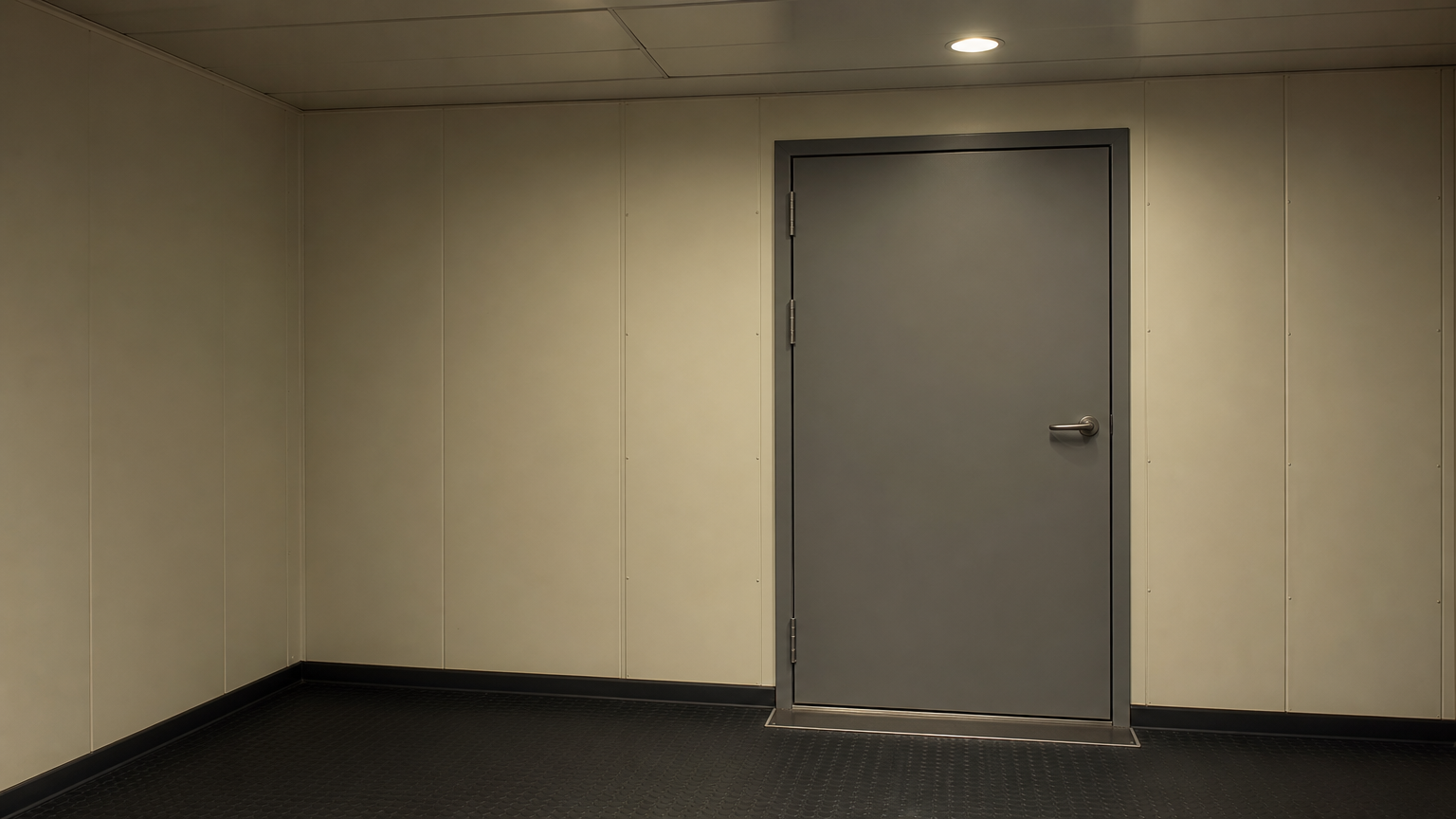
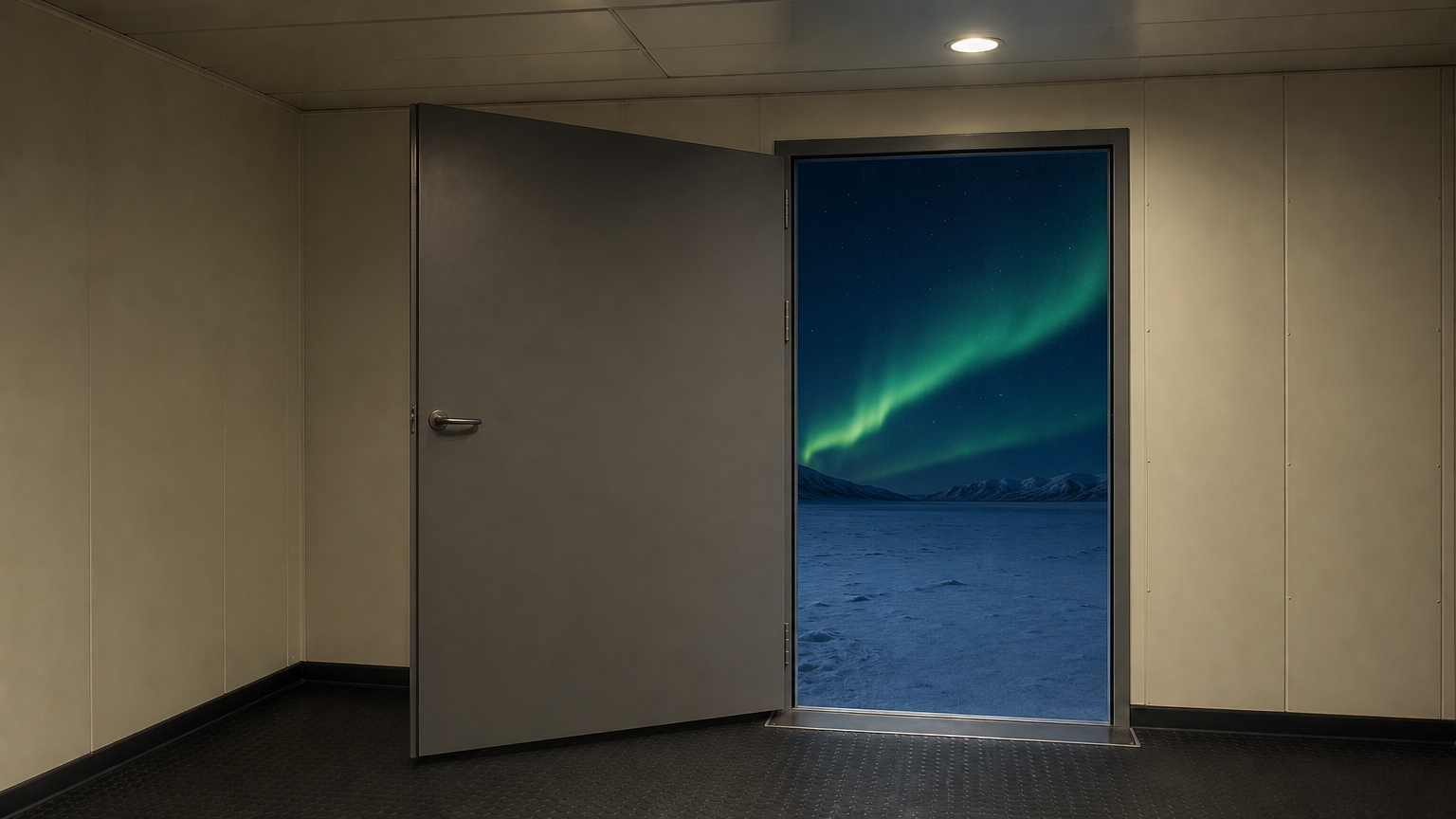
The Standard record starts from an elderly tailor’s portrait and asks for a small gaze change, smile and subtle movement of the curtain. The Pro record supplies closed-door and open-door images of a polar station and describes a continuous rigid rotation between them. These are separate creative briefs; compare each input set with its own actual result to inspect appearance, structure and motion.

Prompt

A continuous five-second intimate portrait of the same elderly female tailor in her quiet workroom. Her hands remain gently resting on the folded fabric on the table. She slowly raises her gaze from the cloth toward someone just beside the camera and gives a small warm smile; her shoulders rise subtly with a breath. Preserve her age, face, glasses, hairstyle, fingers and clothing exactly. A curtain moves very slightly at the edge of the softly lit window. Fixed camera, natural expression and skin, no talking, no cuts.

Portrait reference

Prompt

A single uninterrupted five-second locked shot from inside the same polar research station. The solid rectangular steel door is hinged on its LEFT edge. It slowly swings inward toward the left wall from fully closed to fully open, revealing the same snowy plain, dark mountain ridge and green aurora seen in the final image. The frame, wall panels and floor never move. Cold blue outdoor light spreads across the threshold as the door opens; outside, the aurora shimmers very subtly. No people, no morphing or dissolves, no camera movement. Physically coherent rigid hinged door and continuous movement from the supplied first frame to the supplied last frame.

First frame
Last frame

Creative Use Cases for Kling 1.6

Create a new scene from text, animate a portrait or nature photograph, connect two prepared visual states in Pro, or combine Elements references for a miniature scene. Prepare clear inputs and action instructions, choose 5 or 10 seconds, and review the result before using it in a storyboard, presentation or creative application.

Explore a travel or landscape shot

Write a location, moving subject and viewpoint, then generate a short text-based scene. Review the composition and travel direction for a storyboard or location presentation.

Animate a quiet human portrait

Prepare a clear portrait and describe a small expression or gaze change while identifying the appearance to preserve. Inspect the video for a character study or story presentation.

Show a mechanical state change

Prepare first and last images and select Pro Image to Video. Describe the moving parts and fixed surroundings, then inspect the transition for an explanatory animation concept.

Build a reference-guided miniature scene

Prepare character and setting references, assign their roles through the Elements workflow and describe one short action. Review scale and placement before using the clip in an animation proposal.

Study a wildlife action

Use a written scene or a source photograph and describe the animal’s movement and stable surroundings. Generate 5 or 10 seconds and inspect anatomy and motion for a visual study.

Integrate the selected input workflow

Retain the model identifier, prompt, frame or Elements URLs and duration from your online test. Follow the task documentation and retrieve the completed video through its task ID.

Kling 1.6 Specifications and API Pricing

Kling 1.6 uses the selected Standard or Pro rate per second multiplied by the 5 or 10-second duration. The dynamic table shows each task’s current starting rate per second. Configure the variant, input method and duration on the task page to review the complete per-video estimate before generating.

ModelProviderWorkflowInput materialOutput specificationStarting rate
Kling 1.6 Standard Text to VideoKlingText to VideoText prompt5 / 10 s$0.045 / second
Kling 1.6 Standard Image to VideoKlingImage to VideoFirst frame / Elements references5 / 10 s$0.045 / second
Kling 1.6 Pro Text to VideoKlingText to VideoText prompt5 / 10 s$0.075 / second
Kling 1.6 Pro Image to VideoKlingImage to VideoFirst and optional last frame / Elements5 / 10 s$0.075 / second

How to Use Kling 1.6 on Vidgo

Test your creative brief online, then bring the verified request into your application.

Test online

Generate a result with your intended settings

Enter the prompt, choose 5 or 10 seconds and provide the selected frame or Elements inputs. Set the supported aspect ratio and optional prompt controls for that workflow, review the estimate and generate. Inspect motion, subject appearance and the defined final state when using a Pro ending frame.

Why Use Kling 1.6 on Vidgo

Choose a task, inspect its settings and cost, and follow the result from an online test to an authenticated API request.

Creative testing and task selection

Choose inputs around your creative goal

Choose Standard or Pro Text to Video for a written scene. Choose Image to Video for a starting frame or one to four Elements references, and choose Pro for an optional ending frame. Prepare the fields for that input method and describe the movement and details to preserve.

Test your own prompt and images

Open the matching task, enter your brief and supply the required images. Review the generated result against subject appearance, composition and the requested changes before carrying the workflow into a project.

Review the estimate before generation

Select Standard or Pro and the clip duration to review the full estimate. The listed price is a per-second rate, so plan the budget around both the chosen tier and the length of each clip.

API integration and result management

Learn from complete recorded examples

Read the actual prompt and inspect its source images and result together. Use those examples to understand how to assign input roles and describe the details to preserve or change in your own request.

Track each generation with its task ID

Retain the task ID returned by the API to query status and retrieve completed file URLs. Use your online generation history to review earlier results and the creative direction you tested.

Follow the documentation for the selected task

Use the documentation linked from each task for its exact model identifier, accepted inputs, authentication and response format. Integrate the same task you tested online so its media and settings match the request.

Kling 1.6 API FAQ

Kling 1.6 is a Kuaishou video model. Vidgo provides Standard and Pro text and image tasks for 5 or 10-second clips. Image workflows include start-frame generation, optional first/last-frame guidance in Pro, and one to four Elements references supplied through the corresponding image_urls input method.

Browse all models