Gemini Omni 1.1 Flash video generation and editing up to 4K

Gemini Omni 1.1 Flash creates video from text, first/last frames or visual references and edits an existing 3–10-second clip. Use one starting image and an optional ending frame to guide a transition, or one to seven reference images to carry appearance into a new scene. Video Edit accepts one source video and can use one to five additional image references for the requested change. Describe the action, camera, preserved details and sound, then select 360p, 720p, 1080p or 4K and landscape or portrait framing. New generation offers 4, 6, 8 or 10 seconds.

Gemini Omni 1.1 Flash is developed by Google. Vidgo provides access to the model. Model names and trademarks belong to their respective owners.

Explore Gemini Omni 1.1 Flash Models

Use Text to Video for a written scene, Image to Video for one or two first/last frames and Reference to Video for one to seven image references. Use Video Edit for a 3–10-second source clip, adding image references when they define the desired appearance or material. Prepare the chosen inputs and review the complete output estimate.

Gemini Omni 1.1 Flash Video Generation and Editing Tasks

Image to Video uses image_urls for one starting frame and optional ending frame. Reference to Video uses reference_image_urls for one to seven sources. Video Edit uses one reference_video_urls source and optional reference_image_urls with one to five images. The prompt assigns those sources their roles and describes movement, sound and retained details; new generation also uses duration.

Model / taskInput and workflow
Gemini Omni 1.1 Flash Text-to-VideoGoogle Gemini Omni 1.1 Flash video model with native audio, text-to-video, first/last-frame image-to-video, reference-image video, and 3–10 second video edit at 360p to 4K.
Gemini Omni 1.1 Flash Image-to-VideoGoogle Gemini Omni 1.1 Flash video model with native audio, text-to-video, first/last-frame image-to-video, reference-image video, and 3–10 second video edit at 360p to 4K.
Gemini Omni 1.1 Flash Reference-to-VideoGoogle Gemini Omni 1.1 Flash video model with native audio, text-to-video, first/last-frame image-to-video, reference-image video, and 3–10 second video edit at 360p to 4K.
Gemini Omni 1.1 Flash Video EditGoogle Gemini Omni 1.1 Flash video model with native audio, text-to-video, first/last-frame image-to-video, reference-image video, and 3–10 second video edit at 360p to 4K.

Gemini Omni 1.1 Flash Character Scene Generation and Video Wardrobe Editing Examples

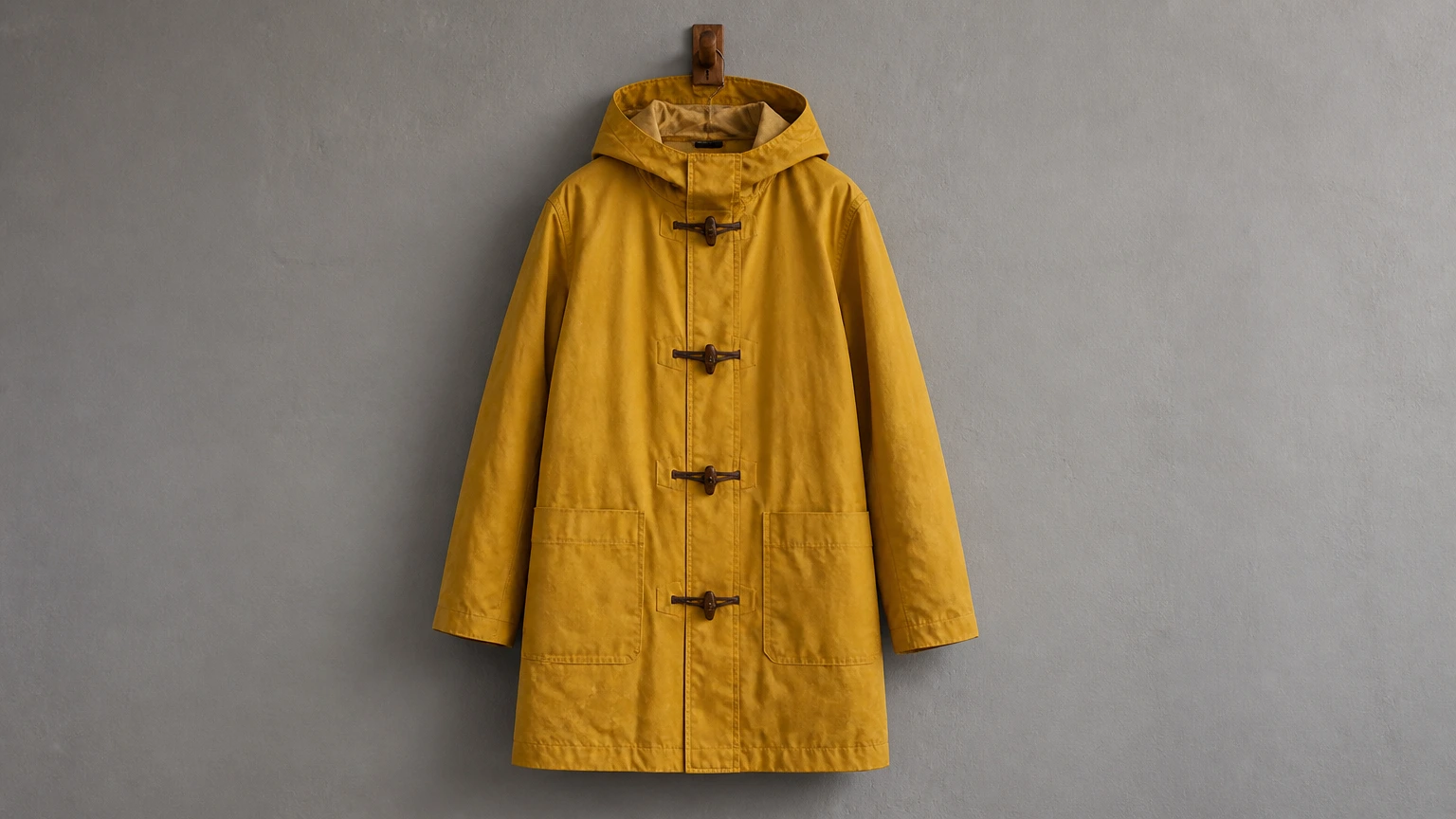
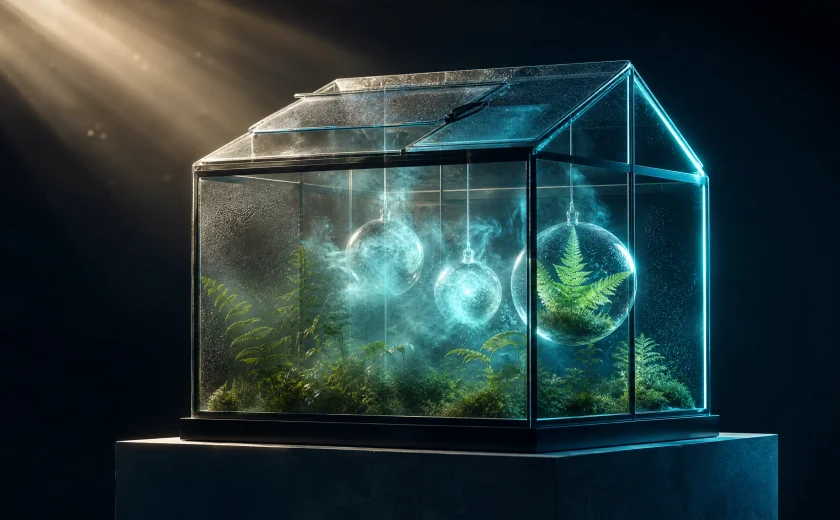
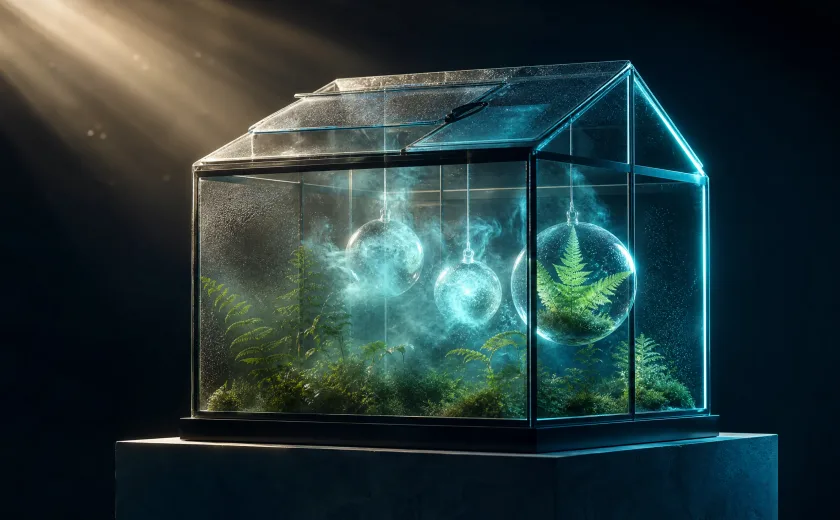
The first record supplies three character references and requests an 8-second 720p greenhouse scene with walking, watering and native environmental sound. The second supplies a coastal walking video and a raincoat image, then asks for the garment change while retaining identity, motion, surroundings and existing sound. Read the full prompts and inspect all inputs with their actual results to assess reference use and continuity through the shot.

Prompt

Use the reference images only for this woman's face, hair, olive linen shirt, terracotta necklace, and identity. New scene, not a portrait studio and not a rainy alley: a sunny glass greenhouse at late morning. She walks two steps along a gravel path, then tips a plain metal watering can over a bed of leafy plants. Camera: medium tracking shot, eye level, one slow lateral move. Lighting: bright greenhouse sun with leaf shadows. Native audio: birds outside the glass, water from the can, footsteps on gravel. Keep identity consistent. No logos, no readable text, no products, no packaging, no prices, no CTA, no advertising, no watermark, no brand marks.

Reference image 1
Reference image 2
Reference image 3

Prompt

Replace only the woman's burgundy jacket with the mustard-yellow raincoat shown in the reference image. Match its mustard fabric, brown toggle fastenings, lower patch pockets and folded hood; the hood stays down. Make the coat fit her naturally throughout the moving shot. Preserve her exact face, dark curly hair, hands, dark trousers, walking action and timing. Preserve the coastal path, cliffs, ocean, overcast light and original camera movement. Keep the existing wind, surf and footsteps without adding speech or music. No new people, text, logos or advertising.

Reference image 1

Creative Use Cases for Gemini Omni 1.1 Flash

Write a scene with movement and sound, supply first/last frames, prepare appearance references or provide a 3–10-second video for a targeted edit. Describe the sources and retained details, select the output specification and review the complete estimate. Inspect the result for storyboards, character placement, clothing changes, visual restyling or an integrated video workflow.

Develop a scene with coordinated sound

Write the visible action and the sound events that accompany it, then choose the duration and output specification. Review the generated motion and audio for a narrative or material study.

Connect an opening frame with a destination

Prepare compatible first and last images and describe the continuous change. Inspect the result against structure, light and the final state for a transition concept.

Carry a character into a new activity and environment

Provide appearance references and describe the new scene and action. Review face, clothing, hands and interaction with the environment for a character presentation.

Change a garment in an existing moving shot

Supply the source video and a garment reference, identifying the material and design details to transfer. Inspect fit, body motion and retained identity throughout the edited clip.

Restyle a video with a new artistic medium

Prepare the clip and describe paint, texture or another visual treatment while identifying the action to preserve. Compare the edited scene with the source for an illustrative or visual direction study.

Integrate the tested media configuration

Retain the exact task, prompt, frame or reference URLs and output settings. Include the matching generation duration or source-video fields, then submit the authenticated request and track its task ID.

Gemini Omni 1.1 Flash Specifications and API Pricing

Gemini Omni 1.1 Flash is billed per generation. New text, frame and reference requests use duration and resolution tiers; Video Edit uses the selected resolution’s editing tier. The dynamic table shows the current lowest rate across supported settings. Configure the actual 4/6/8/10-second generation request or source-video edit on the task page to review the full estimate before submission.

ModelProviderWorkflowInput materialOutput specificationStarting rate
Gemini Omni 1.1 Flash Text-to-VideoGoogleText to VideoText prompt4K$0.225 / generation
Gemini Omni 1.1 Flash Image-to-VideoGoogleImage to Video1–2 first/last frames4K$0.225 / generation
Gemini Omni 1.1 Flash Reference-to-VideoGoogleReference to Video1–7 reference images4K$0.225 / generation
Gemini Omni 1.1 Flash Video EditGoogleVideo Edit1 video + optional image references4K$0.6 / generation

How to Use Gemini Omni 1.1 Flash on Vidgo

Test your creative brief online, then bring the verified request into your application.

Test online

Generate a result with your intended settings

Enter the prompt and upload the frames, reference images or source video required by the task. For editing, confirm the source is 3–10 seconds and add image references when they define the change. Set resolution, framing and the generation duration where applicable, review the full estimate and inspect the result for motion, identity, materials and sound.

Why Use Gemini Omni 1.1 Flash on Vidgo

Choose a task, inspect its settings and cost, and follow the result from an online test to an authenticated API request.

Creative testing and task selection

Choose inputs around your creative goal

Choose text generation, one-or-two-frame generation, one-to-seven-reference generation or editing of a 3–10-second source video. Add one to five optional image references for editing when needed. Select 360p, 720p, 1080p or 4K and landscape or portrait framing, with 4/6/8/10-second timing for new generation.

Test your own prompt and images

Open the matching task, enter your brief and supply the required images. Review the generated result against subject appearance, composition and the requested changes before carrying the workflow into a project.

Review the estimate before generation

Review the selected duration and resolution for generation or the resolution-based edit price. Include the full request estimate and planned number of tests when budgeting reference generation and video changes.

API integration and result management

Learn from complete recorded examples

Read the actual prompt and inspect its source images and result together. Use those examples to understand how to assign input roles and describe the details to preserve or change in your own request.

Track each generation with its task ID

Retain the task ID returned by the API to query status and retrieve completed file URLs. Use your online generation history to review earlier results and the creative direction you tested.

Follow the documentation for the selected task

Use the documentation linked from each task for its exact model identifier, accepted inputs, authentication and response format. Integrate the same task you tested online so its media and settings match the request.

Gemini Omni 1.1 Flash API FAQ

Gemini Omni 1.1 Flash is a Google video model with text, frame, reference and editing tasks on Vidgo. It supports native audio, new 4/6/8/10-second videos and 3–10-second source-video editing, with 360p, 720p, 1080p or 4K output. The input method determines the frame, image-reference and video fields used in the request.

Browse all models