Grok Imagine Video text and image animation

Grok Imagine Video creates 6- or 10-second clips from text or one prepared image. Use Text to Video to describe the subject, setting, action and camera and choose a square, portrait or landscape aspect ratio. Use Image to Video to animate an existing person, animal or object while describing the movement and appearance to preserve. Select the documented generation mode and duration, then review the per-video estimate for a storyboard, character moment, miniature animation or moving scene.

Grok Imagine Video is developed by xAI. Vidgo provides access to the model. Model names and trademarks belong to their respective owners.
Explore Grok Imagine Video Models

Choose Text to Video when the scene begins with words. Choose Image to Video when the subject and composition are already prepared in an image. Describe the action in order, identify the camera behavior and details to preserve, and select a 6 or 10-second duration with the generation mode suited to your test.

Grok Imagine Video Text and Image to Video Tasks

The text task describes the whole scene and accepts an aspect-ratio setting. The image task accepts exactly one image_urls entry and uses its visual content to guide the animation. Both tasks accept a motion prompt, a generation mode and a 6 or 10-second duration. Choose the input method around the material you have prepared and the result you want to inspect.

Model / taskInput and workflow
Grok Imagine Video Text to VideoCreate 6- or 10-second clips with Grok Imagine Video Text to Video. Describe scenes and motion, then choose a generation mode and video aspect ratio.
Grok Imagine Video Image to VideoAnimate a still image with Grok Imagine Video Image to Video. Add a motion prompt, choose a generation mode, and create a 6- or 10-second video clip.

Grok Imagine Video Character Expression and Ceramic Creature Animation Examples

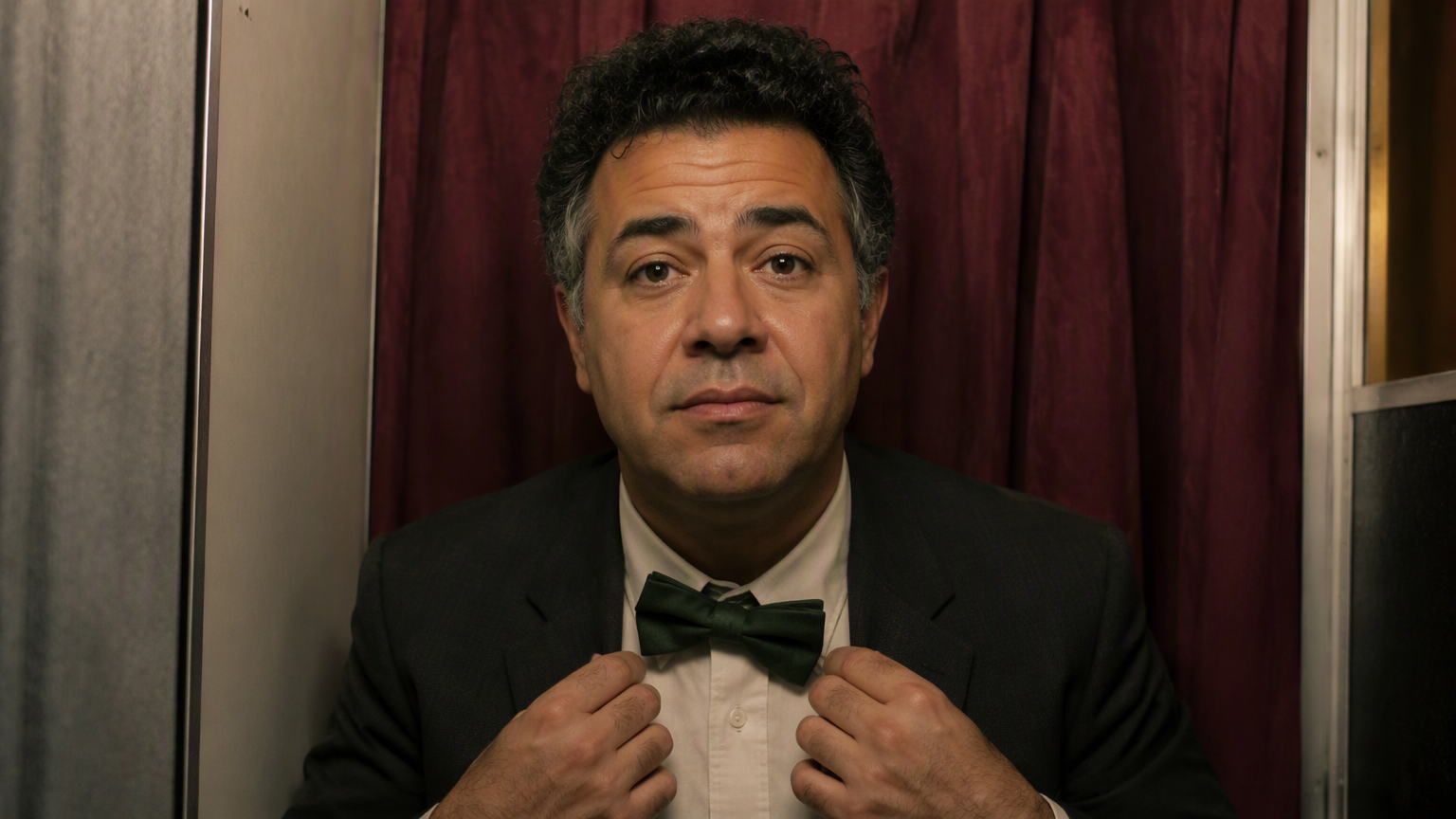
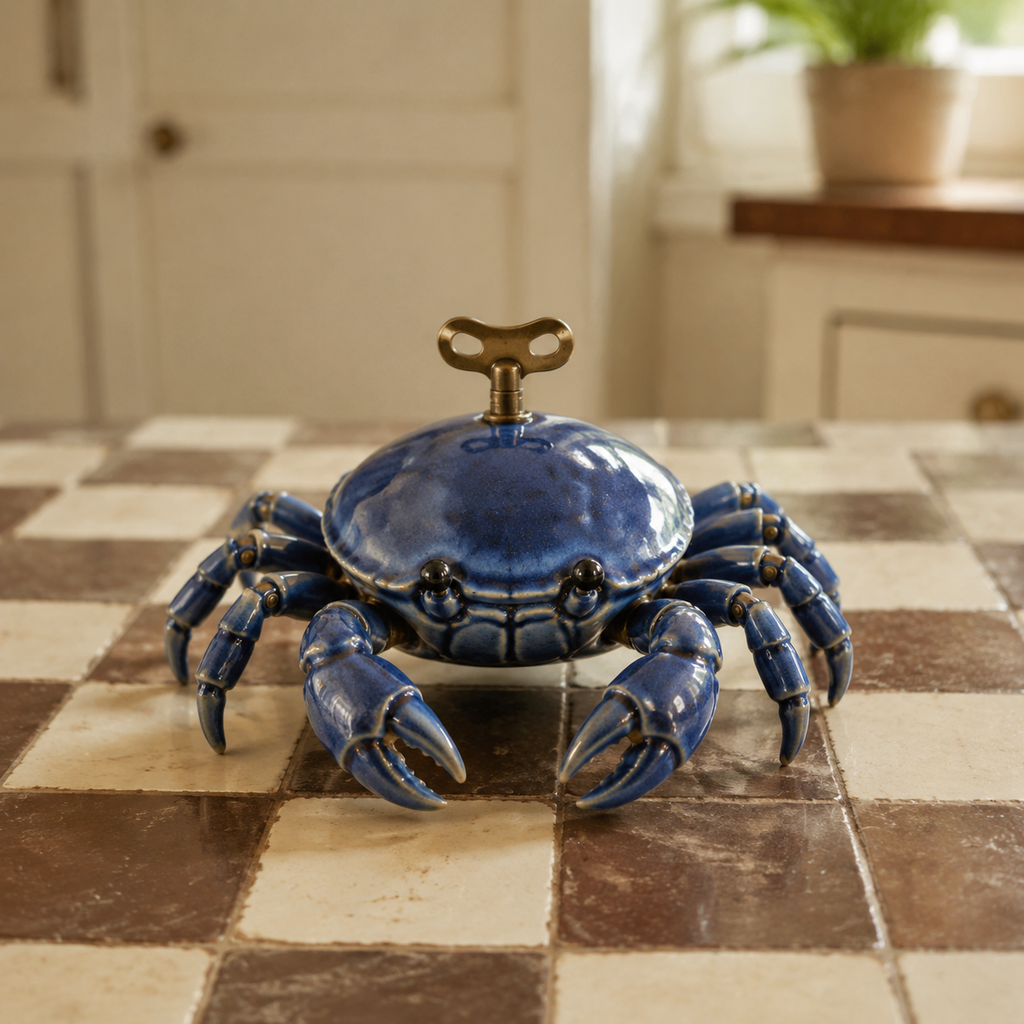
The first record supplies a photo-booth portrait and requests a 10-second sequence of straightening a bow tie and suppressing a smile in normal mode. The second supplies the ceramic crab and requests two steps and a salute over 6 seconds in fun mode. Read the complete prompts and compare each image with its corresponding actual video to inspect the requested action, appearance and material continuity.

Prompt

Animate this exact photograph as one continuous ten-second fixed medium close-up. The same curly-haired middle-aged man in the photo booth glances down at his crooked bow tie, uses his hands to gently straighten it once, lowers his hands, then looks directly into the camera and tries to suppress a smile, ending with a small warm grin. Preserve his exact face, hair, jacket, shirt, booth curtain, framing and photographic lighting. Natural small hand movements and subtle cheeks and eyes; no talking, no exaggerated laughter, no camera movement, no cuts, no new objects or text.

Source image

Prompt

Bring the same small blue ceramic clockwork crab to life in a six-second handcrafted stop-motion animation. It takes exactly two small sideways steps across the checkerboard table, pauses, then raises one claw in a cheerful little salute. Keep the same number of legs and claws, the same glossy cobalt glaze with tiny handmade imperfections, and the same visible brass winding key. Body remains rigid ceramic, legs rotate at their joints. Fixed camera, steady warm kitchen light, no extra objects, no cuts, no morphing, no text or logos.

Source image

Creative Use Cases for Grok Imagine Video

Prepare a written scene for a new character or location, or one image for an existing portrait, animal or object. Describe the action, camera and details to preserve, select 6 or 10 seconds and the generation mode, then inspect the video for a storyboard, character presentation, wildlife study, miniature animation or integrated creative workflow.

Develop a stylized character scene

Write the character’s material, setting and one clear interaction. Choose a mode and duration, then inspect the action and scene structure for a storyboard concept.

Plan a full-body performance

Describe the person, visible object and ordered movement, and choose a duration suited to the sequence. Review body continuity and object handling for a performance or character proposal.

Animate an existing portrait

Provide one portrait and describe a restrained gesture and expression. Identify the face, clothes and background to preserve, then compare the completed video with the image for a character presentation.

Study an animal’s small movement

Supply a clear animal image and describe a small action, breathing or local environmental change. Inspect anatomy and source composition for a natural-history visual study.

Create a handcrafted object animation

Prepare the object image and specify its rigid body, moving joints and intended action. Review surface texture and structural continuity before selecting the clip for a miniature presentation.

Integrate the tested text or image request

Retain the task identifier, prompt, optional source-image URL, mode and duration. Submit the authenticated request and track its task ID to retrieve the completed video.

Grok Imagine Video Specifications and API Pricing

Grok Imagine Video is billed per video using the selected 6 or 10-second duration tier. The dynamic table shows the current lowest per-video price for each task. Open the text or image task, select the intended duration and mode and review the complete estimate for that clip before generating.

ModelProviderWorkflowInput materialOutput specificationStarting rate
Grok Imagine Video Text to VideoxAIText to VideoText prompt6 / 10 s$0.15 / video
Grok Imagine Video Image to VideoxAIImage to VideoOne source image6 / 10 s$0.15 / video

How to Use Grok Imagine Video on Vidgo

Test your creative brief online, then bring the verified request into your application.

Test online

Generate a result with your intended settings

Enter the scene or motion prompt, provide one source image for image generation and select the mode and 6 or 10-second duration. Configure the text task’s aspect ratio where needed. Review the estimate, generate the clip and inspect movement, subject appearance, materials and framing.

Why Use Grok Imagine Video on Vidgo

Choose a task, inspect its settings and cost, and follow the result from an online test to an authenticated API request.

Creative testing and task selection

Choose inputs around your creative goal

Choose Text to Video for a written scene or Image to Video for one prepared image. Describe the ordered action and camera, choose a documented mode and select 6 or 10 seconds. Set the aspect ratio in the text task when preparing a square, portrait or landscape composition.

Test your own prompt and images

Open the matching task, enter your brief and supply the required images. Review the generated result against subject appearance, composition and the requested changes before carrying the workflow into a project.

Review the estimate before generation

Select the intended duration to review the full per-video price. Use the complete estimate and planned test count when budgeting a scene or animation study.

API integration and result management

Learn from complete recorded examples

Read the actual prompt and inspect its source images and result together. Use those examples to understand how to assign input roles and describe the details to preserve or change in your own request.

Track each generation with its task ID

Retain the task ID returned by the API to query status and retrieve completed file URLs. Use your online generation history to review earlier results and the creative direction you tested.

Follow the documentation for the selected task

Use the documentation linked from each task for its exact model identifier, accepted inputs, authentication and response format. Integrate the same task you tested online so its media and settings match the request.

Grok Imagine Video API FAQ

Grok Imagine Video is an xAI video model available on Vidgo through Text to Video and Image to Video. It creates 6- or 10-second clips from a written scene or one source image, with documented mode choices and aspect-ratio controls for the text task.

Browse all models