Flux Kontext Pro and Max image generation and editing

Flux Kontext provides Pro and Max text-generation and single-image-editing tasks. Describe a scene, subject and material for a new image, or provide one source and identify the wording, setting or visual style to change. The reference establishes the person, object and composition to retain; the prompt describes how the result should differ. Choose one of seven aspect ratios and PNG or JPG output, then compare the selected variant’s complete per-generation estimate.

Flux Kontext is developed by Black Forest Labs. Vidgo provides access to the model. Model names and trademarks belong to their respective owners.

Explore Flux Kontext Models

Choose Text to Image to create the complete composition from a prompt. Choose Image Editing when an existing photograph supplies the identity, object or scene to preserve. Both Pro and Max offer these two tasks with the same documented ratio and format controls; select a variant, test the intended change and review its current price.

Flux Kontext Image Generation and Single-Image Editing Tasks

Text generation uses prompt and optional size and output_format. Editing adds image_urls containing exactly one public image address. Specify the letters, surface, person, environment or medium to change, and name the details that should remain consistent. A single source can support a local revision, a new setting or a full rendering-style change.

Model / taskInput and workflow
Flux Kontext Pro Text to ImageGenerate images from text prompts with Flux Kontext Pro Text to Image, choosing from seven aspect ratios and PNG or JPG output.
Flux Kontext Pro EditEdit one source image with text instructions using Flux Kontext Pro Edit, choosing from seven aspect ratios and PNG or JPG output.
Flux Kontext Max Text to ImageGenerate images from text prompts with Flux Kontext Max Text to Image, choosing from seven aspect ratios and PNG or JPG output.
Flux Kontext Max EditEdit one source image with text instructions using Flux Kontext Max Edit, choosing from seven aspect ratios and PNG or JPG output.

Flux Kontext Boat Name Replacement and Musician Relocation Examples

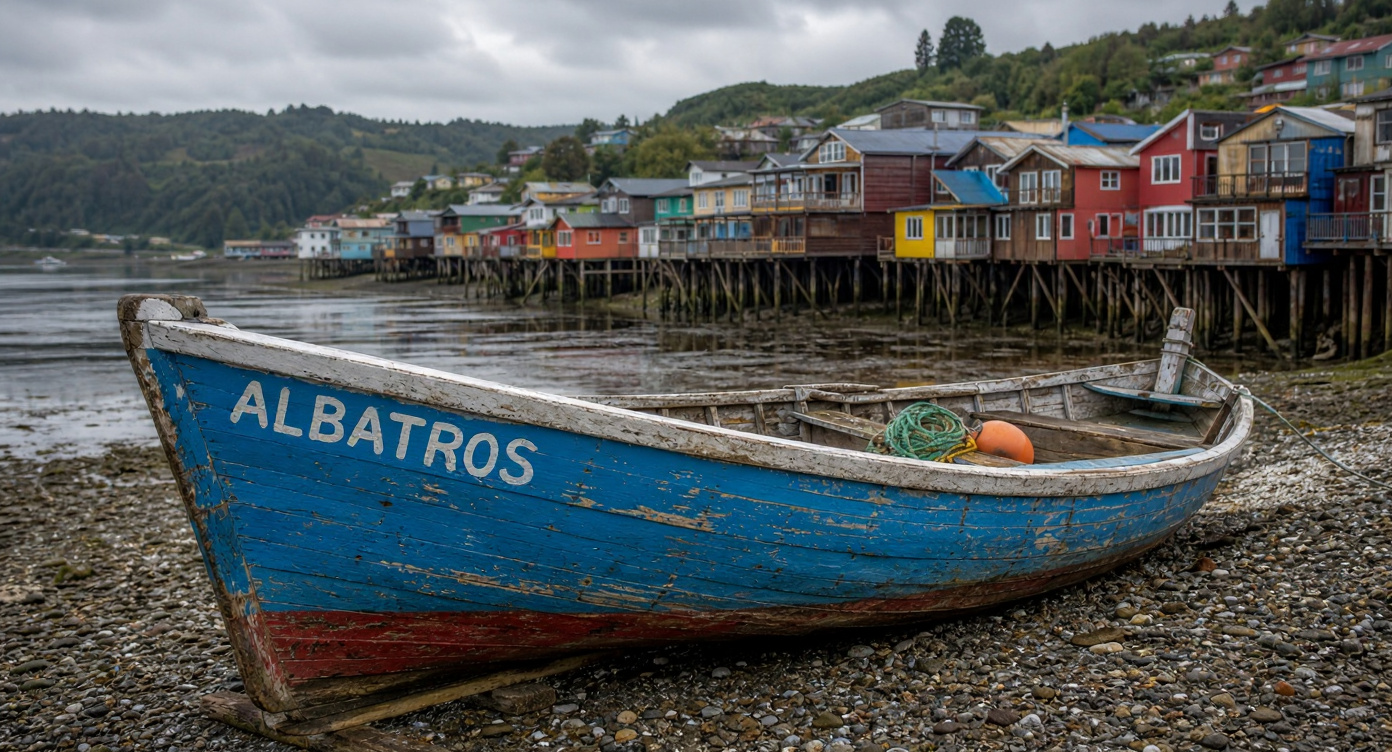
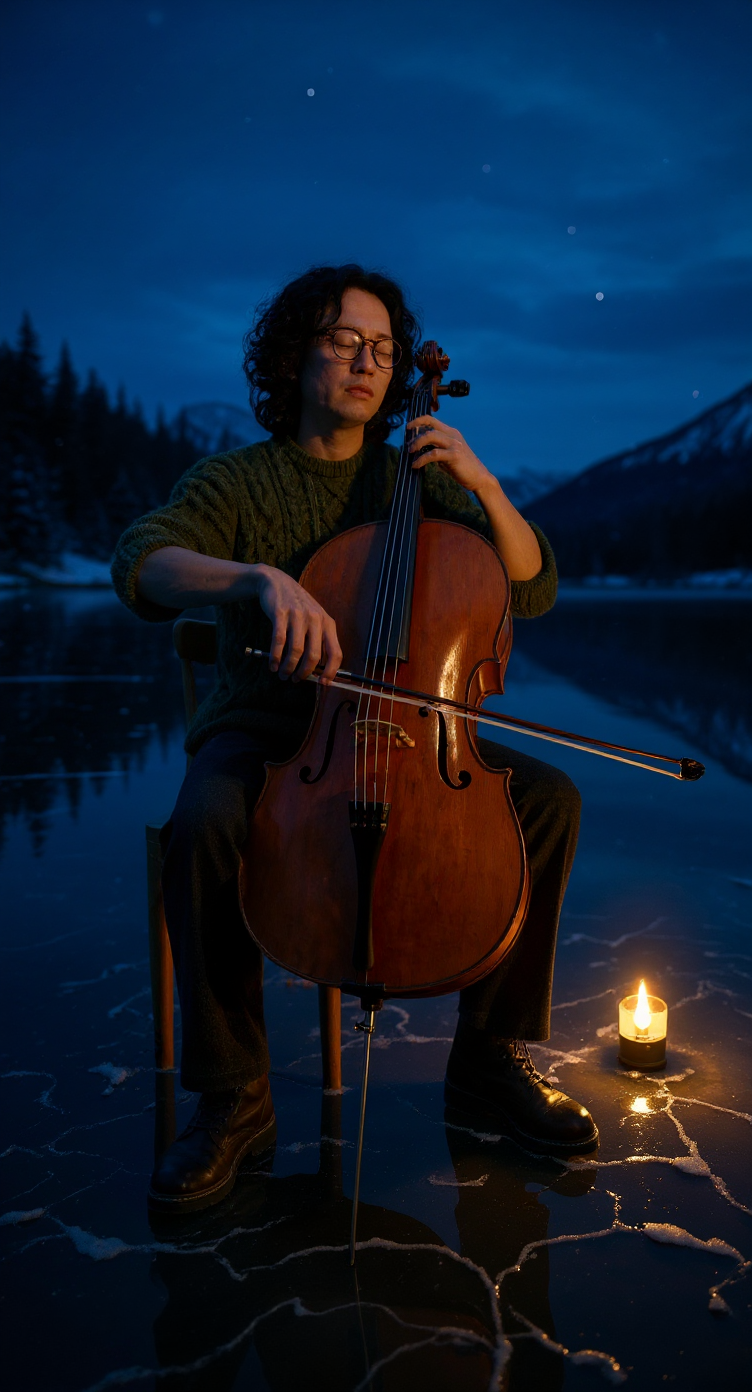
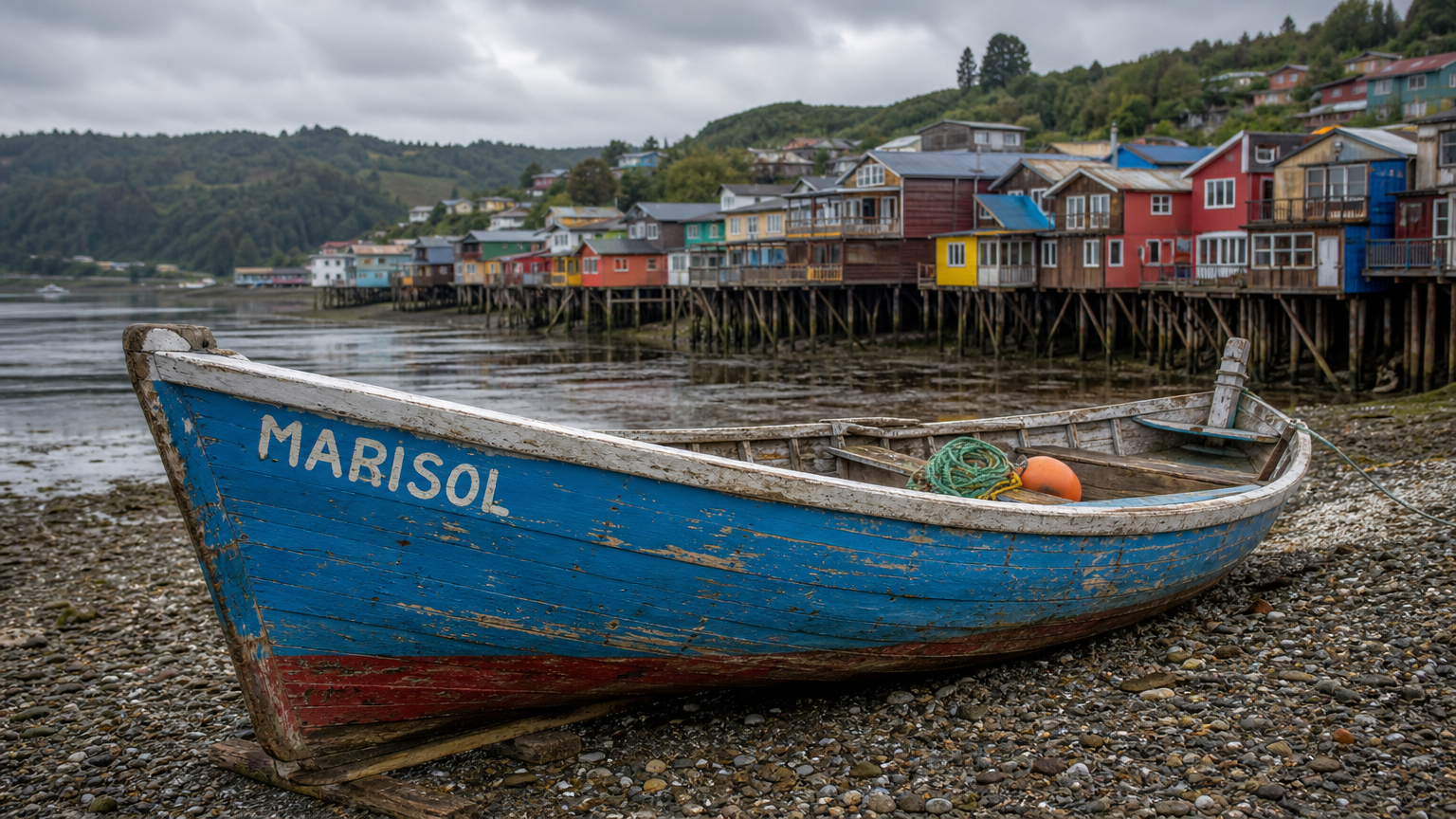
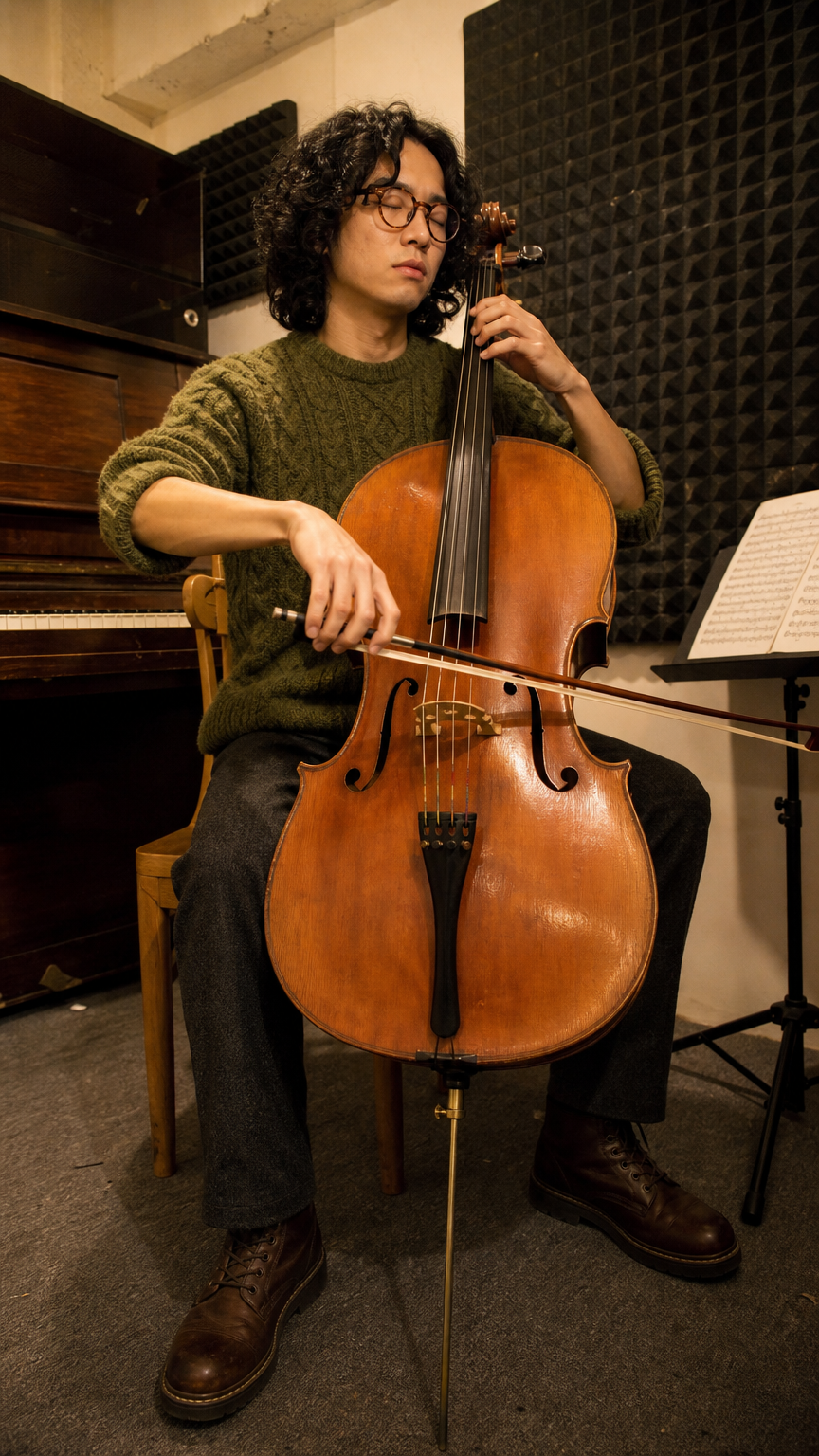
The Pro case supplies a fishing-boat photograph and asks to replace its painted name while retaining the hull, beach and surroundings. The Max case supplies a cellist portrait and asks for the same musician, chair, cello and playing pose on a frozen lake with twilight and lantern light. Read the complete prompts and compare each source with its corresponding output.

Prompt

Replace the painted name on the bow "MARISOL" with "ALBATROS". Paint the new letters in the same hand-painted white capital lettering style, same size, same brush texture, with the same chipping and weathering as the rest of the hull. Keep everything else unchanged: the boat, its sky blue hull and white stripe, the rope and buoy, the pebble beach, the palafito stilt houses, the hills, the overcast light and the camera framing.

Original image
Generated result · Flux Kontext

Prompt

Move this exact same musician, still seated on the same wooden chair and playing the same cello, from the practice room to the middle of a vast frozen lake at blue hour. Keep his face, curly black hair, round tortoiseshell glasses, closed eyes, moss-green cable-knit sweater with rolled sleeves, charcoal trousers, brown boots, bow position and the honey-brown cello with its worn varnish identical. The new setting: smooth dark ice with white cracks and a light dusting of snow around the chair, snow-covered pine forest and mountains on the far shore, a deep blue twilight sky with a thin pink glow on the horizon and the first stars. A small warm light from a lantern on the ice beside the chair lights his face and the cello, while the rest of the scene is cool blue. His breath is faintly visible in the cold air. Remove the practice room completely.

Original image
Generated result · Flux Kontext

Creative Use Cases for Flux Kontext

Prepare a written brief or one source image, identify the subject and the precise changes to make, and select the Pro or Max task. Reviewed images can support narrative scene development, object lettering, character relocation, material reinterpretation and photograph restoration concepts. Check identity, wording, composition and the requested details before using the result.

Narrative scene development

Describe the setting, people, activity and light, then generate the composition. Review physical relationships and atmosphere for a film concept, editorial illustration or visual research draft.

Lettering and surface revisions

Supply the existing image and specify the exact old and new words and the surface finish to retain. Inspect spelling, placement and texture for a sign update or scene-revision proposal.

Character relocation

Provide one identity reference and describe the destination, pose and matched illumination. Review the edited character and contact with the new environment for a story scene or location concept.

Rendering-medium exploration

Supply a photograph and describe glass, print, paint or another desired medium, with object positions to retain. Compare the transformed result with the source for an illustrated series or material study.

Photograph restoration concepts

Provide the old photograph and identify damaged areas, color targets and details to preserve. Inspect the revised image against the original for a personal archive or restoration proposal.

Scene object removal or refinement

Supply one scene and name the selected object and desired surrounding appearance. Describe the architecture, light and camera to retain, then inspect the edit for a scene or visual-development draft.

Flux Kontext Specifications and API Pricing

Flux Kontext uses per-generation pricing, with a separate current rate for Pro and Max. Within each variant, text generation and one-image editing use the corresponding task rate. The dynamic table reads each task’s current starting price. Choose the variant, framing and PNG/JPG output on the task page and review the complete estimate before submitting.

ModelProviderWorkflowInput materialOutput framingStarting rate
Flux Kontext Pro Text to ImageBlack Forest LabsText to ImageText prompt7 aspect ratios$0.04 / generation
Flux Kontext Pro EditBlack Forest LabsImage EditingReference images: up to 17 aspect ratios$0.04 / generation
Flux Kontext Max Text to ImageBlack Forest LabsText to ImageText prompt7 aspect ratios$0.08 / generation
Flux Kontext Max EditBlack Forest LabsImage EditingReference images: up to 17 aspect ratios$0.08 / generation

How to Use Flux Kontext on Vidgo

Test your creative brief online, then bring the verified request into your application.

Test online

Generate a result with your intended settings

Write the complete scene or precise change, including exact wording and retained details. Add one public source for editing, select size and output_format and review the estimate. Generate and compare the result with the brief and original image, including identity, lettering, material and composition.

Why Use Flux Kontext on Vidgo

Choose a task, inspect its settings and cost, and follow the result from an online test to an authenticated API request.

Creative testing and task selection

Choose inputs around your creative goal

Choose Pro or Max, then Text to Image for a written scene or Image Editing for one source photograph. Select one of seven ratios and PNG or JPG, describe the target content or change and review the corresponding generation estimate.

Test your own prompt and images

Open the matching task, enter your brief and supply the required images. Review the generated result against subject appearance, composition and the requested changes before carrying the workflow into a project.

Review the estimate before generation

Review the selected Pro or Max task’s current per-generation estimate. Compare complete request amounts and the planned test count for your material and editing goal when budgeting the project.

API integration and result management

Learn from complete recorded examples

Read the actual prompt and inspect its source images and result together. Use those examples to understand how to assign input roles and describe the details to preserve or change in your own request.

Track each generation with its task ID

Retain the task ID returned by the API to query status and retrieve completed file URLs. Use your online generation history to review earlier results and the creative direction you tested.

Follow the documentation for the selected task

Use the documentation linked from each task for its exact model identifier, accepted inputs, authentication and response format. Integrate the same task you tested online so its media and settings match the request.

Flux Kontext API FAQ

Flux Kontext is a Black Forest Labs image family with Pro and Max text-generation and single-image-editing tasks on Vidgo. Both variants offer seven ratios and PNG/JPG output. The editing source establishes the visual context, while the prompt identifies the intended change and details to retain.

Browse all models