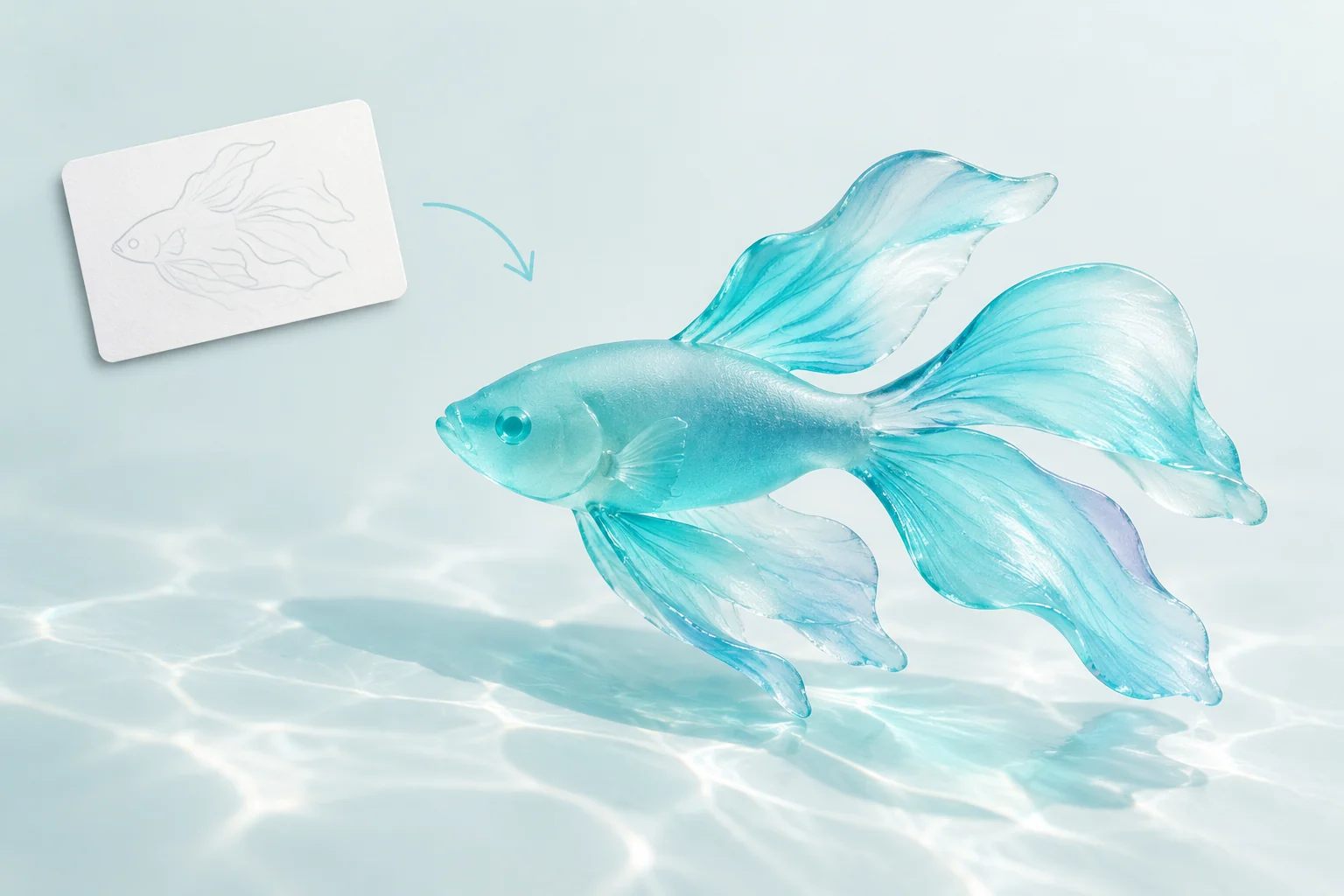
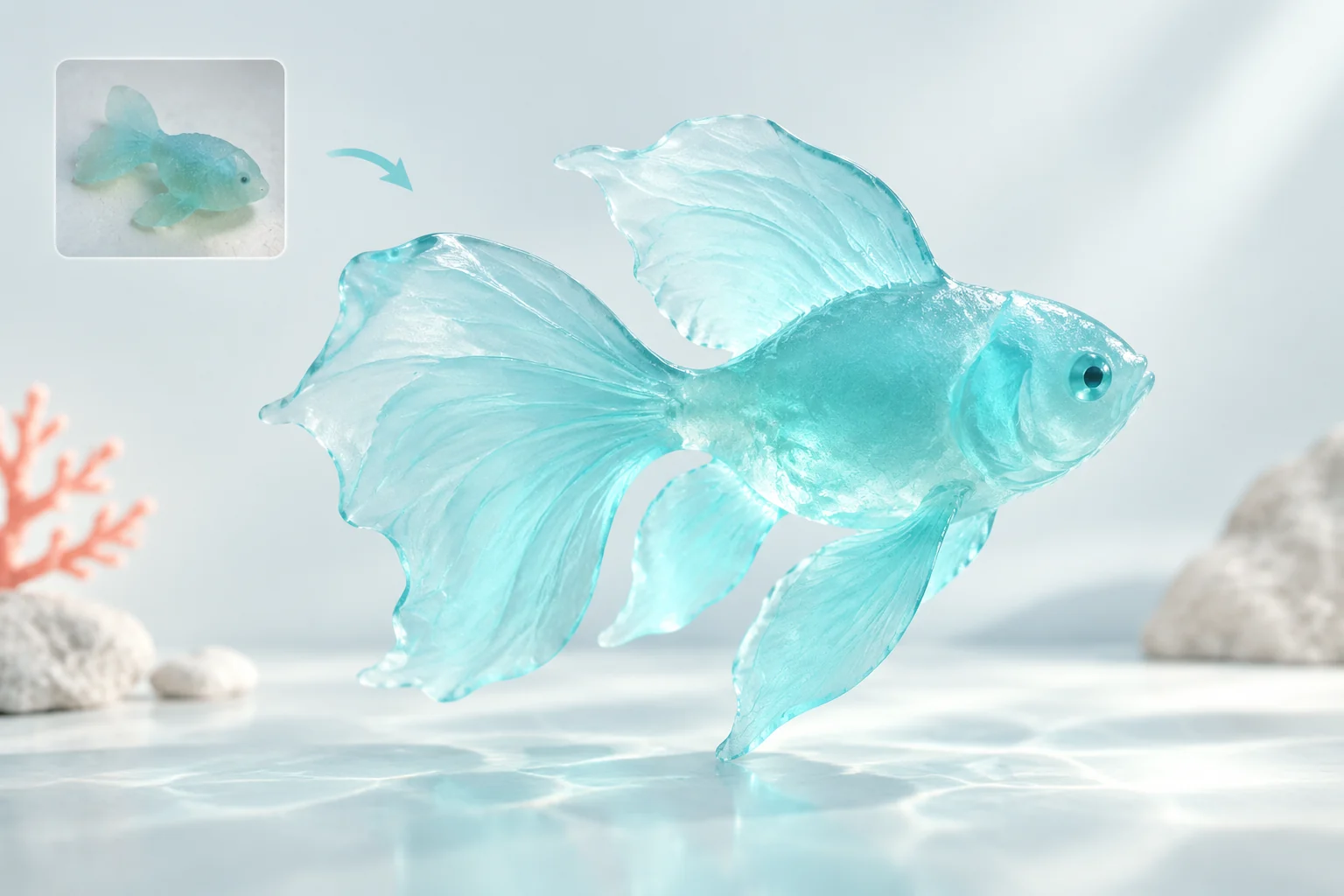
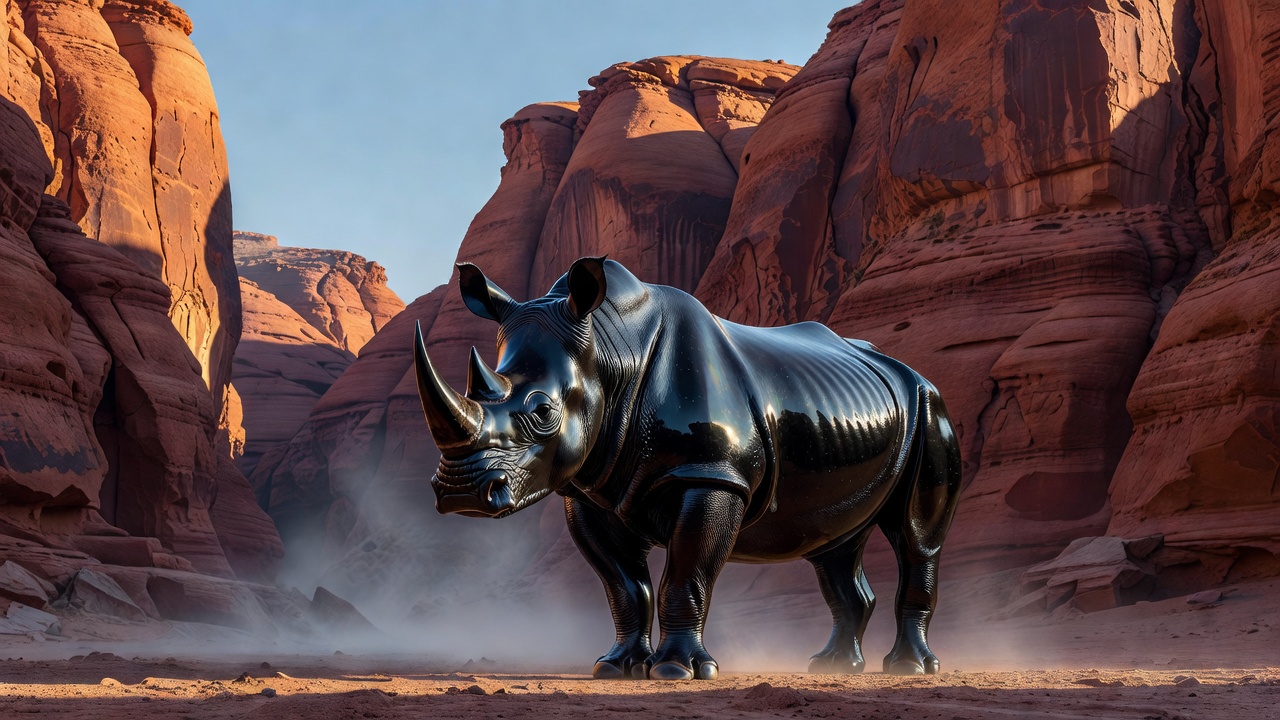
Grok Imagine image generation and reference editing

Grok Imagine brings together base image generation and editing with the Image Quality text and editing tasks. Use a written scene to create a subject, environment and composition, or supply references and describe a background replacement, lighting change, material edit or new visual style. The base editing task uses one image; Quality editing accepts one to three and offers 1K or 2K with a requested image count. Both workflows provide five aspect ratios. Choose the input and output controls around your material, then review the image rate and any reference-image charges in the complete task estimate.

Grok Imagine is developed by xAI. Vidgo provides access to the model. Model names and trademarks belong to their respective owners.
Explore Grok Imagine Models

Choose a text task for a new written composition or an editing task for prepared visual material. Use base editing with one image and a size setting. Use Quality when the request needs its 1K/2K resolution, requested image count or one-to-three-reference editing input, then select the framing and inspect the estimate.

Grok Imagine Image Generation and Editing Tasks

The base tasks use size for one of five aspect ratios, with one image_urls entry for editing. Quality uses aspect_ratio, resolution and n, with one to three image_urls for editing. In either workflow, the prompt assigns the references their roles and states the appearance, scene and structural details to create or preserve.

Model / taskInput and workflow
Grok Imagine Image Quality Text to ImageGenerate high-fidelity images up to 2K resolution from text prompts with Grok Imagine Image Quality. Features photorealistic detail, sharp text rendering, and 5 aspect ratios.
Grok Imagine Image Quality EditEdit images up to 2K resolution with Grok Imagine Image Quality using 1–3 visual references and text instructions. Seamlessly restyle, composite, and modify elements while preserving lighting.
Grok Imagine Image Text to ImageGenerate images from text with Grok Imagine Image Text to Image. Shape subjects, lighting, and composition, and choose from five image aspect ratios.
Grok Imagine Image EditEdit a reference image with Grok Imagine Image Edit. Describe changes to the subject, background, or visual style, and choose from five aspect ratios.

Grok Imagine Character Relocation and Watercolor Editing Examples

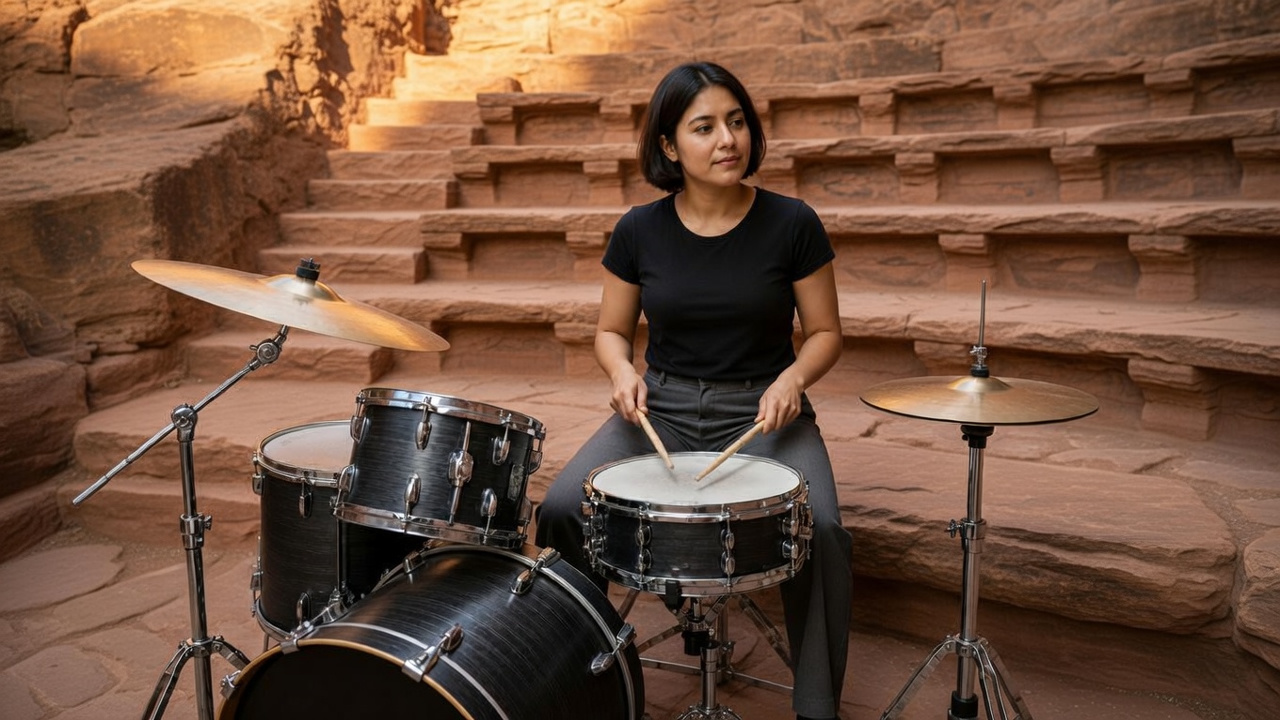
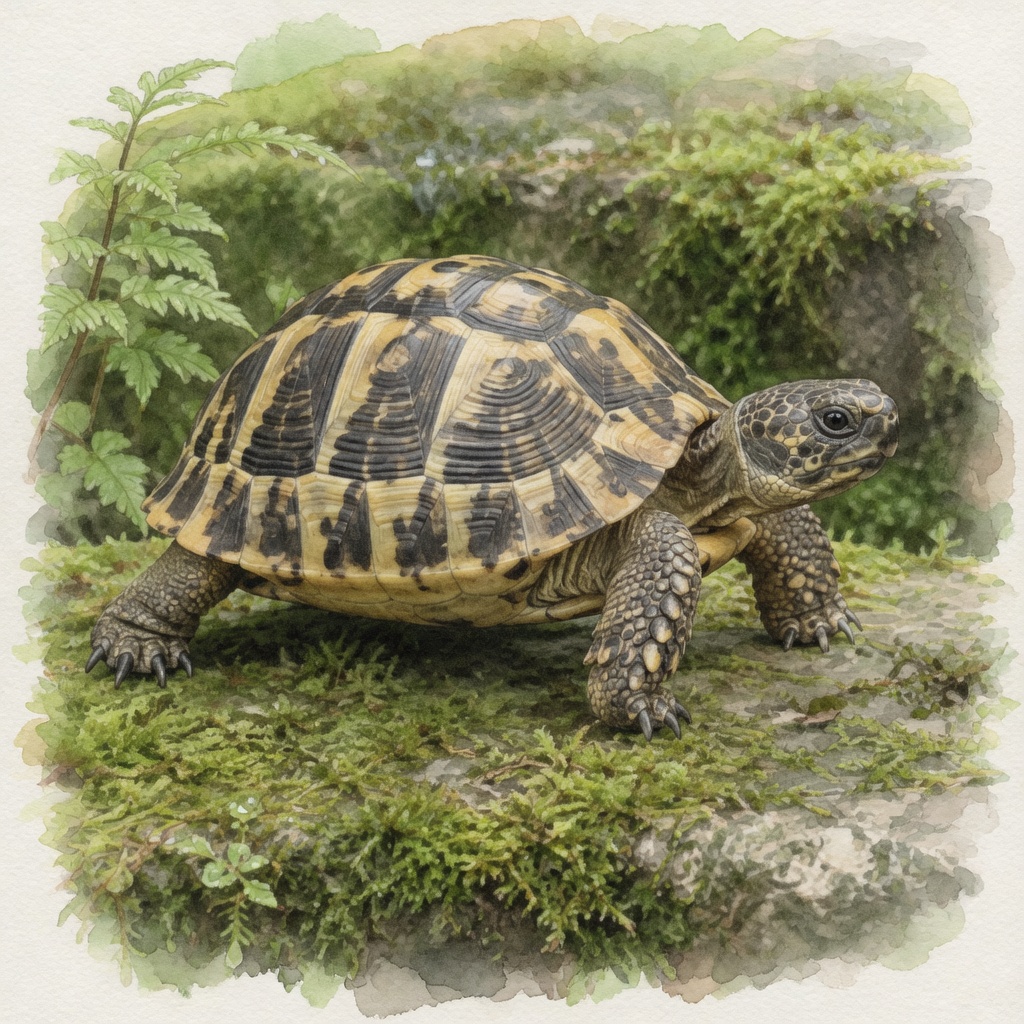
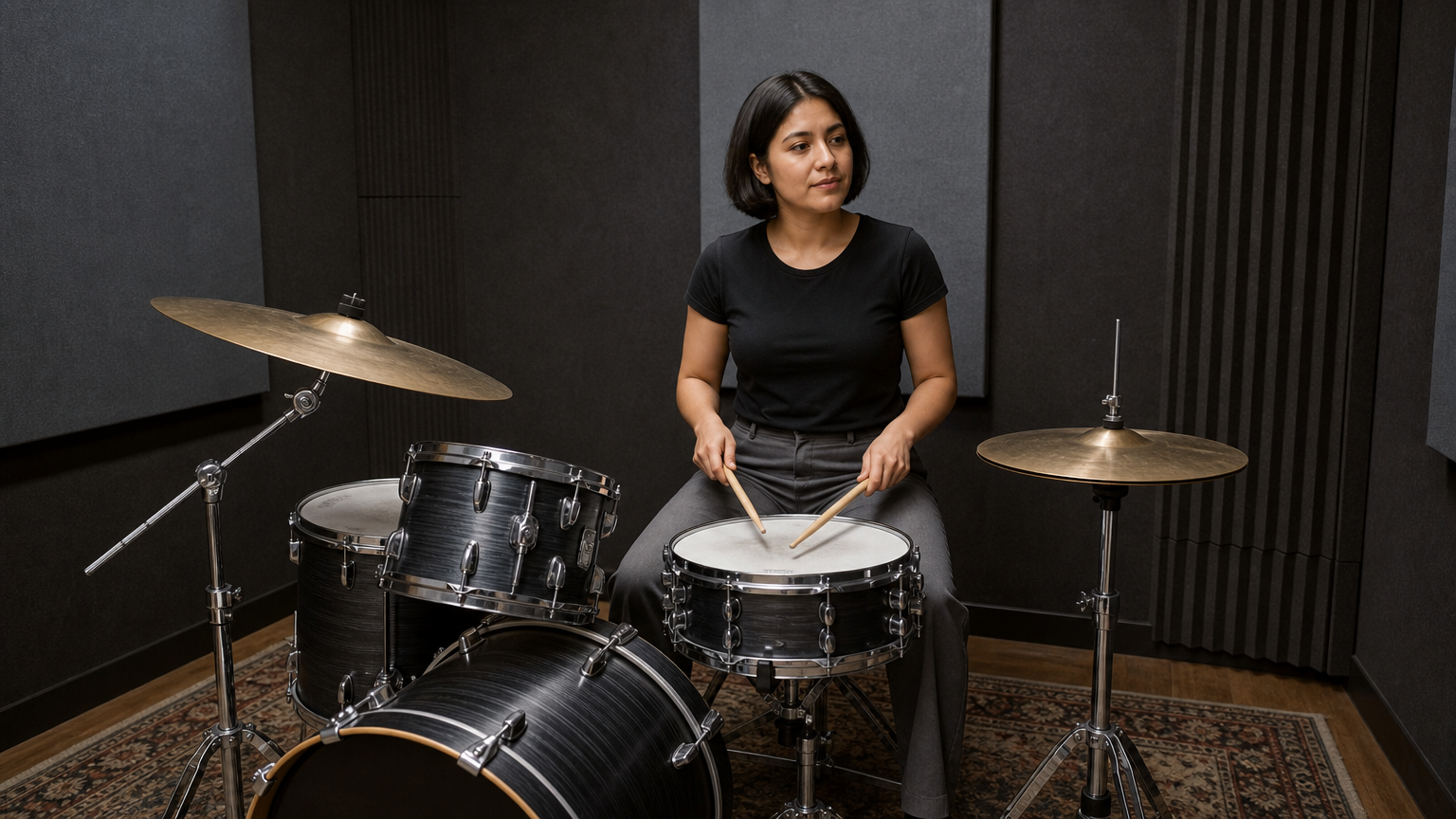
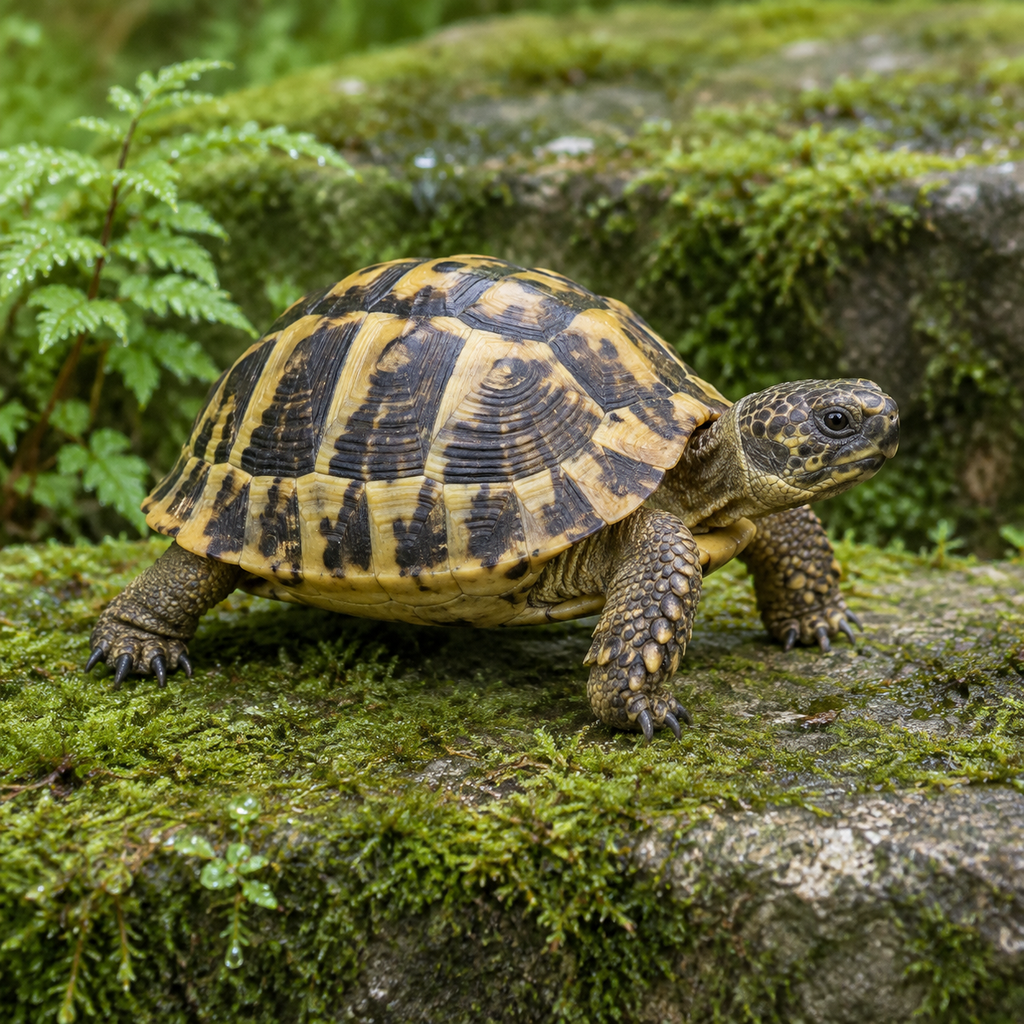
The base editing record supplies the drummer photograph and requests a sandstone amphitheater while retaining the person, drum kit and camera framing. The Quality editing record supplies a tortoise photograph and requests watercolor on textured paper while retaining the shell pattern, anatomy and square composition. Read the full prompts and compare each source with its actual result to inspect the requested environment or material change.

Prompt

Edit the supplied photograph: replace the entire indoor rehearsal-room environment with an open-air natural red sandstone amphitheater. Keep the same adult female drummer, exact face, short dark haircut, seated pose, black T-shirt, both drumsticks, and the same complete drum kit in the same positions and perspective. Preserve the original camera framing. Place the kit securely on a flat rock platform. Relight the subject and instruments coherently with warm late-afternoon sunlight and soft outdoor shadows; show sandstone tiers behind her. Do not add people, duplicate instruments, text, logos, or advertising.

Base editing source
Generated result · Grok Imagine

Prompt

Transform the supplied tortoise photograph into a refined hand-painted watercolor natural-history illustration on subtly textured warm white paper. Preserve exactly the same tortoise, its yellow-and-brown shell scute pattern, head direction, limb positions, body proportions, placement on the stone step, moss and the single fern. Keep the original square composition and viewing angle. Replace photographic surfaces with transparent layered watercolor washes and delicate precise graphite-like outlines; retain recognizable anatomy and shell detail, with soft pigment blooms in the moss and background. No labels, borders, captions, new plants, extra animals or writing. No advertisement, brand, logo, fox, product display, promotional graphics, or watermark.

Quality editing source
Generated result · Grok Imagine

Creative Use Cases for Grok Imagine

Start with a written subject or use prepared photographs for a background replacement, local object change, lighting treatment or visual restyling. State the intended result and details to preserve, choose the base or Quality workflow and its output settings, then inspect the files for a character concept, scene proposal, interior or object study, sign treatment or illustration.

Develop a material-led visual concept

Write the subject, distinctive surface and light, then choose a text task and framing. Inspect the resulting anatomy and material behavior for a visual proposal.

Replace a subject’s environment

Provide the source photograph, identify the person or object to preserve and describe the new setting. Review scale, contact and coordinated lighting before using the result in a scene presentation.

Plan a lighting or weather treatment

Supply the image and describe the desired ambient light, damp surfaces or reflections. Preserve the subject and framing, then compare the edit with the original for a visual direction study.

Explore a local object or clothing change

Name the object and replacement material or color, then state the shape, person and surroundings to retain. Inspect the result for an object, wardrobe or restoration concept.

Restyle a photograph as an illustration

Provide the photograph and describe the intended paint, print or paper treatment. Identify the anatomy and layout to preserve, then review the resulting material and composition for an illustration study.

Integrate the tested base or Quality request

Retain the exact task identifier, prompt, reference URLs and task-specific framing, resolution and count. Submit the authenticated API request and track its task ID to retrieve the image files.

Grok Imagine Specifications and API Pricing

Base tasks use their current per-image rate. Quality output pricing depends on 1K or 2K and the requested image count; Quality editing also adds a processing charge for each input reference. The dynamic table shows the current starting output-image rate for each task. The Quality editing request total combines the output rate multiplied by n and the input-reference charges. Open the task with your actual resolution, output count and references to review the full estimate.

ModelProviderWorkflowInput materialOutput specificationStarting rate
Grok Imagine Image Quality Text to ImagexAIText to ImageText prompt2K$0.04 / output image
Grok Imagine Image Quality EditxAIImage Editing1–3 reference images2K$0.04 / output image
Grok Imagine Image Text to ImagexAIText to ImageText promptAspect-ratio setting$0.03 / output image
Grok Imagine Image EditxAIImage EditingOne reference imageAspect-ratio setting$0.03 / output image

How to Use Grok Imagine on Vidgo

Test your creative brief online, then bring the verified request into your application.

Test online

Generate a result with your intended settings

Enter the scene or edit prompt and provide the images required by the selected task. Choose the framing; in Quality, also choose 1K or 2K and the requested output count. Review the full estimate including Quality editing references, generate and compare appearance, lighting, structure and style with the brief.

Why Use Grok Imagine on Vidgo

Choose a task, inspect its settings and cost, and follow the result from an online test to an authenticated API request.

Creative testing and task selection

Choose inputs around your creative goal

Choose a base or Quality text task for a written scene, or the corresponding editing task for prepared images. Base editing uses one reference and size. Quality editing accepts one to three references and uses aspect_ratio, 1K/2K resolution and a positive requested image count. Describe the change and details to preserve.

Test your own prompt and images

Open the matching task, enter your brief and supply the required images. Review the generated result against subject appearance, composition and the requested changes before carrying the workflow into a project.

Review the estimate before generation

Review the base per-image rate or Quality resolution and output count. For Quality editing, include every input reference in the full estimate. Use that complete request cost and the planned number of tests when budgeting the workflow.

API integration and result management

Learn from complete recorded examples

Read the actual prompt and inspect its source images and result together. Use those examples to understand how to assign input roles and describe the details to preserve or change in your own request.

Track each generation with its task ID

Retain the task ID returned by the API to query status and retrieve completed file URLs. Use your online generation history to review earlier results and the creative direction you tested.

Follow the documentation for the selected task

Use the documentation linked from each task for its exact model identifier, accepted inputs, authentication and response format. Integrate the same task you tested online so its media and settings match the request.

Grok Imagine API FAQ

Grok Imagine is the xAI image family on Vidgo that groups base Text to Image and Image Editing with the Image Quality text and editing tasks. Base editing uses one source image. Quality editing accepts one to three references and provides 1K/2K resolution and a requested output count. Choose the task around the source material and controls your project needs.

Browse all models