Grok Imagine Image 2.0 generation and editing up to 2K

Grok Imagine Image 2.0 creates new images from text and edits prepared visuals with one to three references. Describe a complete scene, combine an object and environment from separate photographs, or translate an existing composition into a new material while identifying the details to preserve. Choose 1K or 2K, low or medium quality, one of five aspect ratios and one to four requested images. The complete estimate uses the selected output rate and count, with editing also charging for the input references.

Grok Imagine Image 2.0 is developed by xAI. Vidgo provides access to the model. Model names and trademarks belong to their respective owners.
Explore Grok Imagine Image 2.0 Models

Choose Text to Image for a scene described in words. Choose Image Editing for one to three source images that supply the subject, environment or structure. Explain each reference’s role, the intended change and the details to preserve, then choose resolution, quality, framing and image count.

Grok Imagine Image 2.0 Image Generation and Reference Editing Tasks

Text generation uses the prompt to establish the whole scene. Editing adds one to three image_urls and describes how to retain, combine or modify their visual content. Both tasks use aspect_ratio, resolution, quality and n for the requested output, allowing the same creative brief to be tested at the supported specifications.

Model / taskInput and workflow
Grok Imagine Image 2.0 Text to ImageGenerate crisp, high-fidelity images up to 2K from text prompts with Grok Imagine Image 2.0. Features designer-grade typography, precise prompt adherence, and versatile aspect ratios.
Grok Imagine Image 2.0 EditEdit and transform images with Grok Imagine Image 2.0 using up to 3 reference images and text instructions. Features multi-reference fusion, precise region edits, and intelligent aspect ratio adaptation.

Grok Imagine Image 2.0 Embroidery Style Transfer and Canyon Composition Examples

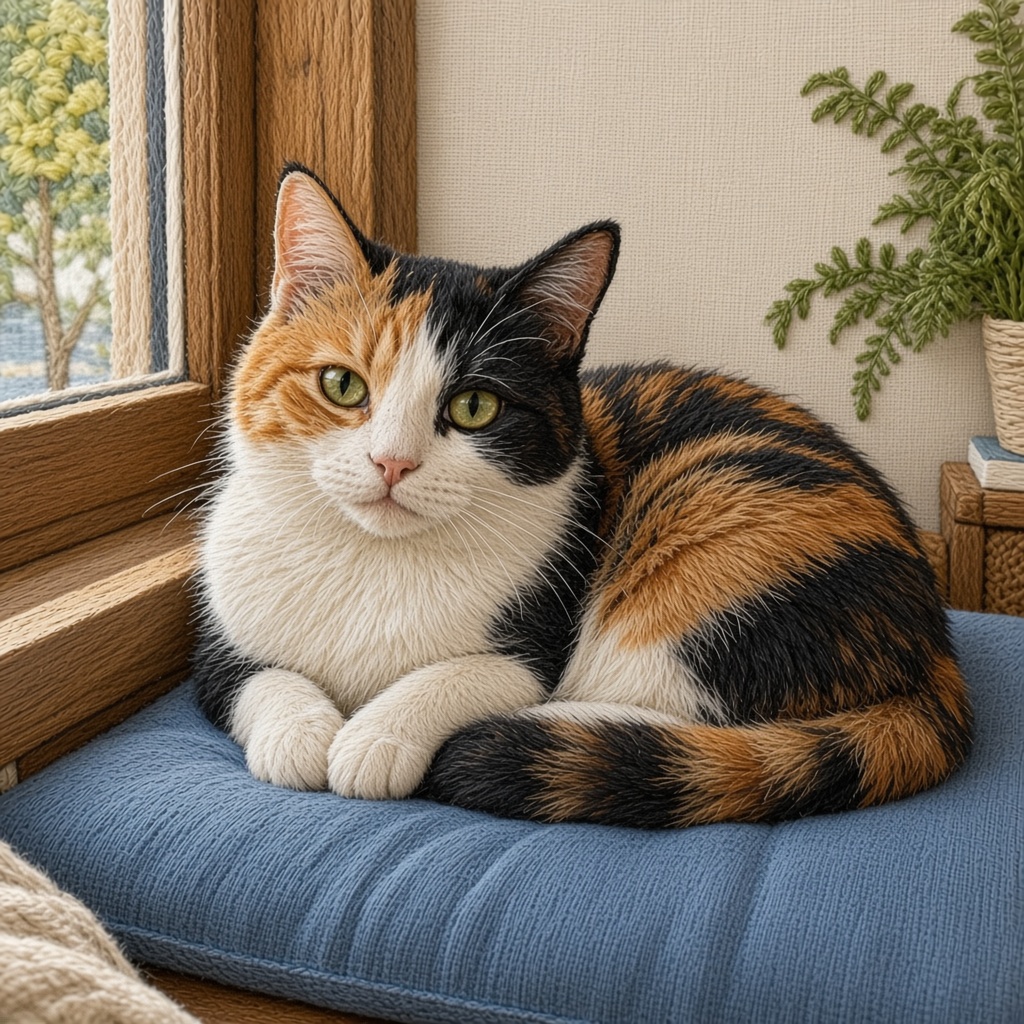
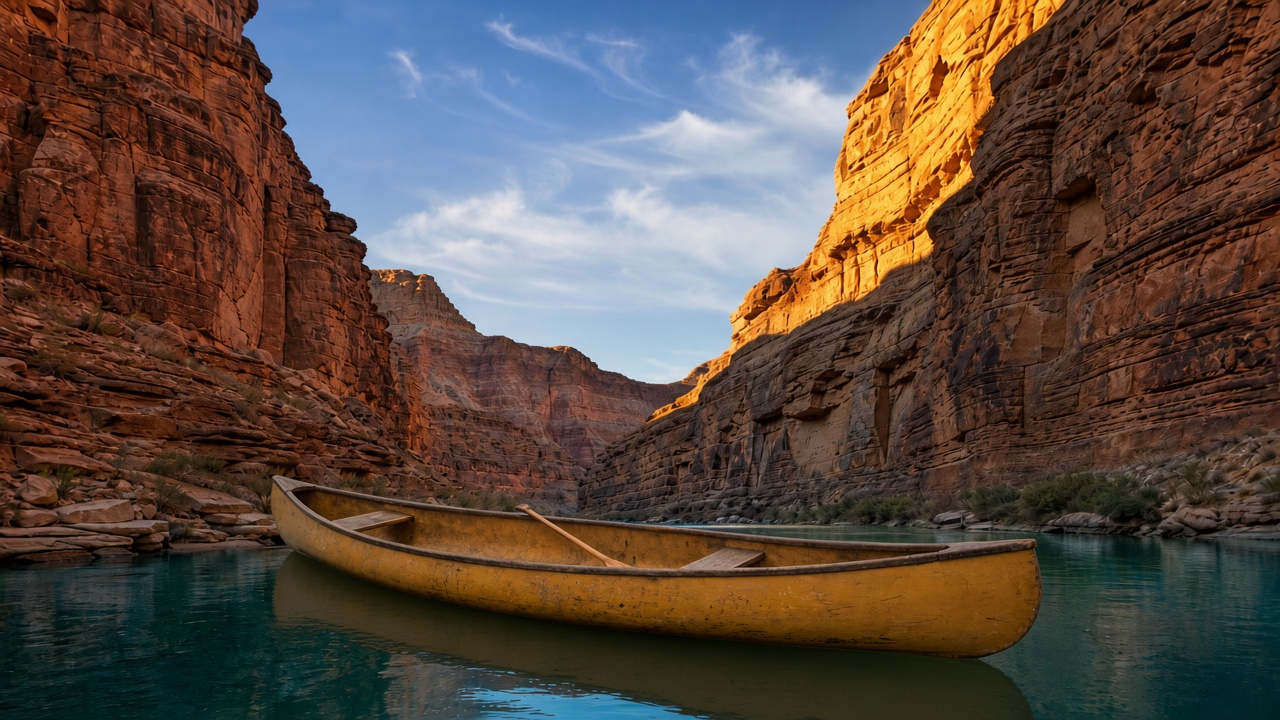
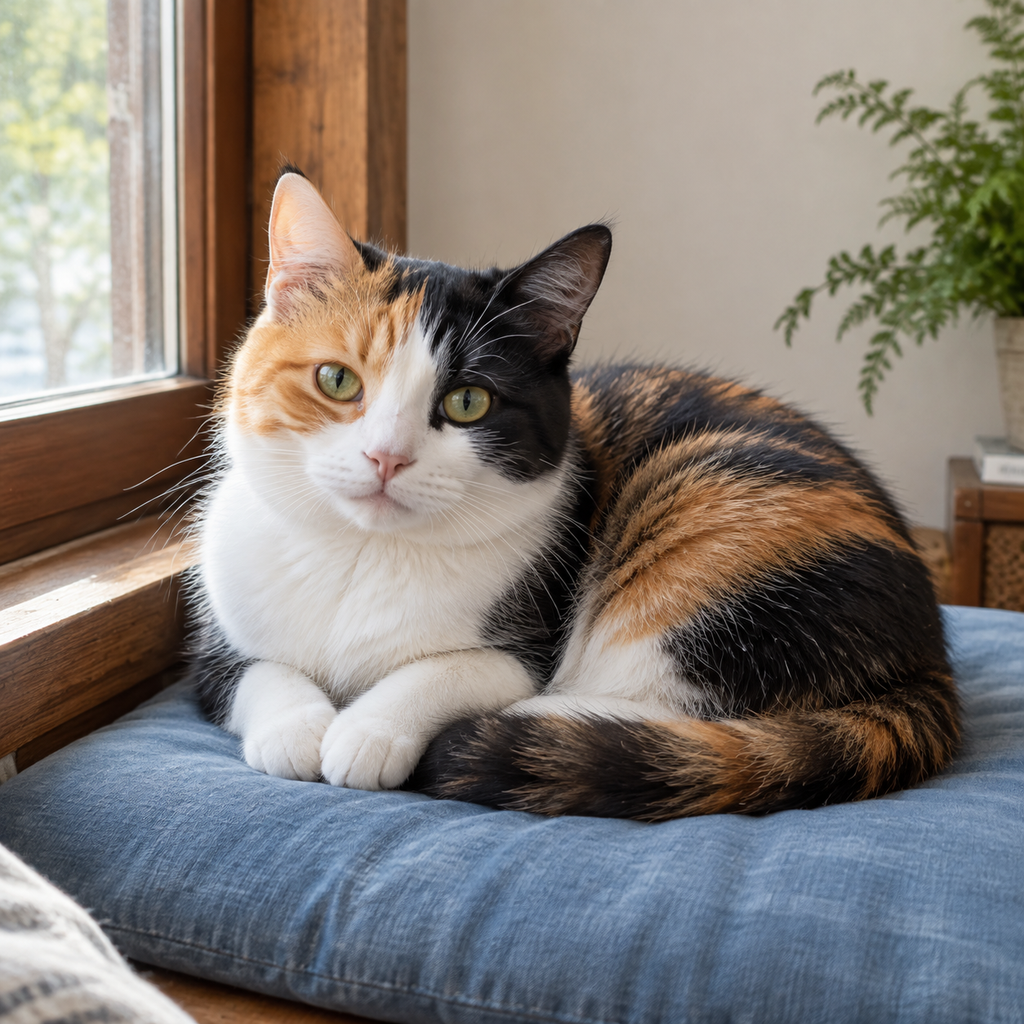
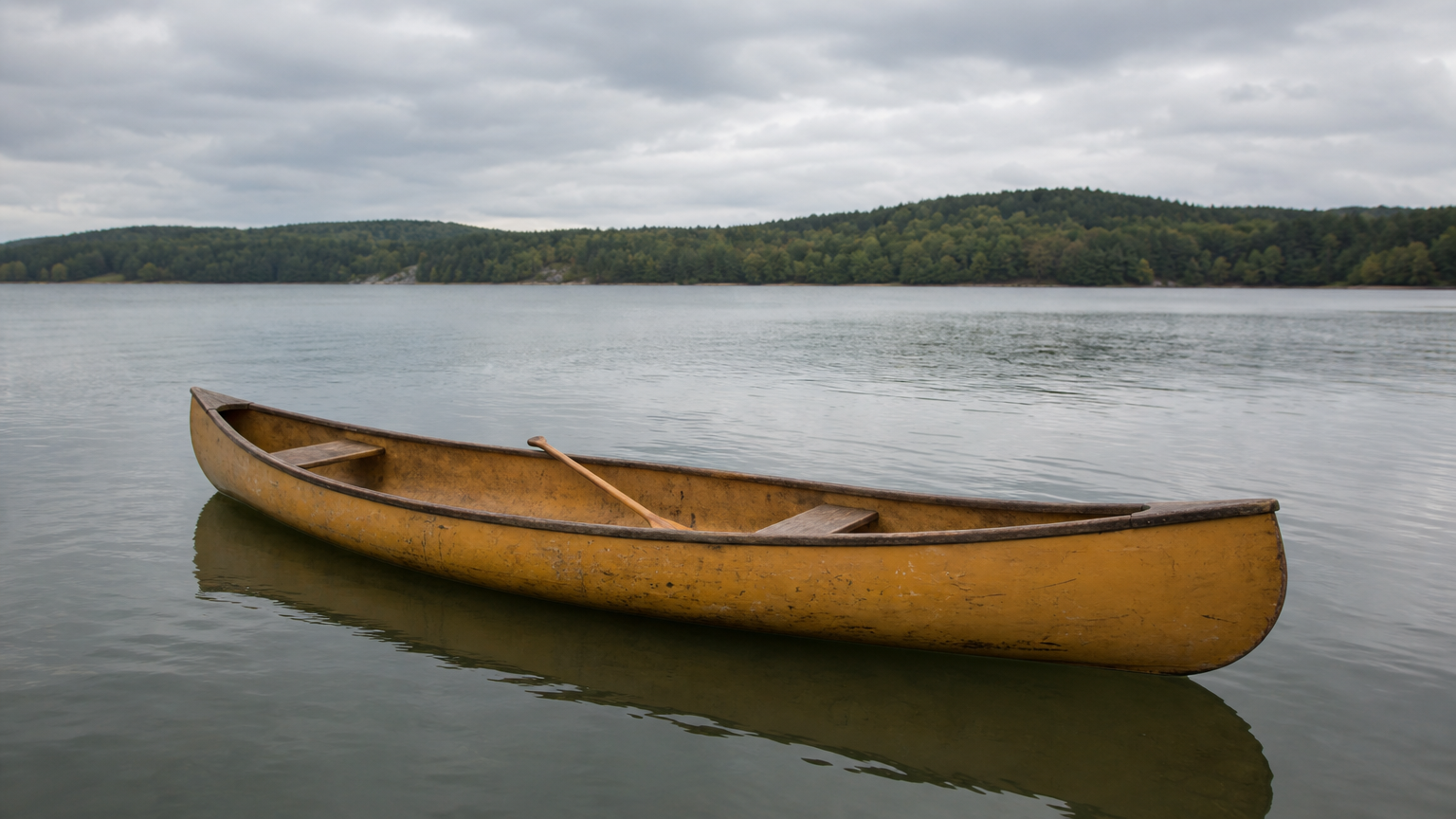
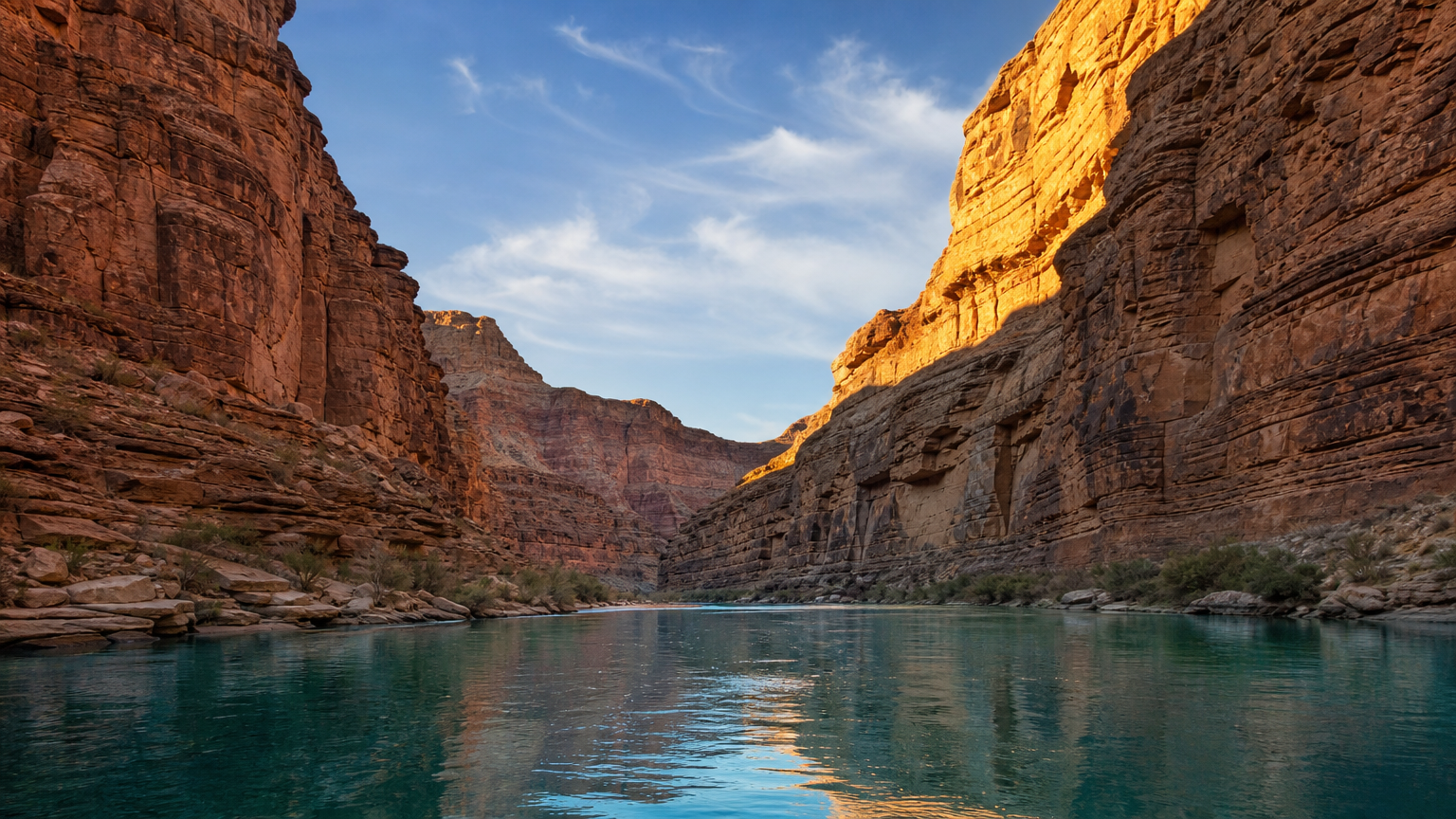
The first record supplies a cat photograph and asks for a physical embroidery treatment while retaining the pose, markings and room layout. The second supplies the canoe and canyon in separate images and describes the boat’s placement, scale, reflection and contact ripples. Read the full prompts and inspect each actual result against its sources to assess the requested material or spatial change.

Prompt

Transform the entire supplied home photograph into a lovingly handmade embroidery artwork on natural ivory linen, viewed straight on. Preserve the same cat's exact curled pose, gaze, silhouette, orange-black-white facial markings, white paws and wrapped tail. Preserve the relative placement of the blue cushion, wooden window and small fern so the original composition remains recognizable. Render the cat's fur using directional long-and-short stitches with subtle thread-color changes, its whiskers as fine individual strands, the cushion in soft satin stitches, the plant in delicate stem stitches, and the background in restrained running stitches with some exposed linen weave. Visible tactile thread relief and tiny handmade irregularities, softly lit physical textile, not a flat digital filter. Fill the square frame with the artwork without an embroidery hoop, decorative border, packaging, lettering, product presentation, advertising or watermark.

Source / first reference image
Generated result · Grok Imagine Image 2.0

Prompt

Combine these two reference photographs into one realistic wide landscape photograph. Image 1 supplies only the distinctive empty ochre-yellow canoe, its dark wooden gunwale, two bench seats, surface wear and single wooden paddle; preserve those features and its bow-pointing-right orientation. Image 2 supplies the sandstone canyon, river, camera viewpoint and late-afternoon lighting; retain its recognizable rock formations and river bend. Place exactly one canoe floating naturally on the calm water in the lower middle of image 2, occupying about one third of the frame width so the canyon remains vast. Match the boat's perspective, scale, color temperature and shadow to the canyon scene. Add a physically credible soft reflection beneath the hull and small contact ripples without changing the river's overall calmness. No shoreline from image 1, no duplicate boat, no people, no additional objects, no collage seams. Natural wilderness photograph, no text, advertising, logos, borders or watermark.

Source / first reference image
Environment reference image
Generated result · Grok Imagine Image 2.0

Creative Use Cases for Grok Imagine Image 2.0

Use text for a new environment or illustrated scene, or prepare references for a subject relocation, object composition or visual-medium transformation. Describe the sources and intended change, choose 1K/2K, low/medium quality, framing and one to four outputs, then inspect the files for scene proposals, character presentations, illustration studies or an integrated image workflow.

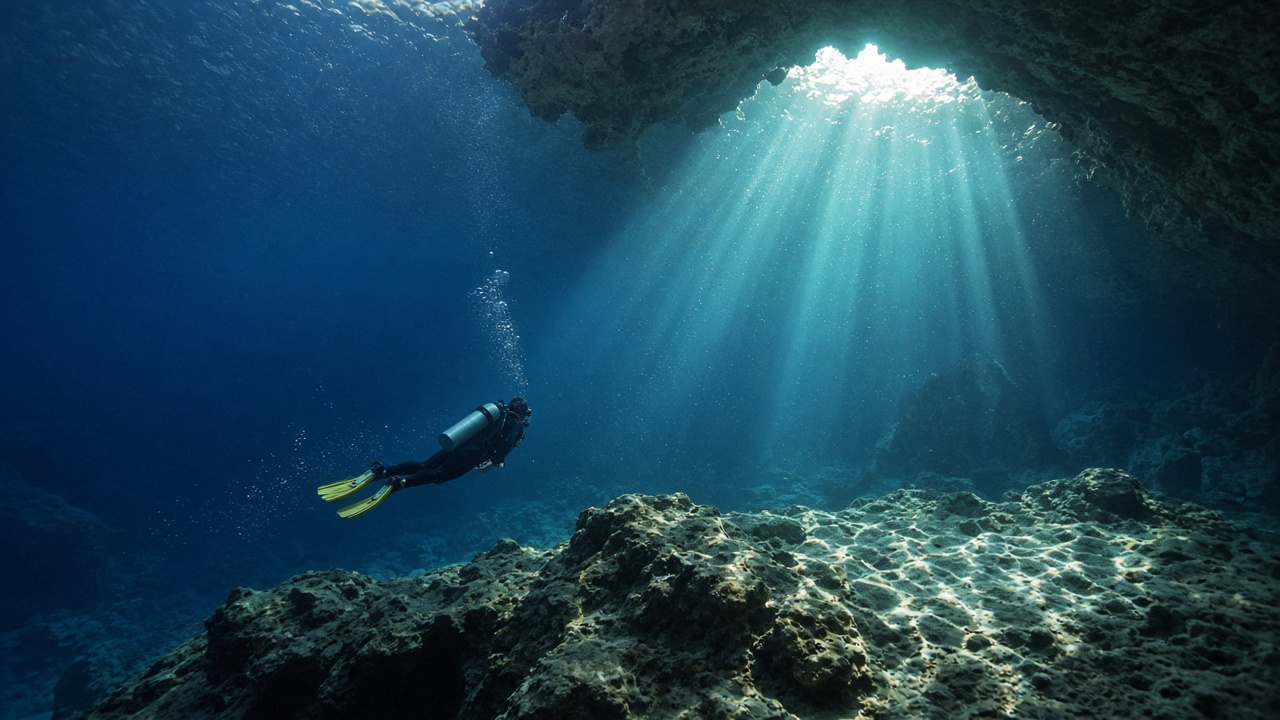
Develop an environmental scene from text

Describe the subject, scale, viewpoint and light, then choose the output specification. Inspect the generated scene for an exploration concept or storyboard proposal.

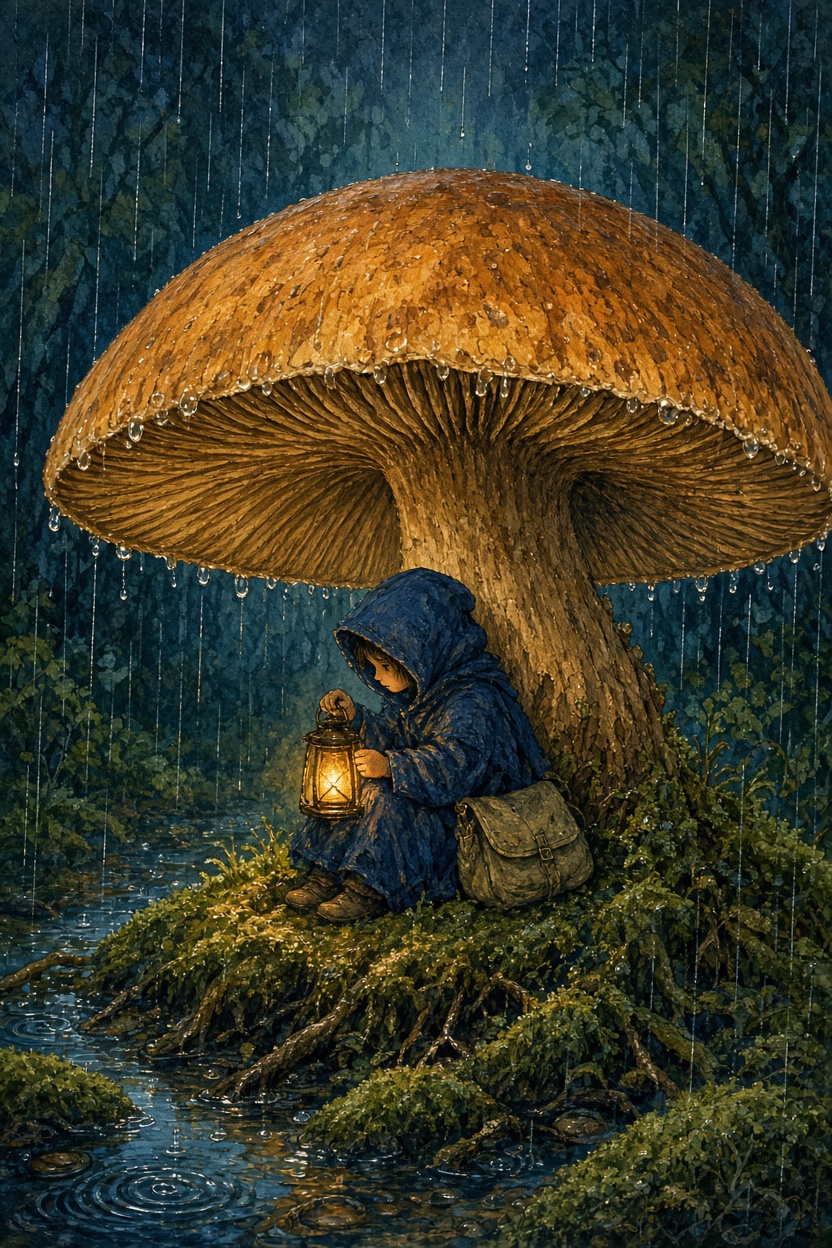
Create a painted story illustration

Write the character, environment, paint texture and light hierarchy. Review the result for miniature scale, material and narrative detail before choosing it for an illustration study.

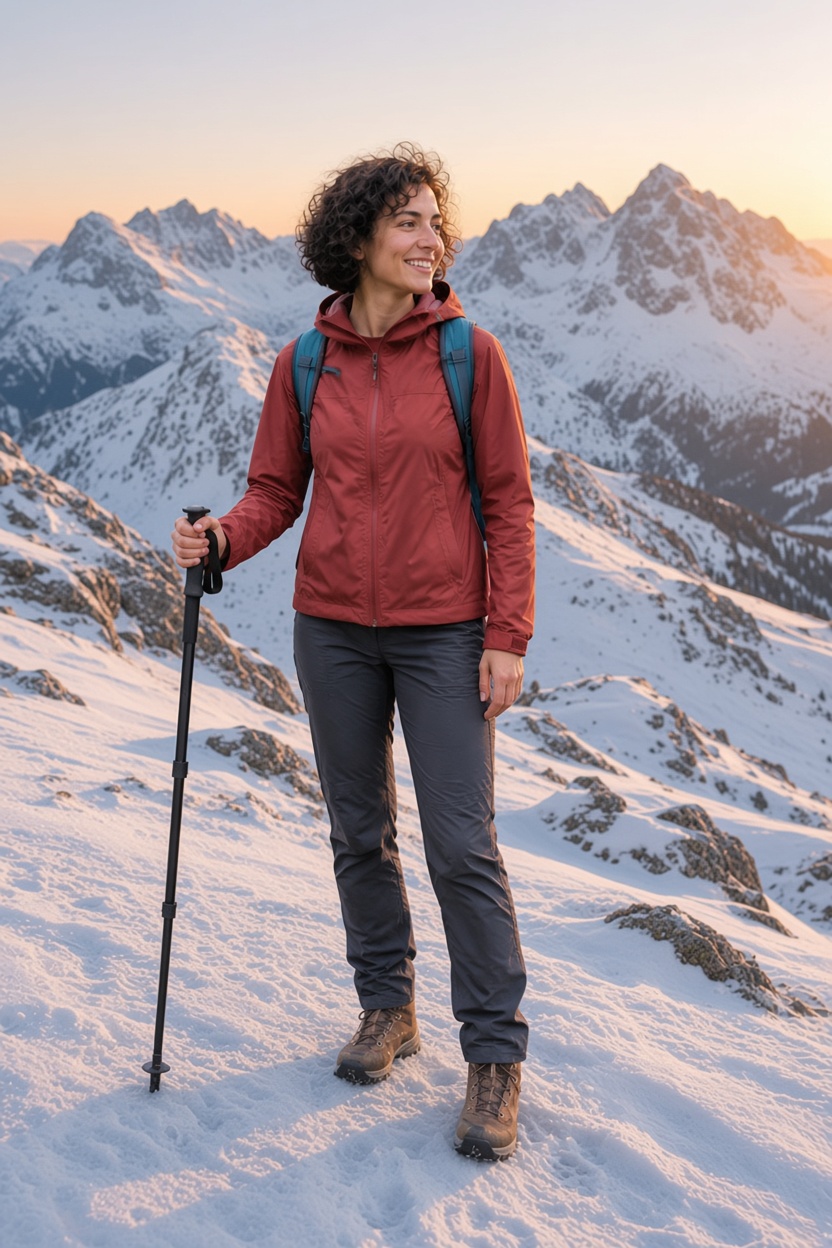
Place a prepared person in a new landscape

Provide the person image, retain appearance and pose and describe the new surroundings and light. Inspect contact, scale and equipment for a character or scene presentation.

Restyle a photograph as textile artwork

Supply the source and describe stitches, thread colors and fabric. Retain the pose and layout, then inspect the material relief and recognizable details for an illustration concept.

Compose a prepared object within an environment

Provide separate object and setting references, state their roles and describe placement and reflection. Review the completed image for scale and spatial continuity before using it in a scene proposal.

Integrate the tested image configuration

Retain the model identifier, prompt, reference URLs, resolution, quality, framing and output count. Submit the authenticated request and track its task ID to retrieve the generated files.

Grok Imagine Image 2.0 Specifications and API Pricing

Text generation uses the selected resolution and low/medium quality rate multiplied by the requested output count. Editing adds a processing charge for each input reference to that output total. The dynamic table shows the current starting output-image rate for text and the current one-output request tier for editing. For multiple outputs or references, open the task and review the full estimate with your actual settings before submitting.

ModelProviderWorkflowInput materialOutput specificationStarting rate
Grok Imagine Image 2.0 Text to ImagexAIText to ImageText prompt2K$0.04 / output image
Grok Imagine Image 2.0 EditxAIImage Editing1–3 reference images2K$0.05 / request with 1 output image

How to Use Grok Imagine Image 2.0 on Vidgo

Test your creative brief online, then bring the verified request into your application.

Test online

Generate a result with your intended settings

Enter the prompt, supply the editing references and choose resolution, quality, framing and image count. Review the full estimate including each input reference, generate and inspect subject appearance, materials, lighting and composition against the original brief.

Why Use Grok Imagine Image 2.0 on Vidgo

Choose a task, inspect its settings and cost, and follow the result from an online test to an authenticated API request.

Creative testing and task selection

Choose inputs around your creative goal

Choose Text to Image for a written scene or Image Editing for one to three references. Describe the intended composition or change and select 1K or 2K, low or medium quality, one of five aspect ratios and one to four outputs.

Test your own prompt and images

Open the matching task, enter your brief and supply the required images. Review the generated result against subject appearance, composition and the requested changes before carrying the workflow into a project.

Review the estimate before generation

Review the selected resolution and quality rate multiplied by the output count. For editing, include the processing charge for every reference image. Use the complete estimate and planned number of tests to budget the workflow.

API integration and result management

Learn from complete recorded examples

Read the actual prompt and inspect its source images and result together. Use those examples to understand how to assign input roles and describe the details to preserve or change in your own request.

Track each generation with its task ID

Retain the task ID returned by the API to query status and retrieve completed file URLs. Use your online generation history to review earlier results and the creative direction you tested.

Follow the documentation for the selected task

Use the documentation linked from each task for its exact model identifier, accepted inputs, authentication and response format. Integrate the same task you tested online so its media and settings match the request.

Grok Imagine Image 2.0 API FAQ

Grok Imagine Image 2.0 is an xAI image model available on Vidgo through Text to Image and Image Editing. It supports 1K/2K, low/medium quality, five aspect ratios and one to four requested outputs, with one to three references for editing. Use text for a new composition or references to retain and modify prepared visual material.

Browse all models