GPT Image 2.5 up to 4K output

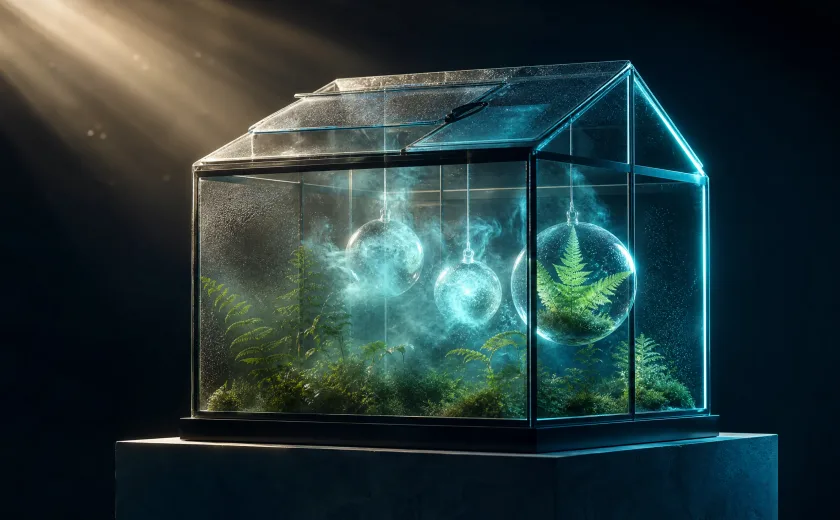
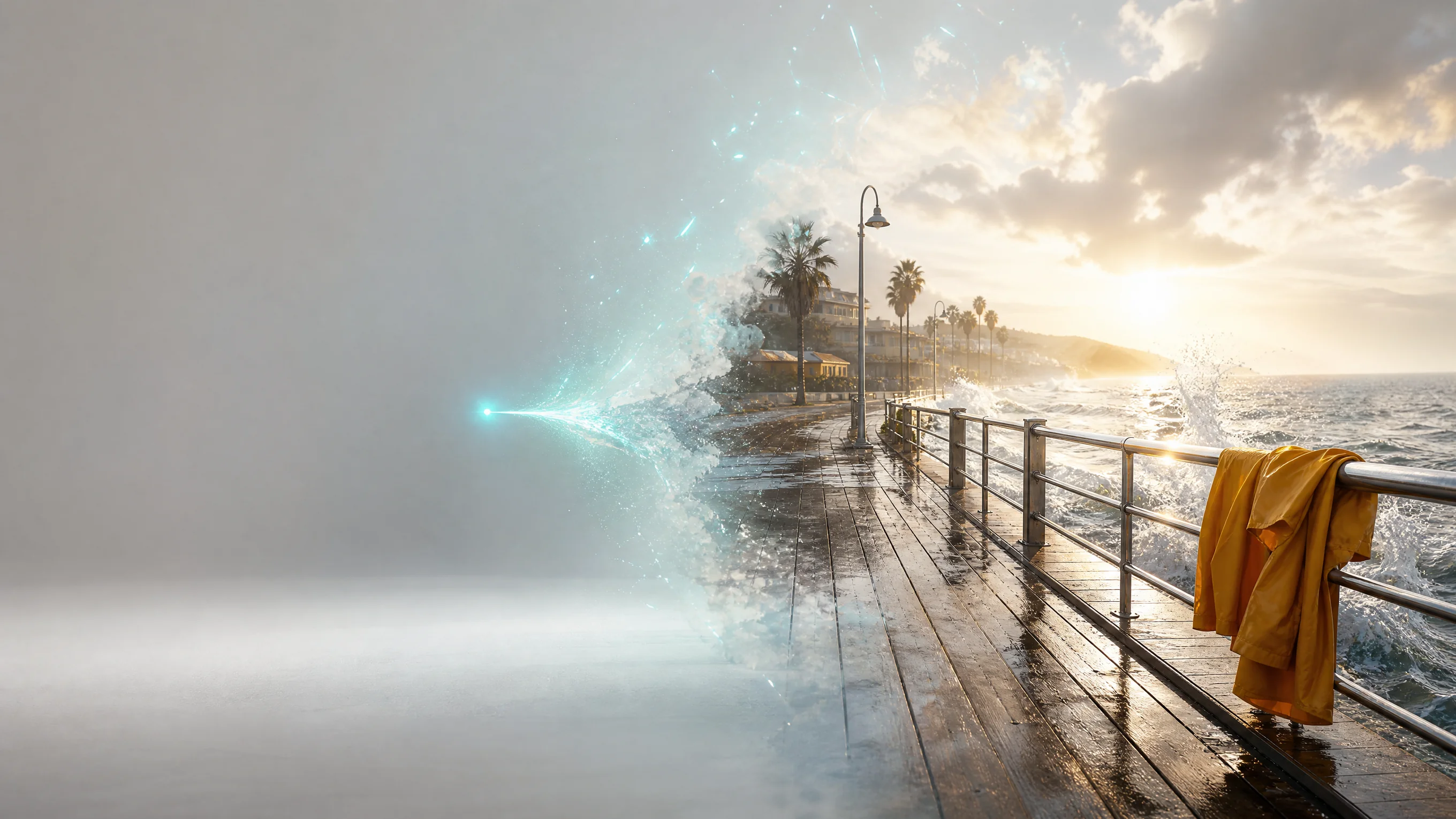
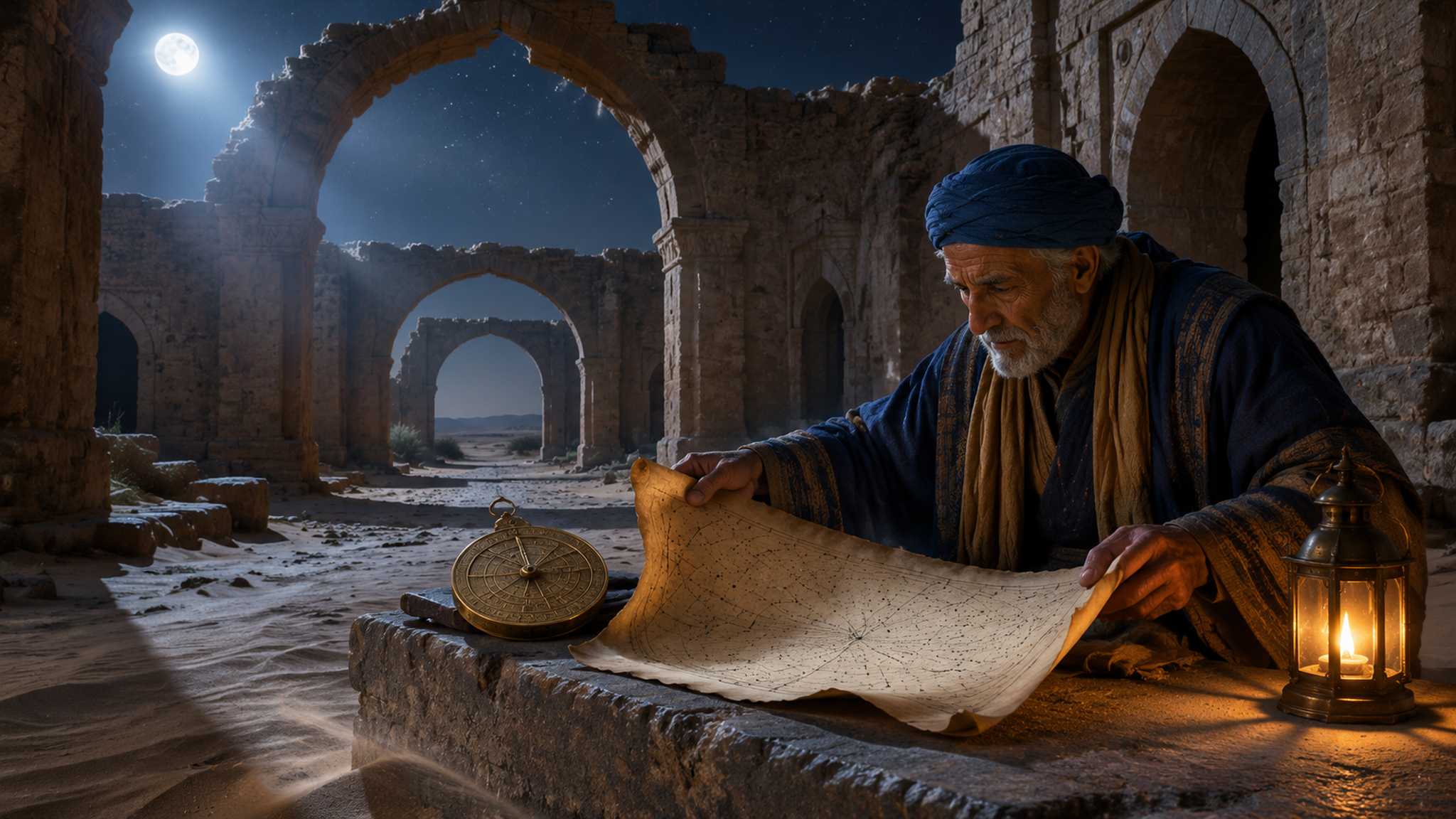
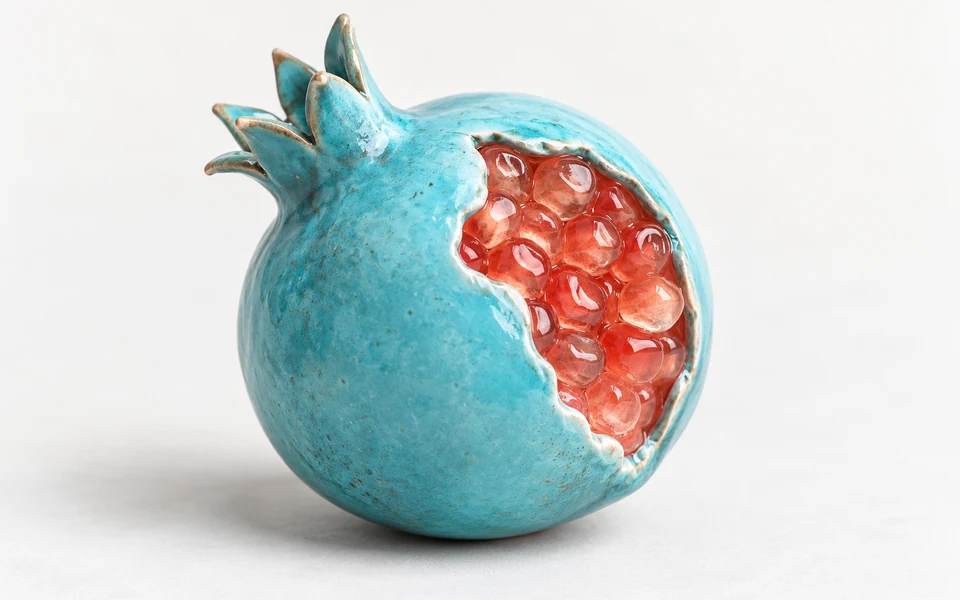
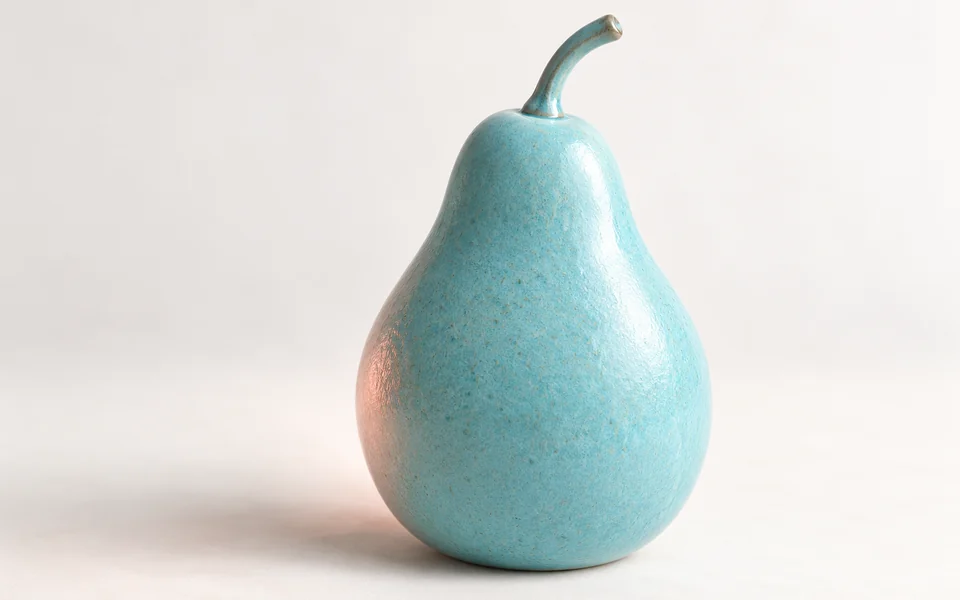
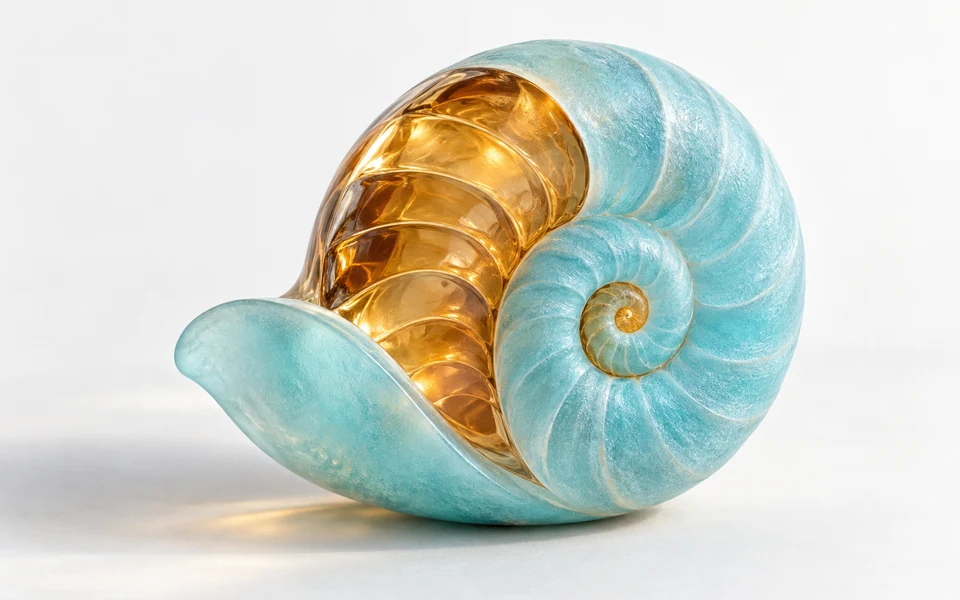
GPT Image 2.5 is OpenAI’s image generation and editing family for product images, illustrations and campaign artwork. Choose Flare for fast creative exploration or Sunburst for detailed rendering and precise edits. On Vidgo, create images from text or edit with references and optional masks, with output up to 4K, adjustable quality and transparent backgrounds for your designs and applications.

GPT Image 2.5 is developed by OpenAI. Vidgo provides access to the model. Model names and trademarks belong to their respective owners.

Explore GPT Image 2.5 Models

Choose Text to Image to create a new visual from a written prompt, or Image Edit to revise and combine existing images. Both workflows are available with Flare and Sunburst, so you can select a model around your generation speed and image precision requirements.

GPT Image 2.5 Generation and Editing Tasks

Text to Image turns descriptions of subjects, scenes, styles and compositions into new images. Image Edit combines instructions, reference images and optional masks for scene composition, object replacement and local revisions. Start with your source material and intended result, then choose Flare or Sunburst and the output settings your finished image needs.

Model / taskInput and workflow
GPT Image 2.5 Flare Image EditGPT Image 2.5 Flare Image Edit turns reference images and text prompts into new visuals, supporting 1–16 references and local repainting. It makes targeted changes quickly while preserving the original subject’s appearance and composition.
GPT Image 2.5 Flare Text to ImageGPT Image 2.5 Flare Text to Image turns text prompts into detailed 1K–4K images, with transparent backgrounds and low latency. It combines fast responses with natural lighting while avoiding structural distortion in large images.
GPT Image 2.5 Sunburst Image EditGPT Image 2.5 Sunburst Image Edit uses 1–16 references and masks for precise local edits and feature transfer across images. It locks subject identity and environmental lighting while changing selected elements, preserving quality throughout successive editing rounds.
GPT Image 2.5 Sunburst Text to ImageGPT Image 2.5 Sunburst Text to Image turns complex prompts into visuals up to 4K, with fine material textures and realistic lighting. It accurately reproduces depth and fine detail while maintaining precise composition under long, detailed instructions.

GPT Image 2.5 Reference Image Editing Examples

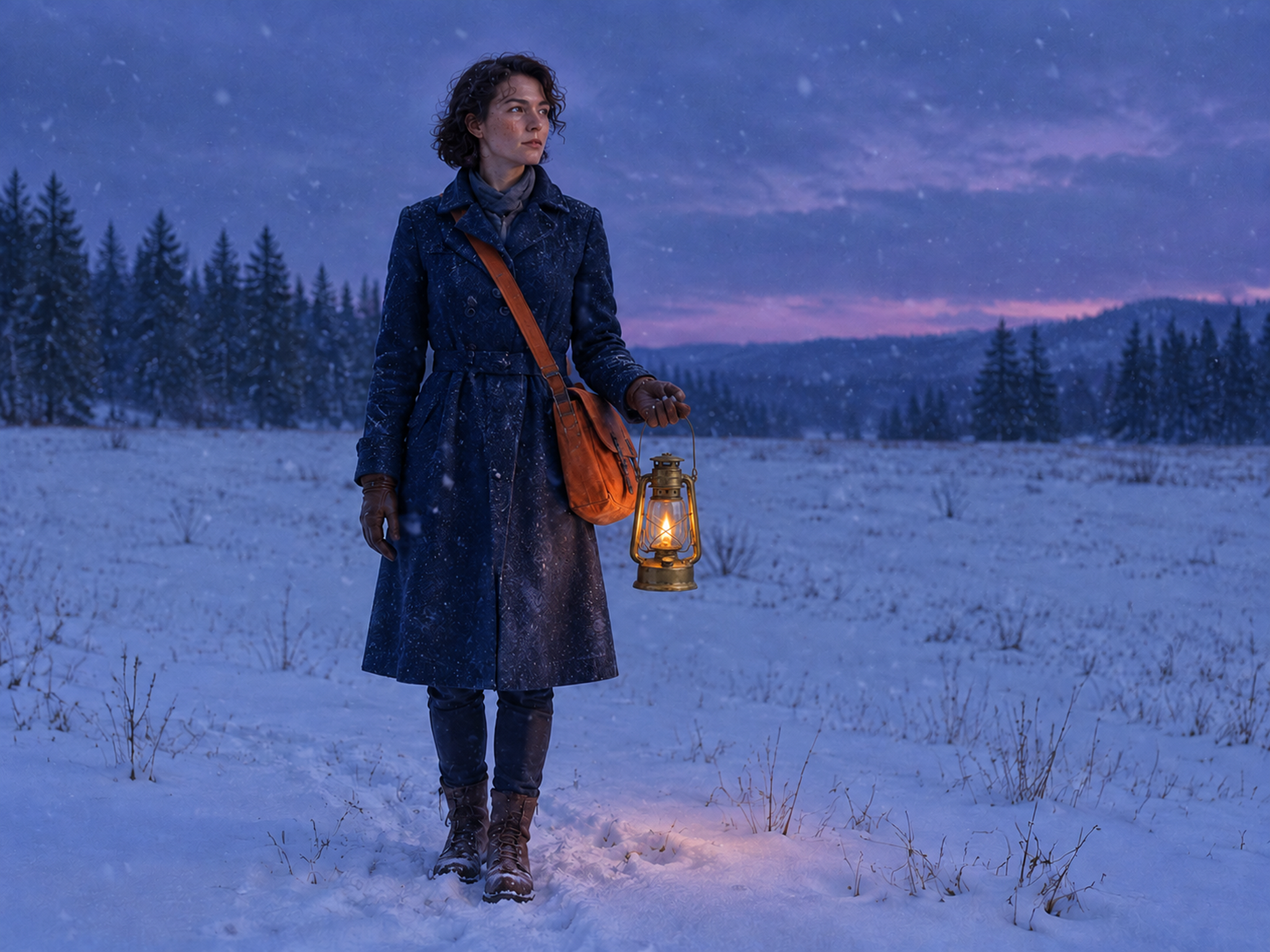
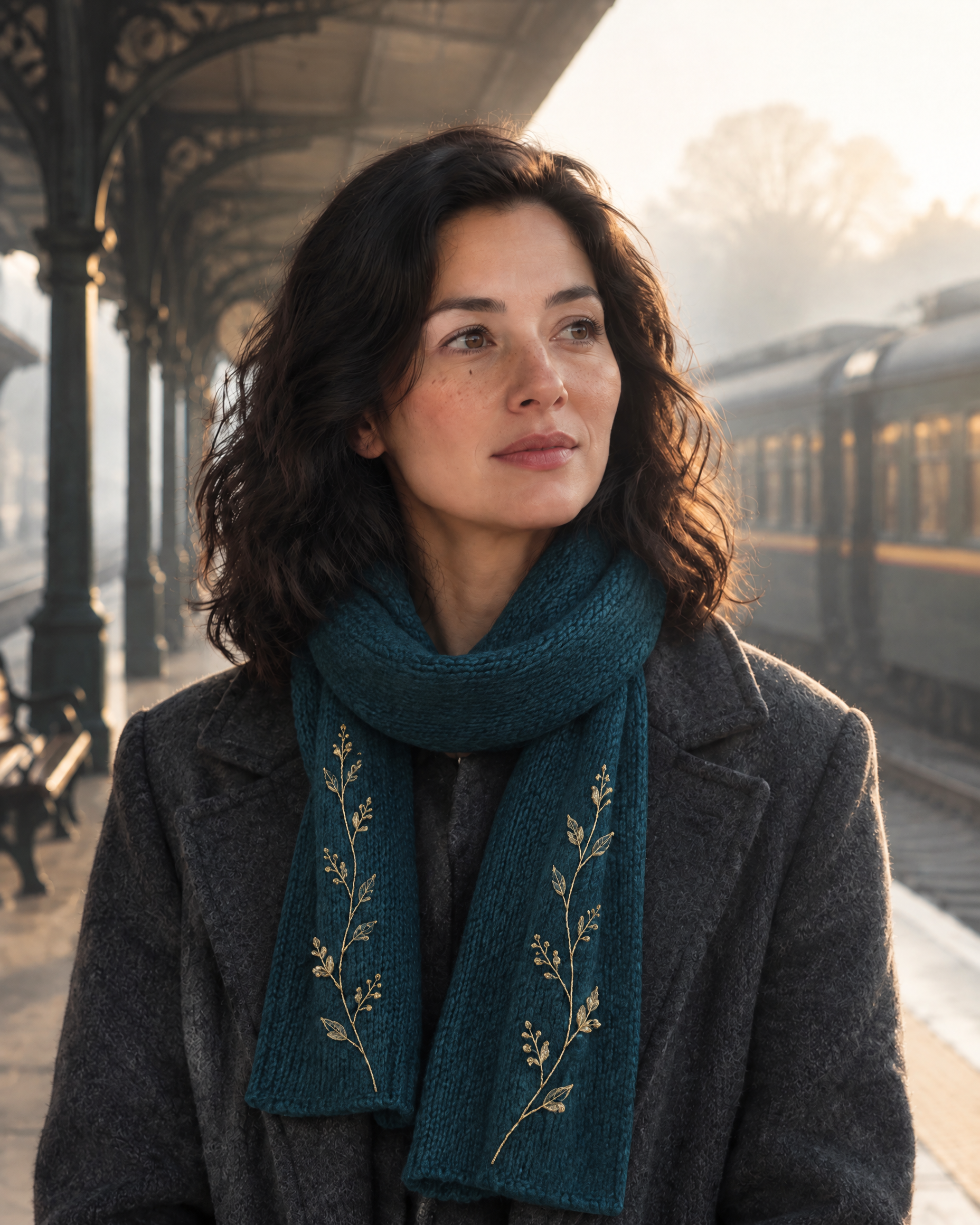
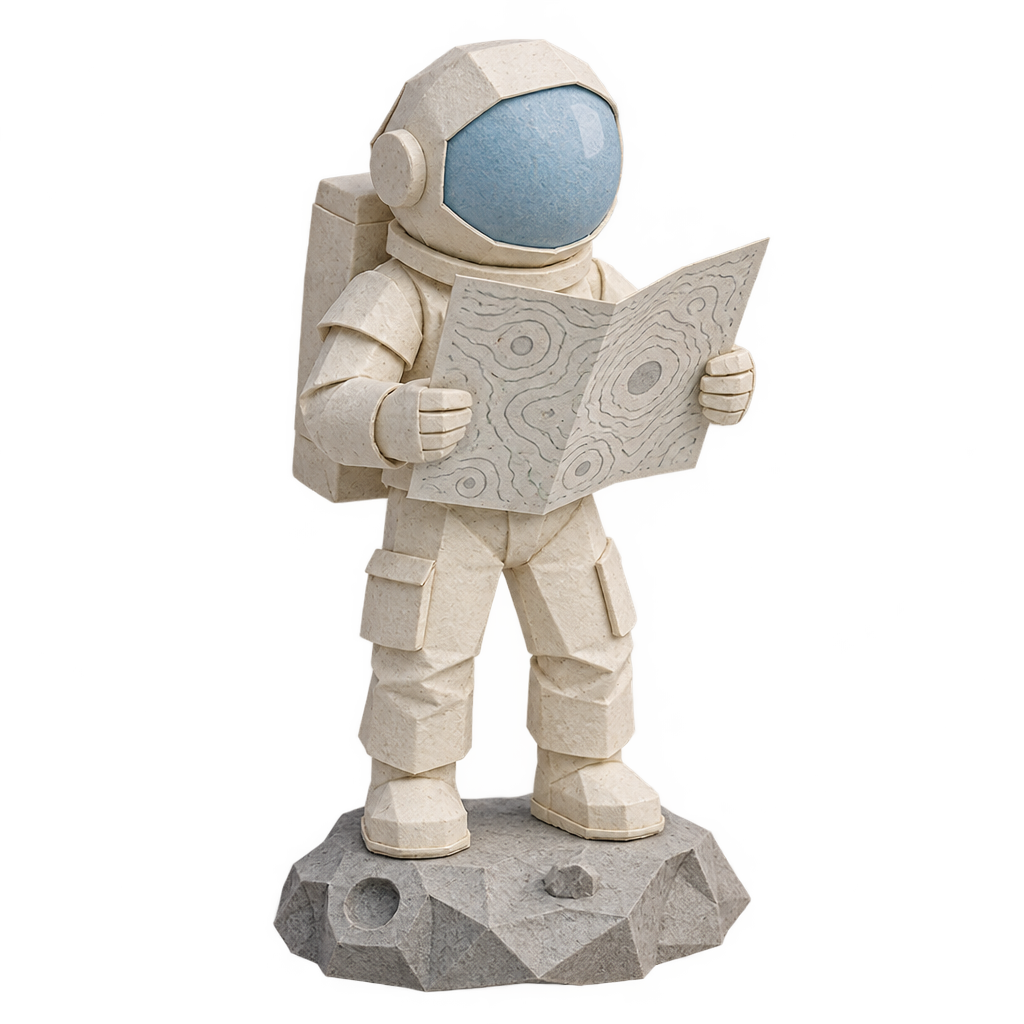
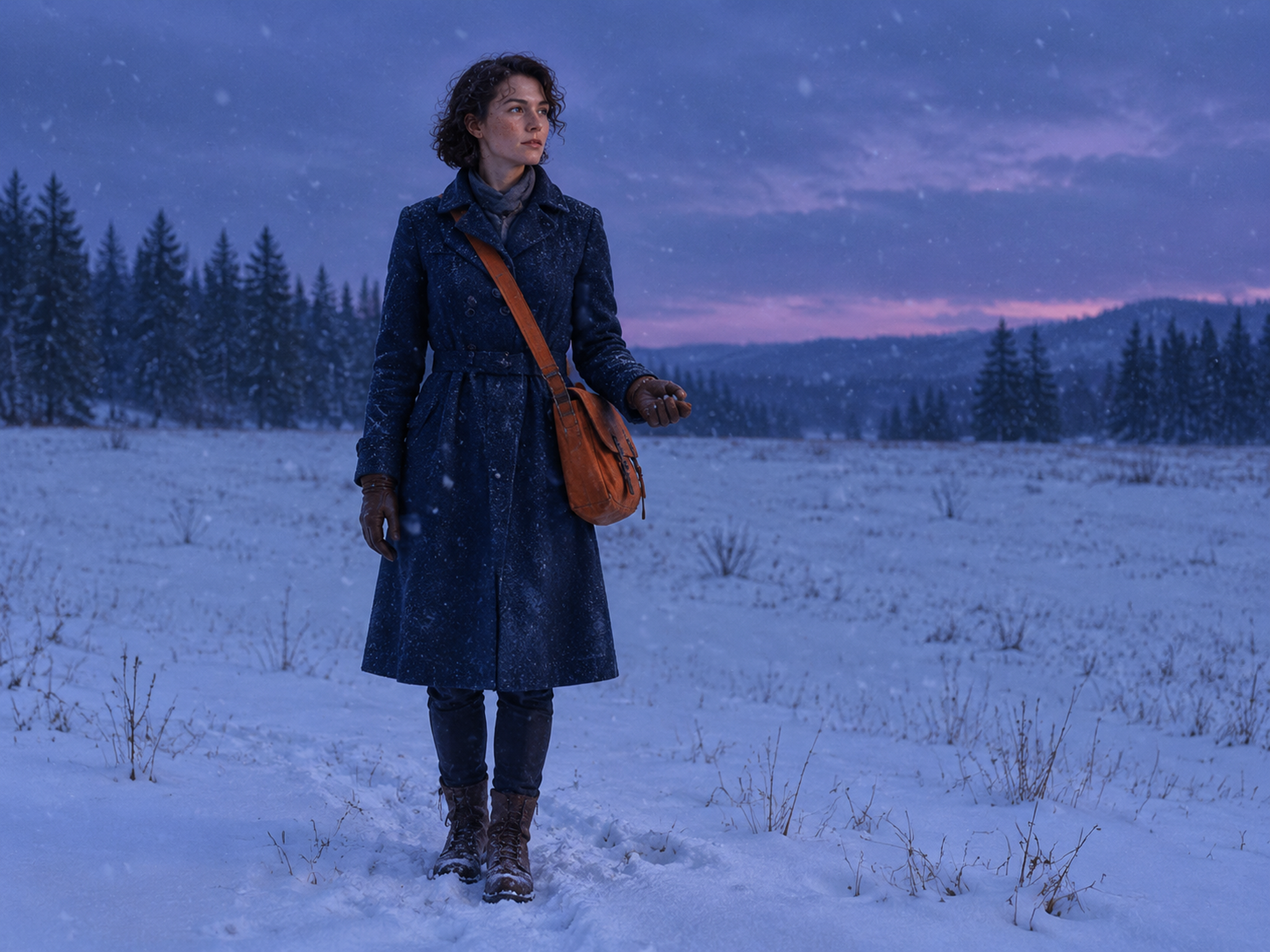
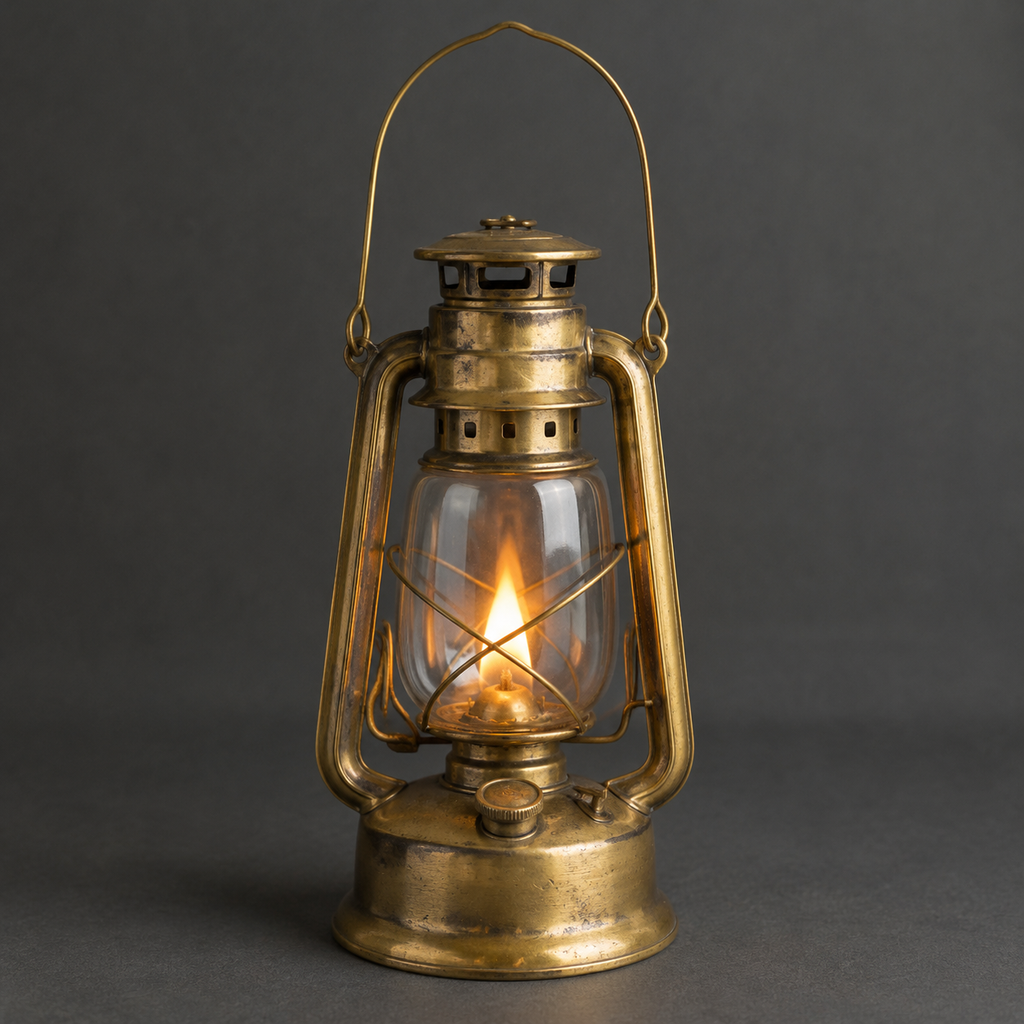
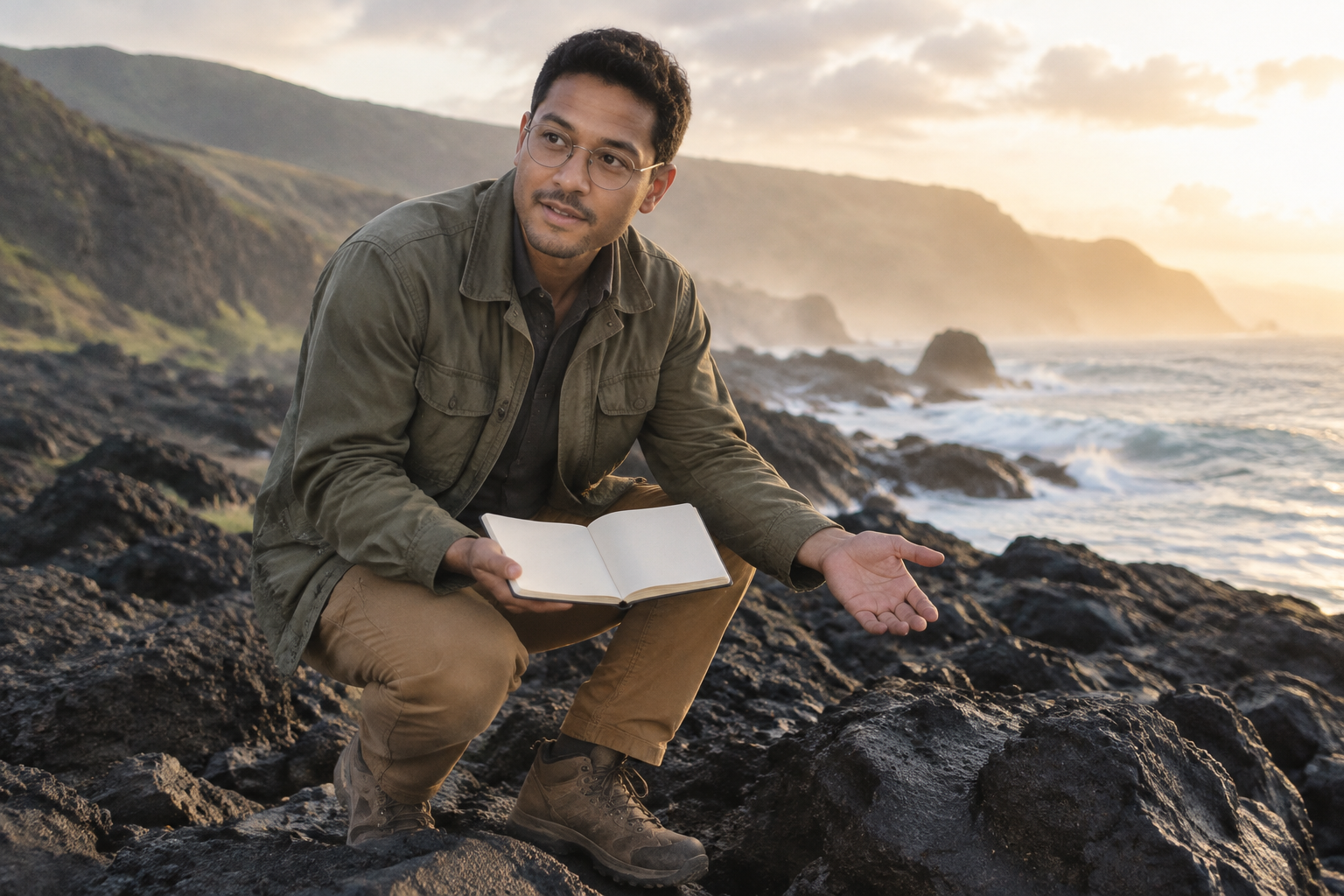
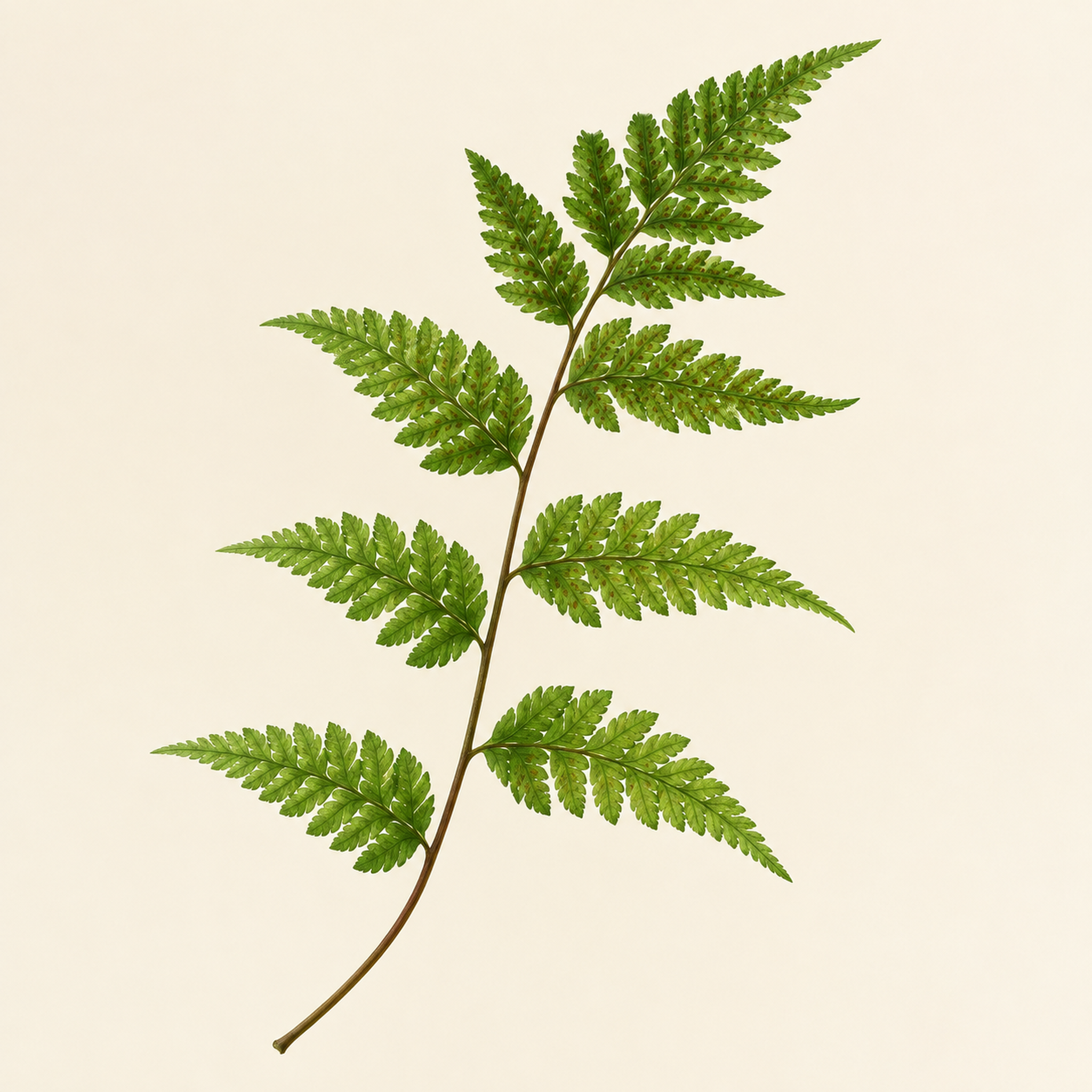
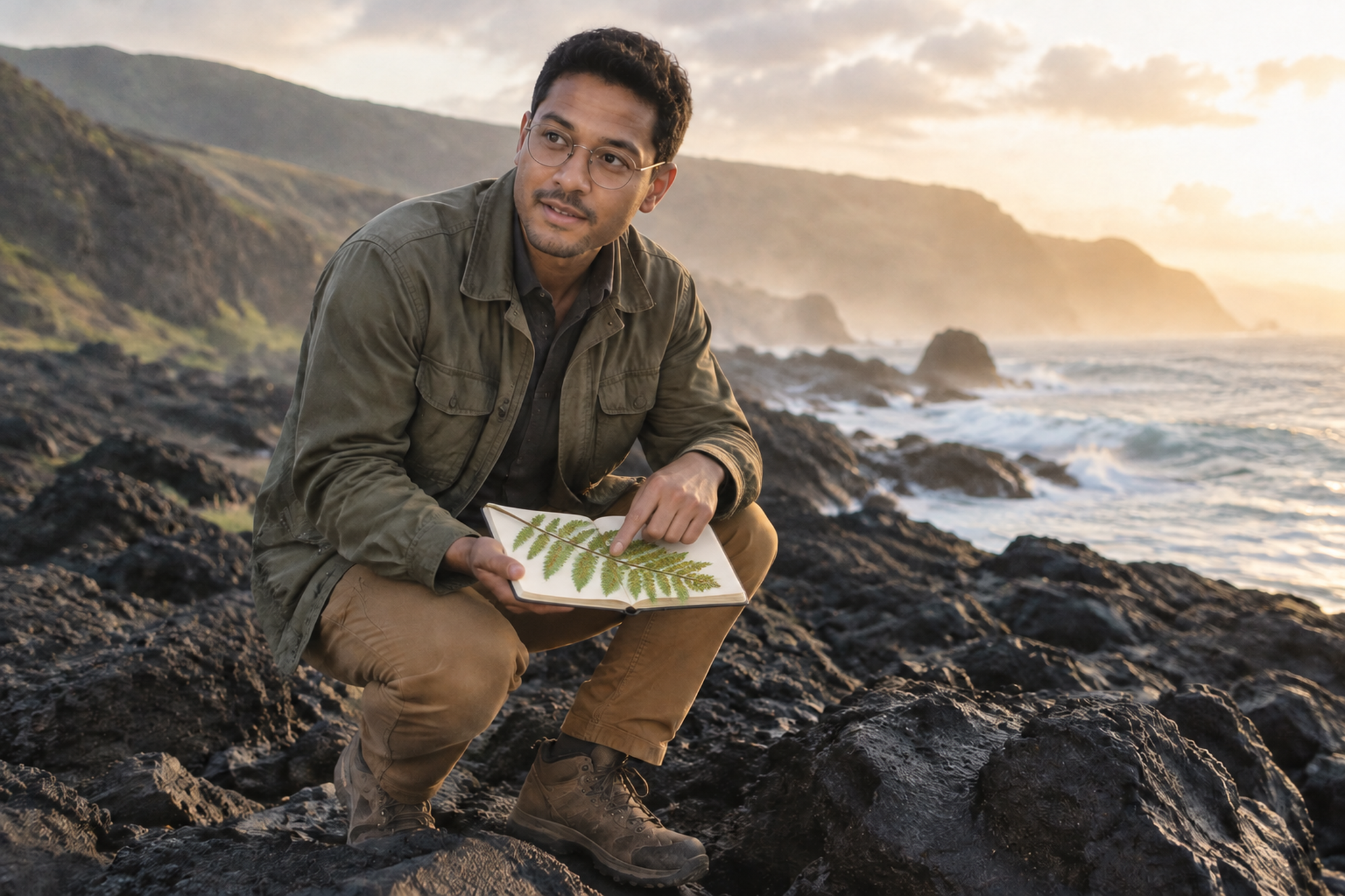
These two recorded examples add a lantern to a courier’s hand in a snowy landscape and place a fern specimen on a botanist’s notebook. Reference image 1 supplies the person and scene, while reference image 2 supplies the object. The actual prompts describe placement, physical contact and details to preserve. Compare the inputs and results to see how subject appearance, object scale and lighting come together.

Prompt

Use image 1 as the sole scene, person and composition reference. Preserve the courier's exact face, short curly hair, freckles, navy coat, orange satchel, body pose, snowfield and distant pine horizon. Use image 2 only as the design reference for the small old brass lantern. Place one matching lantern hanging naturally from the courier's left gloved hand at waist level, with her fingers wrapping around its handle and the lantern body below the hand. Adjust only the hand grip as necessary; retain the overall arm pose. The flame casts a restrained warm glow on the nearby glove, coat and snow, while the surrounding twilight remains cool violet. Keep the glass clear and brass worn, avoid enlarging the lantern. A quiet determined courier carrying light across the snow, one continuous scene, no new person or objects beyond the lantern. No brands, logos, products for sale, advertisements, promotional graphics, watermark, split screen or comparison panels.

Reference image 1
Reference image 2
Generated result · GPT Image 2.5 Flare

Prompt

Image 1 defines the botanist's exact identity, face, glasses, clothes, kneeling pose, basalt coast and warm misty afternoon lighting. Image 2 defines only the distinctive fern cutting and its frond structure. Place one matching fern cutting resting diagonally across the cream notebook in his right hand. His left index finger gently indicates the fern's small amber spore dots; keep the hands anatomically correct and preserve the overall arm positions. The fern should be physically supported by the notebook with fine contact shadows, naturally scaled to the notebook, and illuminated by the same warm coastal light. Keep the face, clothing, basalt rocks, ocean mist and scene composition unchanged. Do not copy the neutral background from image 2 or add other plants, people or writing. No brands, logos, products for sale, advertisements, promotional graphics, watermark, split screen or comparison panels.

Reference image 1
Reference image 2
Generated result · GPT Image 2.5 Sunburst

Creative Use Cases for GPT Image 2.5

Choose a workflow for product imagery, local retouching, transparent assets or design concepts. Supply visual references, describe the finished image and set quality and resolution for the current production stage, giving each generation a specific creative purpose.

Compose product scenes

Upload references for your product, props and setting, then describe their placement, scale and lighting to create scene images for ecommerce launches or campaign concepts. For a series of images, specify the product’s appearance and the brand details to preserve in each request.

Retouch portraits and product details

Start with an existing image, mask the clothing, object or background area to adjust, and describe the new color, material or content. The original image provides composition and lighting context for portrait retouching, product variations and campaign revisions.

Create transparent visual assets

Generate characters, props and interface decorations from text, or isolate a subject from a reference image. Select a transparent background and save the result as PNG or WebP to prepare reusable assets for websites, game interfaces and image compositing.

Develop a concept through iterations

Explore composition, color and style with different prompts and quality settings, then refine materials and lighting around the selected direction. Reserve higher quality settings for finished images that need close attention to detail, using the corresponding prices to plan your iteration budget.

Combine interior and material references

Upload room, furniture and material references in one editing request, and describe the layout, object relationships and overall style. Up to 16 images can provide visual guidance for interior concepts, room arrangements and material combinations.

Prepare high-resolution presentation images

Choose an aspect ratio and 1K, 2K or 4K resolution for widescreen backgrounds, presentations and campaign artwork. For images with demanding detail requirements, combine these settings with xhigh or max quality to refine materials, lighting and depth.

GPT Image 2.5 Specifications and API Pricing

GPT Image 2.5 is billed per output image, with the cost determined by the task, quality and resolution you choose. The table shows reference limits, maximum output resolution and starting prices for all four tasks. A starting price represents the lowest available configuration; select your intended quality and resolution on the task page to see the corresponding cost and plan your budget.

ModelProviderWorkflowMax reference imagesMax output resolutionStarting price / image
GPT Image 2.5 Flare Image EditOpenAIImage Edit164K$0.00655
GPT Image 2.5 Flare Text to ImageOpenAIText to ImageNot applicable4K$0.00655
GPT Image 2.5 Sunburst Image EditOpenAIImage Edit164K$0.00655
GPT Image 2.5 Sunburst Text to ImageOpenAIText to ImageNot applicable4K$0.00655

How to Use GPT Image 2.5 on Vidgo

Try generation and editing on Vidgo, then follow the task documentation to bring the same creative brief into your application.

Test online

Try generation with your own creative brief

Enter your prompt on the task page and set the quality, resolution and background. For Image Edit, upload reference images and add a mask for local revisions. Run the task, review the subject, composition and details, then refine your prompt and settings to establish a suitable approach for your API integration.

Why Use GPT Image 2.5 on Vidgo

Use the same GPT Image 2.5 task options from model selection and online testing through to API integration. Learn from real editing examples, check costs before submitting a request and follow the matching documentation to bring your tested creative brief into an application.

Creative testing and model selection

Compare models and tasks in one place

Review Flare and Sunburst generation and editing options together, then choose a model around your source material, creative goal and task specifications.

Test with your own source material

Open a task page, enter a prompt, upload references and configure the output. Review actual generation results before choosing the approach to use in your application.

Check costs before submitting a request

Select quality and resolution on the task page to see the corresponding price per image and plan separate budgets for concept exploration and finished assets.

API integration and result management

Review real inputs and generated images

Compare references, actual prompts and outputs to understand how to describe subjects, object relationships and details to preserve when preparing your own request.

Manage results by task

Use the returned task ID to check status and retrieve image URLs, or revisit online generations in your account history to review your creative process.

Open the documentation for your task

Follow the task’s documentation link for authentication instructions, parameter explanations and request examples to integrate model calls into your application.

GPT Image 2.5 API FAQ

GPT Image 2.5 is OpenAI’s image generation and editing family. It creates images from written descriptions and uses reference images for scene composition and local revisions. The family focuses on natural lighting, surface textures and preserving subjects during edits, with two model options: Flare for fast creative exploration and variations, and Sunburst for work that requires greater image precision and editing control. On Vidgo, you can try Text to Image or Image Edit online and use the corresponding API to bring generation into your application.

Browse all models