Z-Image Turbo text generation and single-image editing

Z-Image Turbo uses one task for image generation from text and editing from a single image. Describe the subject, materials, lighting and any exact words for a new scene, then select one of five aspect ratios. To change an existing photograph, provide one image URL and explain the target change and the visual details to retain. The same task supports both input methods, making it possible to test a scene concept or a local lighting revision with the documented prompt and image controls.

Z-Image Turbo is developed by Alibaba. Vidgo provides access to the model. Model names and trademarks belong to their respective owners.
Explore Z-Image Turbo Models

Open the Z-Image Turbo task and choose your starting material. A prompt with size creates a new image; adding one image_urls source directs an edit. Write the full scene for generation, or describe the exact change and retained composition for editing, then inspect the current per-generation estimate.

Z-Image Turbo Text and Single-Image Inputs

The model identifier stays alibaba/z-image/turbo. Text generation sends prompt and a supported size. Single-image editing also sends image_urls containing exactly one public image address; size is optional for an image-input request. The same route, documentation and result-tracking process apply to both workflows.

Model / taskInput and workflow
Z-Image TurboAlibaba Tongyi-MAI's 6B lightweight image model with 8-step sub-second generation, dual-mode text-to-image and single-image editing, accurate bilingual typography, and Apache 2.0 commercial license.

Z-Image Turbo Bilingual Sign Generation and Pool Lighting Editing Examples

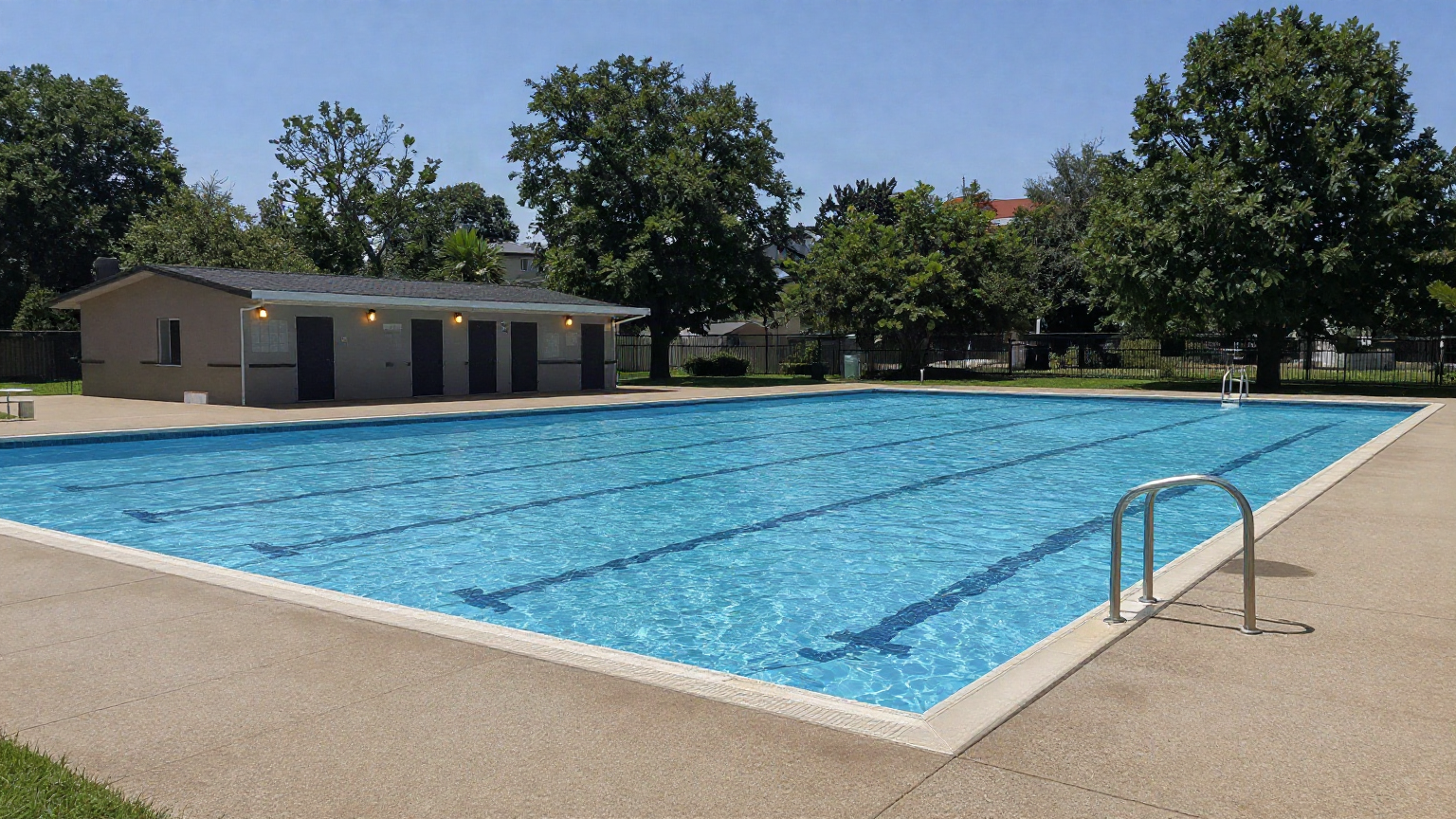
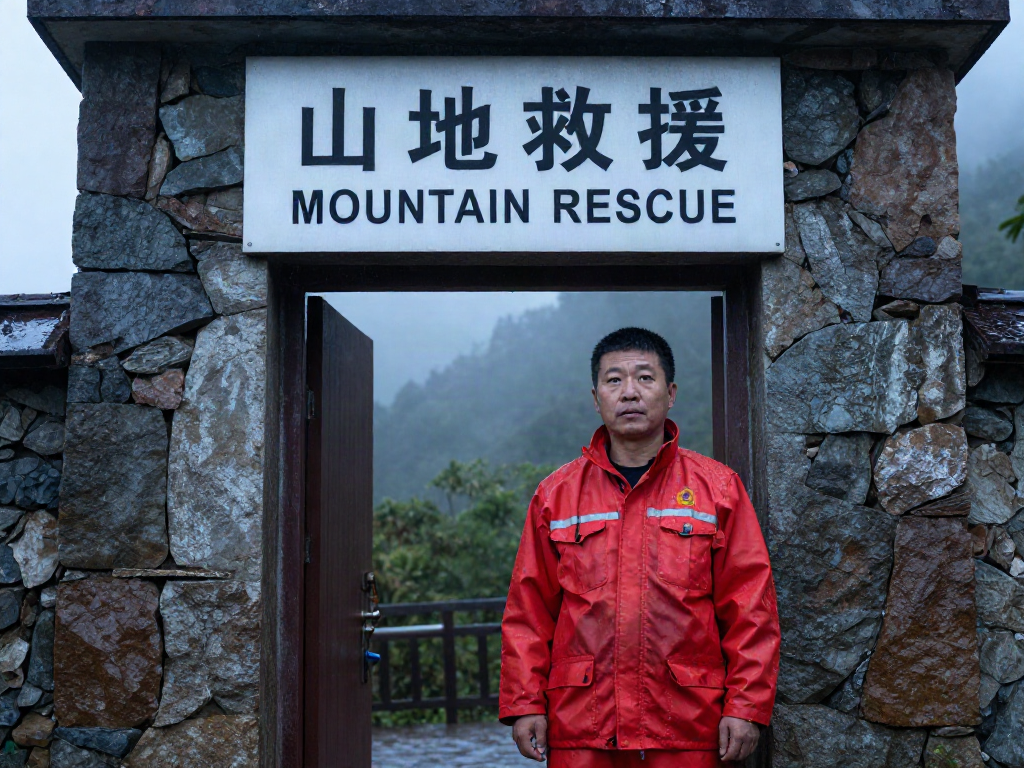
The text case asks for a rescue worker, a rain-damp mountain station and exact Chinese-English sign wording. The image-input case adds warm lamps to an existing pool facade while retaining its daylight and layout. Read the original prompts and compare each actual result with its own brief and source material.

Prompt

A candid documentary photograph outside a small mountain rescue station just after rain at dawn. One adult East Asian rescue worker in a weathered red waterproof jacket stands beside the doorway, calm and alert, hands relaxed. Above the doorway is one simple matte sign facing the camera, with exactly two clearly readable lines: "山地救援" and "MOUNTAIN RESCUE". All four Chinese characters and every English letter must be correct. The sign is part of the real building, not a graphic overlay. Soft morning light catches droplets on the jacket, damp stone walls and a faint layer of mist among distant mountain trees. Natural facial detail, believable anatomy, restrained colors, authentic everyday atmosphere, balanced environmental portrait with both person and sign sharp. No advertising, brands, extra text or watermark.

Generated result · Z-Image Turbo

Prompt

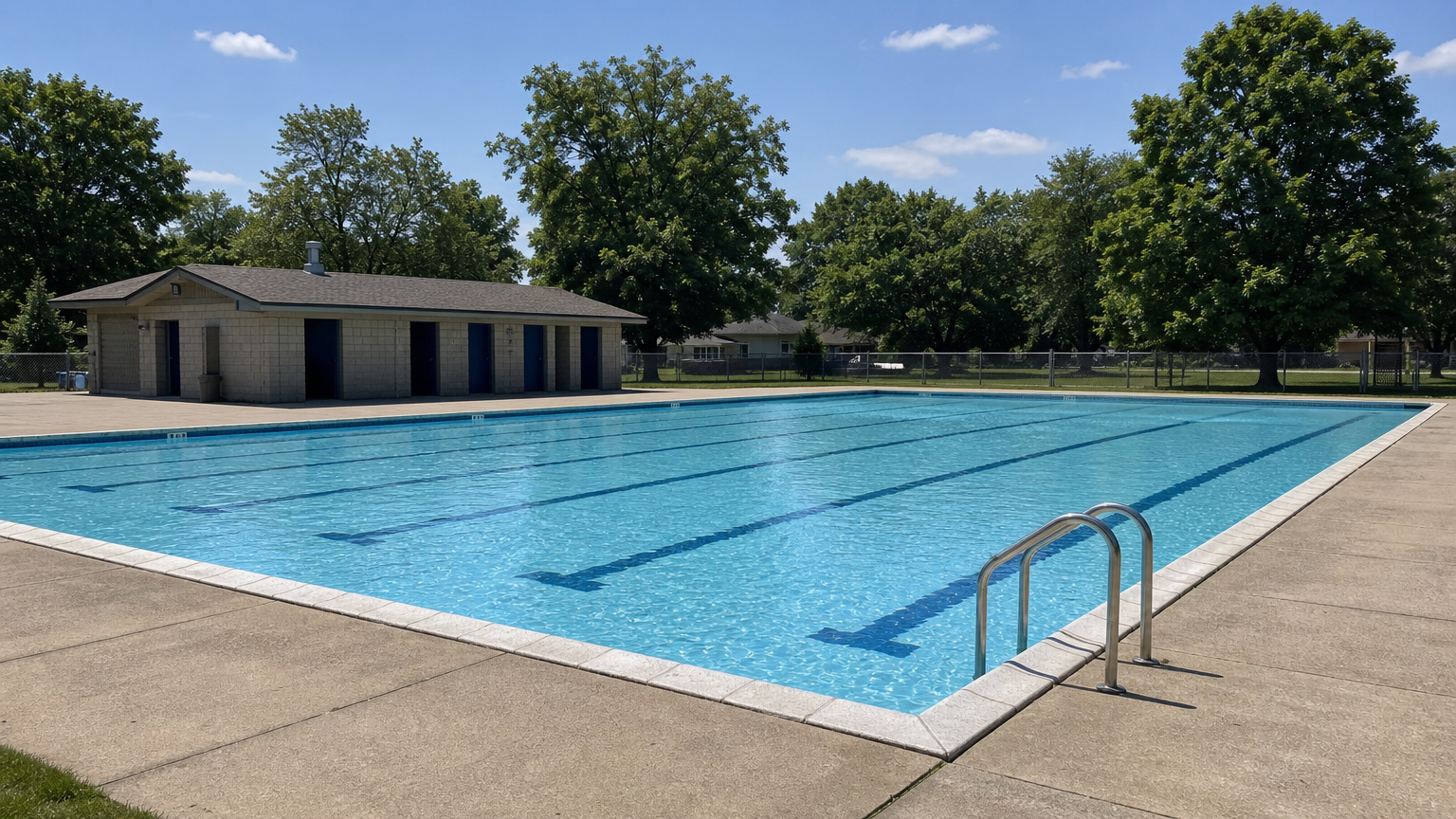
Add a few small wall-mounted lamps with a clearly visible warm amber glow beneath the eaves on the front facade of the existing low pool changing-room building. This is a subtle practical lighting addition to the existing neighborhood pool, not a redesign. Keep the daytime blue sky and natural colors. Preserve the principal camera viewpoint and layout: the rectangular swimming pool, tiled edge, dark lane lines, near-right steel ladder, low building on the left and background trees. The newly illuminated warm lights on the facade must be easy to see. Realistic architectural photograph, empty pool area, no people, no advertising, no text or watermark.

Original pool photograph
Generated result · Z-Image Turbo

Creative Use Cases for Z-Image Turbo

Prepare a clear prompt or one source image, identify the scene and the details that matter, and generate or edit through the same task. Reviewed results can support narrative illustrations, bilingual environment studies, botanical imagery, lighting proposals and visual variations for an editorial or creative project.

Environmental portraits

Describe the person, activity, building and light, then generate the scene. Inspect anatomy and the relationship between subject and environment for a story illustration or scene-development proposal.

Bilingual scene lettering

Write the exact Chinese and English wording, line order and sign surface. Generate the image, review every character and use the checked result in an environment study or illustrated narrative.

Botanical and food details

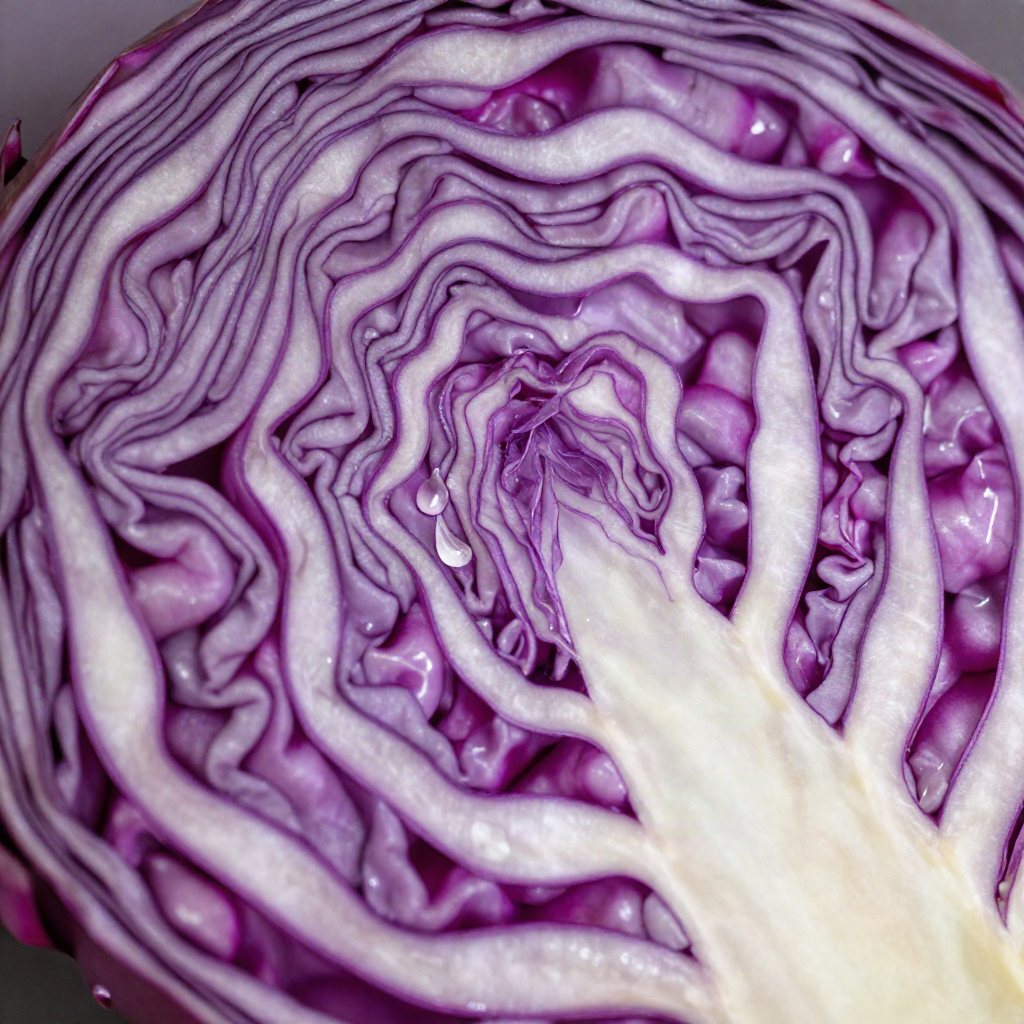
Describe leaf structure, color, moisture and the observation angle. Generate a close view and review material detail for a nature illustration concept or editorial food image.

Architectural lighting proposals

Supply an existing photograph and specify the lamps and glow to add. Compare the edited image with the source to discuss placement and atmosphere in a visual lighting proposal.

Local scene variations

Provide one source image, name the object or surface to change and identify retained surroundings. Review the revision for a scene concept, material variation or creative planning draft.

Images for different placements

Choose a supported square, landscape or portrait ratio and describe subject placement within the frame. Generate a concept and check the crop for an editorial page, presentation or illustration layout.

Z-Image Turbo Specifications and API Pricing

Z-Image Turbo uses the current per-generation tier for its text and single-image inputs. The dynamic table reads that task’s starting rate. Prepare the prompt, optional source and supported size on the task page, inspect the complete estimate and use your planned test count to budget the workflow.

ModelProviderWorkflowInput materialOutput framingStarting rate
Z-Image TurboAlibabaText / single-image inputText; optional 1 source image5 aspect ratios$0.01 / generation

How to Use Z-Image Turbo on Vidgo

Test your creative brief online, then bring the verified request into your application.

Test online

Generate a result with your intended settings

Enter a complete prompt and choose the supported frame for a new image, or add one public image URL for an edit. Review the estimate, generate and inspect the result against the requested wording, surface details, light and retained scene structure. Refine the next prompt from that comparison.

Why Use Z-Image Turbo on Vidgo

Choose a task, inspect its settings and cost, and follow the result from an online test to an authenticated API request.

Creative testing and task selection

Choose inputs around your creative goal

Open the single Z-Image Turbo task. For text generation, write the scene and select one of the five supported sizes. For editing, provide exactly one source image and describe the target change and retained details. Both workflows use the same model identifier and documentation.

Test your own prompt and images

Open the matching task, enter your brief and supply the required images. Review the generated result against subject appearance, composition and the requested changes before carrying the workflow into a project.

Review the estimate before generation

Review the shared task’s current generation estimate for the inputs you prepared. Multiply the complete request amount by your planned number of tests to budget scene and editing variations.

API integration and result management

Learn from complete recorded examples

Read the actual prompt and inspect its source images and result together. Use those examples to understand how to assign input roles and describe the details to preserve or change in your own request.

Track each generation with its task ID

Retain the task ID returned by the API to query status and retrieve completed file URLs. Use your online generation history to review earlier results and the creative direction you tested.

Follow the documentation for the selected task

Use the documentation linked from each task for its exact model identifier, accepted inputs, authentication and response format. Integrate the same task you tested online so its media and settings match the request.

Z-Image Turbo API FAQ

Z-Image Turbo is an Alibaba Tongyi-MAI image model available through one Vidgo task. It accepts a text prompt for generation or a prompt and exactly one image for editing. Text generation offers five aspect ratios, and both workflows use the same API identifier and result-tracking process.

Browse all models