Image to STL
Translate image brightness into a printable height relief. Set dimensions in millimeters; the 80-column height map favors bold, simple artwork.
- No credits needed
- Start without an account
- Browser-based workflow
- No Vidgo watermark
The selected file is processed on your device. Some features download a local encoder or model before they can run; that setup does not upload your file to Vidgo.
Make it happen
Get started with Image to STL
- 1
Choose a source image
The brightness values determine relief height.
- 2
Set a physical size
Enter millimeter dimensions and thickness settings.
- 3
Continue in a slicer
Save STL and inspect it in your printing software.
Creative possibilities
Fit it into your workflow
Prepare an asset
Get a file ready for a post, a pitch or the next stage of your creative project.
Stay in the browser
Handle a focused task without switching to a full desktop editing suite.
Take the result with you
Save a copy and continue in your preferred editor or a Vidgo creative workflow.
Inside the tool
A practical workspace for one task
Know where processing happens
The selected file is processed on your device. Some features download a local encoder or model before they can run; that setup does not upload your file to Vidgo.
Choose a source image
The brightness values determine relief height.
Set a physical size
Enter millimeter dimensions and thickness settings.
Continue in a slicer
Save STL and inspect it in your printing software.
VIDGOAI
Turn the next idea into an image or video
Prepare your existing assets here. When you want a fresh visual, continue with Vidgo image creation, video generation or AI editing.
Questions about Image to STL
What do I need to get started?
A current browser and a compatible file are enough. These utilities do not require a Vidgo account or generation credits.
Will Vidgo receive my selected file?
The utility processes the selected file locally in your browser. Model and encoder downloads are setup files, rather than an upload of your content.
Can I keep the downloaded result?
Yes. Save the export to your device and check it before publishing. Vidgo adds no promotional watermark; task-specific marks such as your watermark text remain part of the result.
Why might the first run take longer?
An AI model or media encoder may need to download before processing begins. File size, available memory and device speed also affect completion time.
Keep your workflow moving
Back to the tool shelf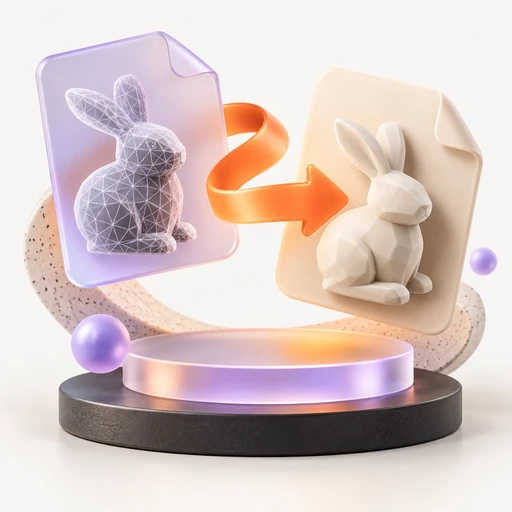
GLB to STL
Take GLB or glTF geometry toward a printing workflow. Inspect its mesh and triangle count, then export an STL locally.
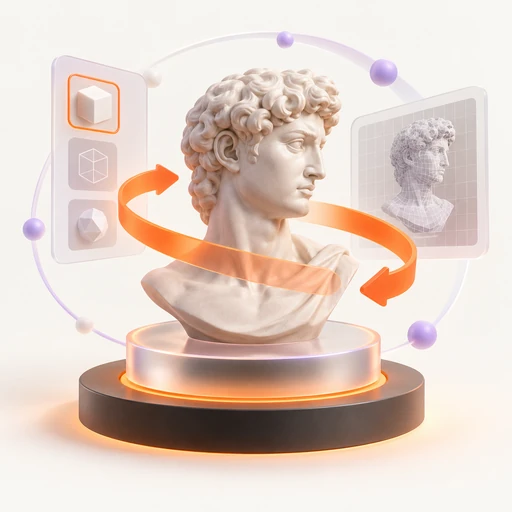
3D Model Viewer
Inspect STL, OBJ, GLB, glTF, FBX and 3MF assets with orbit and zoom. Read the triangle count and capture a PNG view without uploading the model.
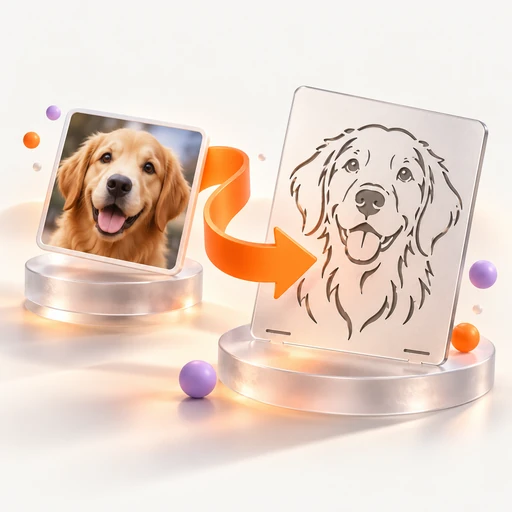
Image to DXF
Trace high-contrast artwork into closed DXF contours for a cutting workflow. Adjust the threshold, then set the final scale in your CAD software.
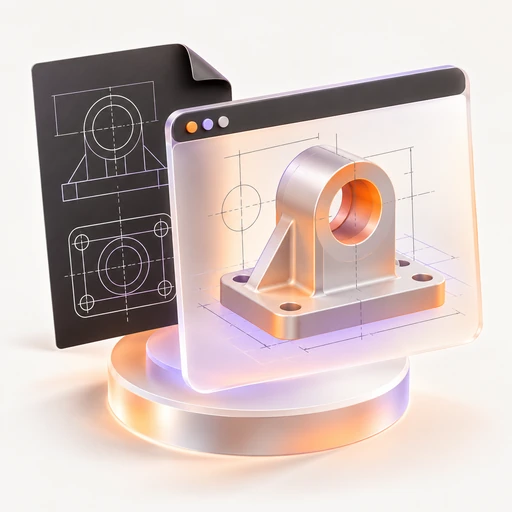
DXF Viewer
Review DXF line and polyline geometry as an SVG preview. A quick browser check helps you inspect a drawing before opening a CAD app.
STL to 3MF
Move an STL mesh into a 3MF package for a compatible slicer. Inspect geometry and triangle count before the local export.
3MF to STL
Extract a plain STL mesh from 3MF. Geometry carries over, while colors and printer settings are left out of the exported file.