Meshy 6 text, image and multi-view 3D generation

Meshy 6 turns an object description, one image or up to four source views into a 3D asset. Describe the silhouette, parts and materials in text, or supply clear views of the same object to guide its appearance. Topology, target polygon count, remeshing and symmetry settings help express the intended mesh; texture and PBR controls guide its surface. Character workflows can also request a pose, rigging and animation with rigging enabled. Inspect the returned model and associated files before using the asset in a scene or development project.

Meshy 6 is developed by Meshy. Vidgo provides access to the model. Model names and trademarks belong to their respective owners.


Explore Meshy 6 Models

Use Text to 3D for a written object concept, Image to 3D for exactly one source picture, or Multi Image to 3D for one to four images of the same object. Match the material and mesh controls to the intended asset, then open the selected task to review its current generation amount and inspect the result.

Meshy 6 Text, Single-Image and Multi-View Generation Tasks

The text task accepts a prompt up to 600 characters; image tasks use ordered public image_urls. A single image establishes visible shape and material, while complementary views help describe sides and the back of the same object. Supply a coherent object and select topology, remeshing, texture and any character controls in the matching task.

Model / taskInput and workflow
Meshy 6 Text to 3DGenerate 3D assets from text, one image, or multiple views with mesh, texture, rigging, and animation controls.
Meshy 6 Image to 3DGenerate 3D assets from text, one image, or multiple views with mesh, texture, rigging, and animation controls.
Meshy 6 Multi Image to 3DGenerate 3D assets from text, one image, or multiple views with mesh, texture, rigging, and animation controls.

Meshy 6 Fossil Text to 3D and Multi-View Backpack Modeling Examples

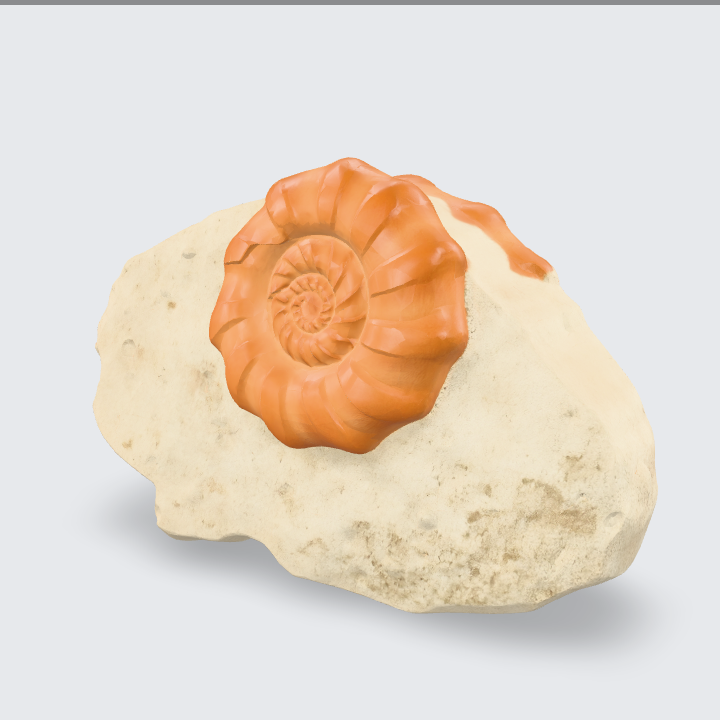
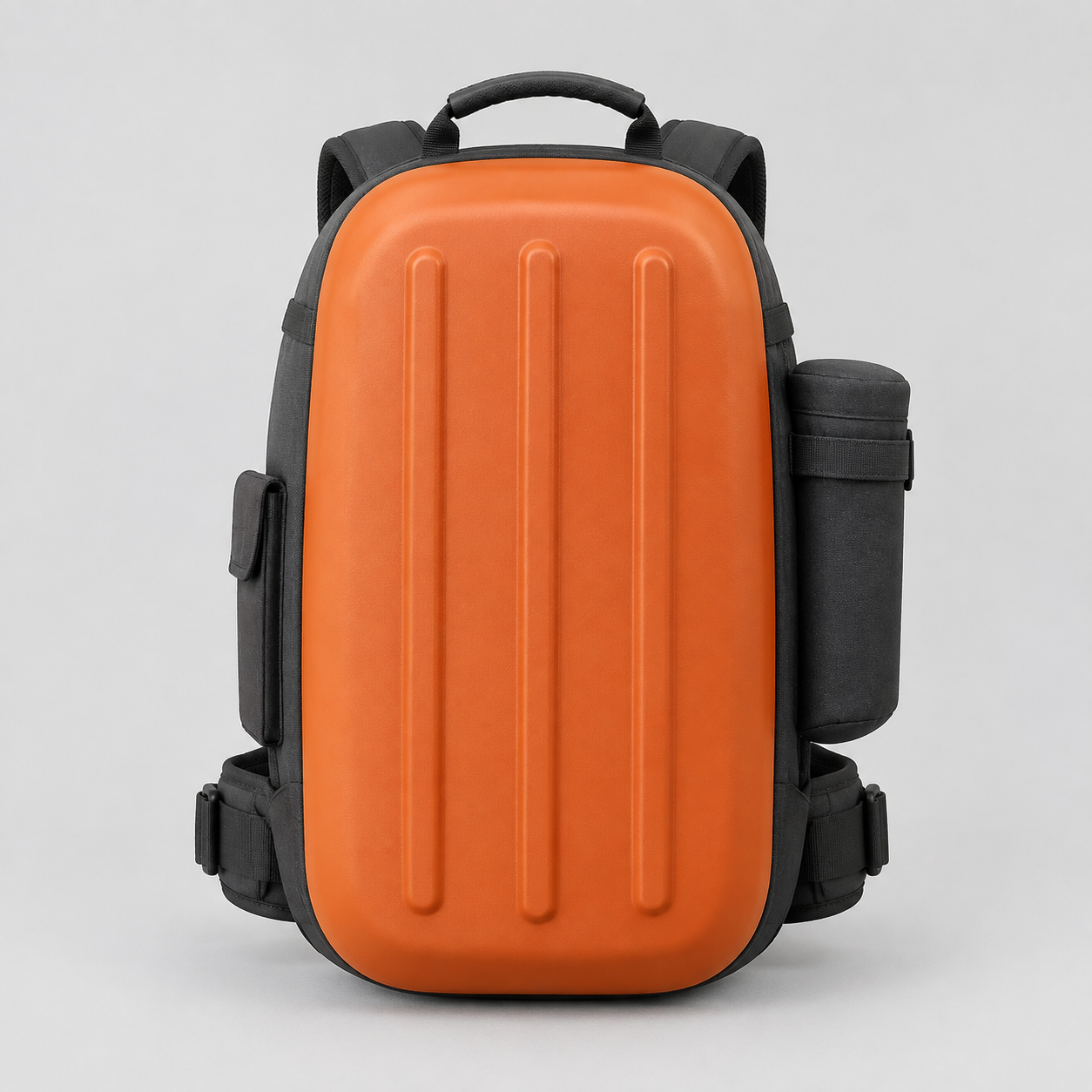
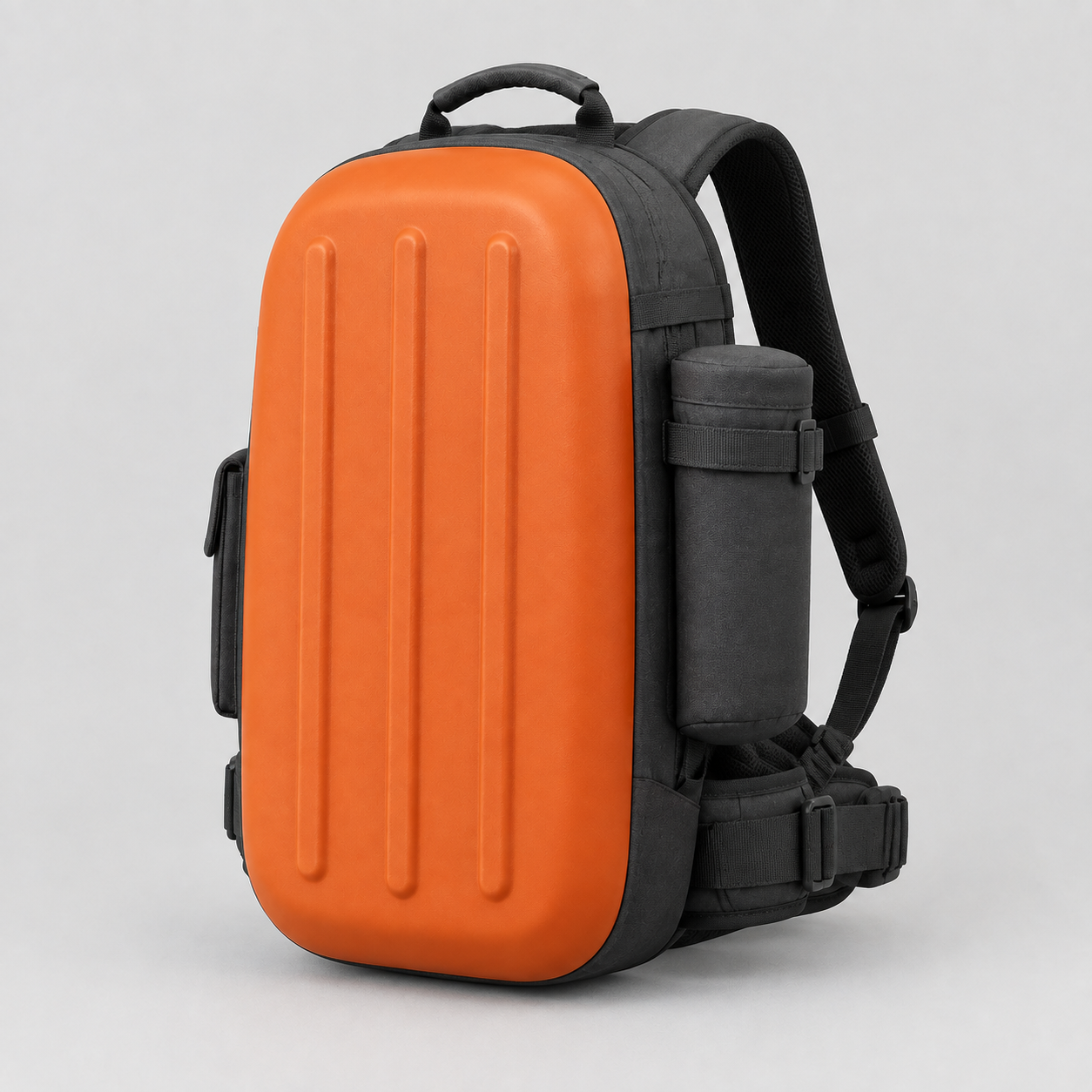
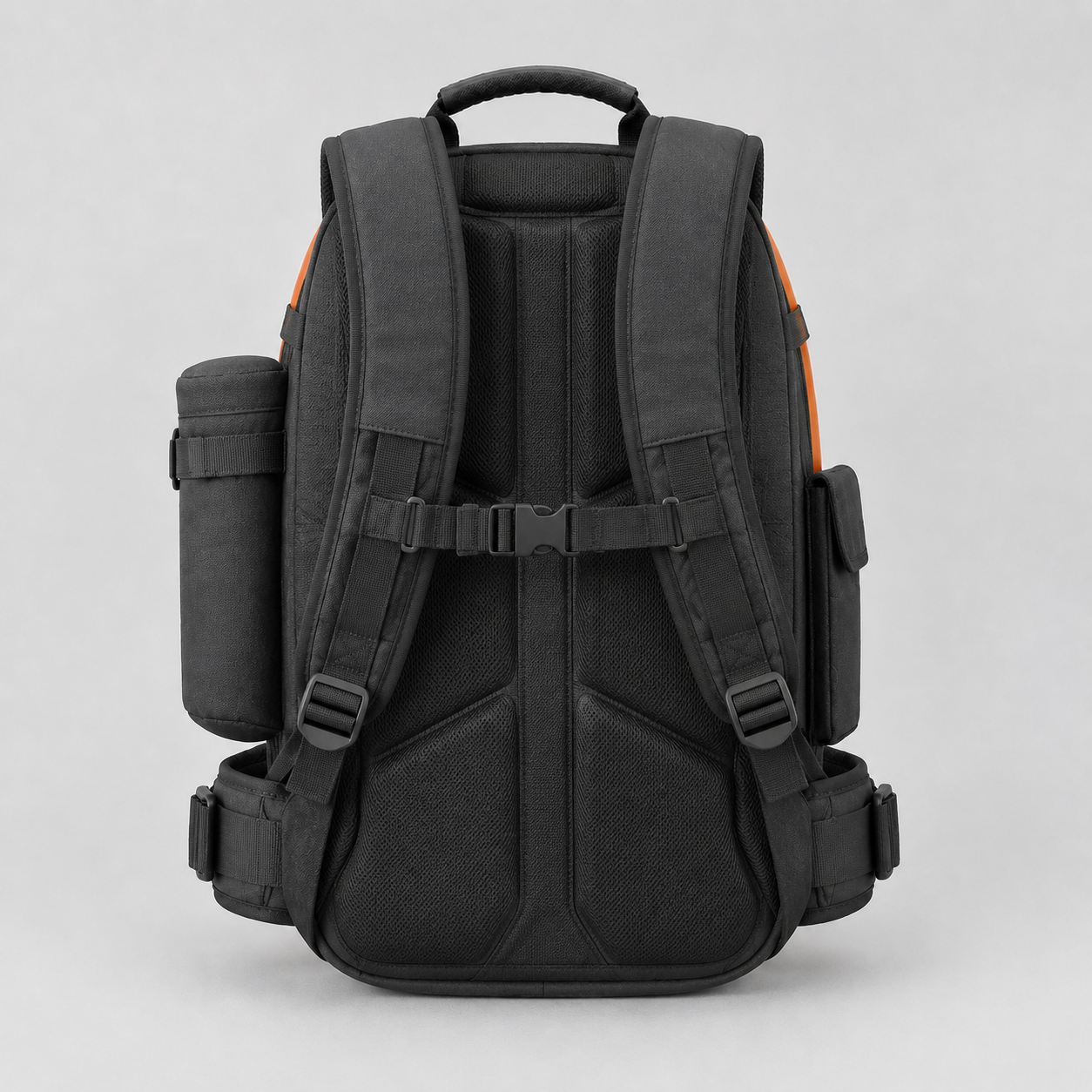
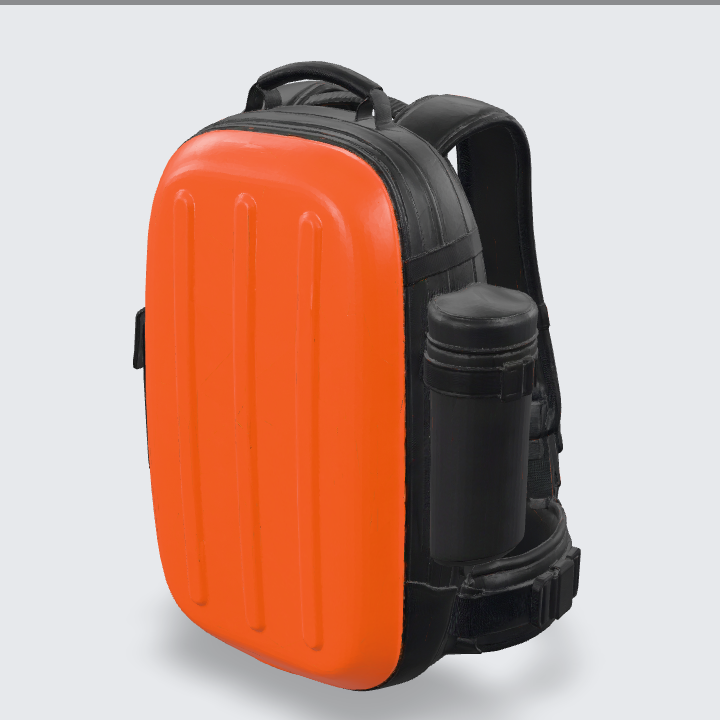
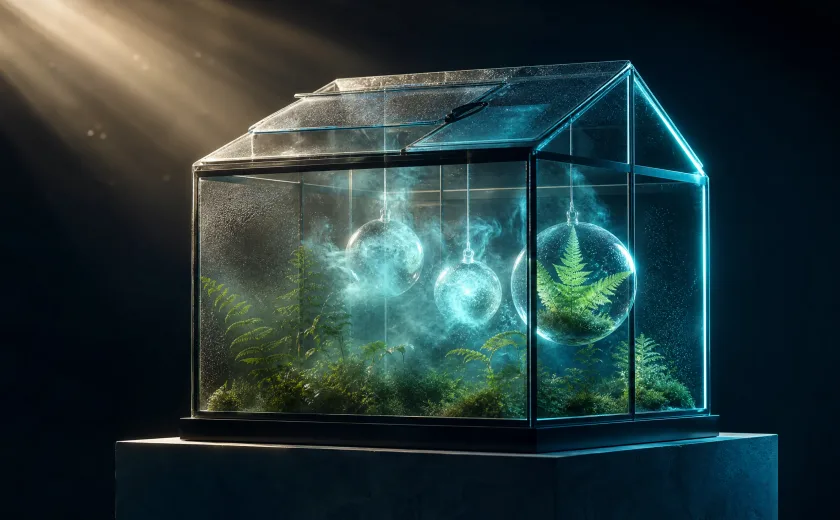
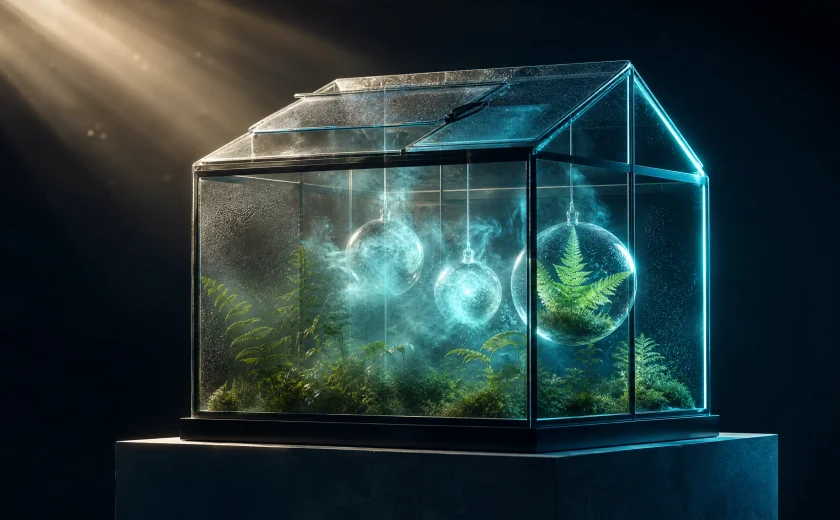
The ammonite case starts from the complete fossil prompt, while the survey-pack case uses three actual images with the recorded mesh and texture parameters. Read the original prompt or input object, compare all source views with the preview and rotate the actual returned GLB. Inspect silhouette, spiral or equipment details, back surfaces and material continuity within each independent case.

Prompt

A single large ammonite fossil partly exposed in an irregular palm-sized limestone block. Clearly coiled raised spiral with evenly spaced rounded ribs and a thick outer whorl, naturally broken stone edges and a stable rough flat underside. Warm ochre fossil, cool pale gray limestone, fine mineral pores, restrained weathering. Museum specimen with convincing depth and continuous spiral geometry. One solid object, no stand, labels, lettering or surrounding scenery.

Generated model preview image
Loading 3D model
Interactive generated 3D model

Recorded request input

{ "topology": "triangle", "target_polycount": 30000, "should_remesh": true, "symmetry_mode": "auto", "enable_pbr": true, "pose_mode": "", "enable_rigging": false, "enable_animation": false, "enable_safety_checker": true, "image_urls": [ "https://cdn.vidgo.ai/apis/models/meshy/v6/multi-image-to-3d/v1/01/input.png", "https://cdn.vidgo.ai/apis/models/meshy/v6/multi-image-to-3d/v1/01/side.png", "https://cdn.vidgo.ai/apis/models/meshy/v6/multi-image-to-3d/v1/01/back.png" ], "should_texture": true }

Object view 1
Object view 2
Object view 3
Generated model preview image
Loading 3D model
Interactive generated 3D model

Creative Use Cases for Meshy 6

Prepare an object brief, a clear reference image or complementary views, then choose geometry and material controls for the intended use. Generate and inspect the model from several angles. Reviewed assets can support game-prop concepts, museum-object studies, environment miniatures, mechanical objects, character preparation and visual scene development.

Game-prop concepts

Describe a standalone object and its readable silhouette or provide an approved picture. Choose the mesh settings and inspect geometry and material regions before developing the prop for a game scene.

Museum-object studies

Prepare a specimen or artifact description with distinctive surface and structural details. Inspect the generated model’s front, back and underside for a visual study or educational scene proposal.

Environment miniatures

Describe a compact architectural or geological piece with connected parts and clear openings. Review the mesh, materials and silhouette from multiple angles for a scene-development miniature.

Mechanical object concepts

Prepare text or source views showing the object’s parts and material regions. Generate and inspect seams, part separation and volume to explore a mechanical prop or visual design.

Character preparation

Provide a suitable character description or image, select pose and rigging controls, and enable rigging before requesting animation. Inspect the returned asset and associated files for the planned character workflow.

Visual scene development

Prepare consistent source views and choose topology and surface settings for an object. Inspect the result in the intended 3D application before placing it into a scene or revising the creative direction.

Meshy 6 Specifications and API Pricing

Meshy 6 uses the current per-generation amount shown for each task in the dynamic table. The existing task estimator applies the same generation tier across the accepted mesh, material, rigging and animation inputs. Open the exact task with your intended settings to review the complete amount before submitting and plan variations by the number of requests.

ModelProviderWorkflowInput materialOutput contentsStarting rate
Meshy 6 Text to 3DMeshyText to 3DObject prompt3D model / material files$0.3 / generation
Meshy 6 Image to 3DMeshyImage to 3DExactly 1 source image3D model / material files$0.3 / generation
Meshy 6 Multi Image to 3DMeshyMulti Image to 3D1–4 source views3D model / material files$0.3 / generation

How to Use Meshy 6 on Vidgo

Test your creative brief online, then bring the verified request into your application.

Test online

Generate a result with your intended settings

Open the selected Meshy task, enter the object description or required images and configure the intended mesh and material controls. Review the generation amount, submit and inspect the preview and model from multiple angles. Retrieve the related files and review shape, surface and any requested character data in the intended workflow.

Why Use Meshy 6 on Vidgo

Choose a task, inspect its settings and cost, and follow the result from an online test to an authenticated API request.

Creative testing and task selection

Choose inputs around your creative goal

Choose text for an object description, one image for a single-view reference, or the multi-image task for one to four complementary views. Set topology, target polygon count, remeshing, symmetry and material direction. For a character, choose pose and rigging; request animation with rigging enabled.

Inspect your object with the intended settings

Open the selected Meshy task, enter the object description or required images and configure the intended mesh and material controls. Review the generation amount, submit and inspect the preview and model from multiple angles. Retrieve the related files and review shape, surface and any requested character data in the intended workflow.

Review the estimate before generation

Use the current per-generation amount for the selected task and the number of planned object variations. Review the full request settings and amount before each submission, and retain the original inputs when comparing results.

API integration and result management

Learn from complete recorded examples

Read the actual prompt or recorded input parameters and compare source images with the model preview and interactive result. Inspect silhouette, geometry and materials from several angles before adapting the workflow to your object.

Track each generation with its task ID

Retain the task ID returned by the API to query status and retrieve completed file URLs. Use your online generation history to review earlier results and the creative direction you tested.

Follow the documentation for the selected task

Use the documentation linked from each task for its exact model identifier, accepted inputs, authentication and response format. Integrate the same task you tested online so its media and settings match the request.

Meshy 6 API FAQ

Meshy 6 is a 3D-generation family on Vidgo with text, single-image and one-to-four-image workflows. It exposes mesh, texture, PBR, pose, rigging and animation controls, with animation requiring enabled rigging. Each selected task returns its recorded model and related files through the standard task workflow.

Browse all models